
With ADVOCATE it is easy to manage and track all interactions with your students and their parents. Every time you meet with, send an email, or phone a student or his or her parents, that information can be tracked in the Contact Log.
Note: The AVCOUNSELORS file must be populated with data prior to creating contact items. See Managing Counselor and Staff Information for information beginning on page X.
Creating A New Contact Log Item
- Navigate Home > Create new Contact Log item.
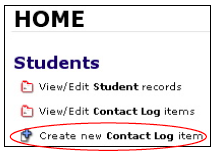
The Create Contact Log Item dialogue box will appear.
- Find the student you wish to create a contact for by clicking the Find button or by clicking in the Student field and selecting the student from the list.
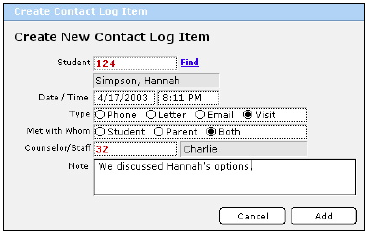
- The date and time of the contact will autofill but can be overridden if desired.
- Select the Type of contact.
- Record with whom you had the contact by clicking the appropriate radio button(s).
- Choose the counselor or staff who made the contact from the Counselor/Staff pull down list.
- Write any relevant notes in the Notes field.
- Click Add.
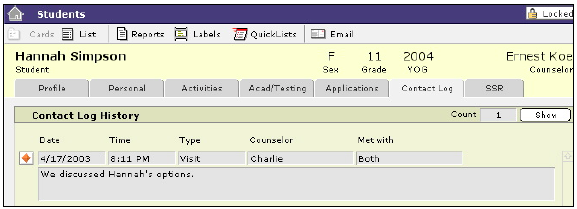
The new contact item will be added to the Contact Log History in the AVSTUDENTS file.
Viewing and Printing Student Contact Logs and History Reports
Viewing an Abbreviated Contact History for a Particular Student
- Navigate Home > View/Edit Student records > Contact Log.
- Find the student for whom you wish to view a contact log.
- Click Show next to Contact Log History.
- A list will appear.

Printing a Student Contact History Report for an Individual Student
- Navigate Home > View/Edit Student records > Contact Log.
- Find the student for whom you wish to print a contact history report.
- Click the Student Contact History Report button at the bottom of your screen.

- Depending upon which platform, operating system and printer you are using, a Page Setup or Print dialogue box will appear. Make your choices and click OK or Continue.
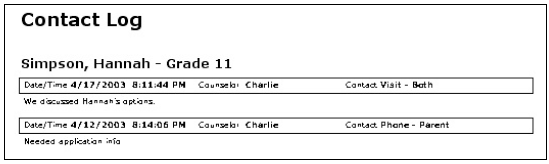
The Contact Log History report will appear.
- Select Print from the FileMaker Pro File menu at the top of the screen.
- Click Continue when the report has finished printing.
Printing a Contact Log Summary Sorted by Student Report
You can easily print a summary report of all interactions with your students, sorted alphabetically by student.
- Navigate Home > View/Edit Contact Log item > Overview.
- Click the Reports icon in the Task Bar.
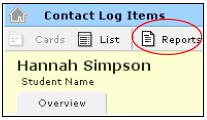
- Click the Contact Log Summary by Student button.
- Depending upon which platform, operating system and printer you are using, a Page Setup or Print dialogue box will appear. Make your choices and click OK or Continue.
- Select Print from the FileMaker Pro File menu at the top of your screen.
- Click Continue once your report has been sent to the printer.
To Print a Contact Log Summary Sorted by Counselor Report
You can easily print a summary report of all interactions with students sorted alphabetically by counselor.
- Navigate Home > View/Edit Contact Log item > Overview.
- Click the Reports button in the Task Bar.
- Click the Contact Log Summary by Counselor button.
- Depending upon which platform, operating system and printer you are using, a Page Setup or Print dialogue box will appear. Make your choices and click OK or Continue.
- Select Print from the FileMaker Pro File menu at the top of your screen.
- Click Continue once your report has been sent to the printer.
Editing and Deleting Student Contact Log Items
- Navigate Home > View/Edit Student records > Contact Log.
- Find the student for whom you wish to edit or delete a contact.
- A list of all contact items will be displayed.
- Click the More Info icon next to the contact item you wish to edit or delete.
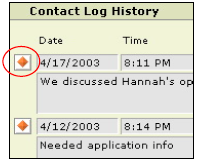
This will navigate you to that contact in AVCONTACTS.
- Edit the information as needed.
- To delete a contact, select Delete Record from the FileMaker Pro Records menu at the top of the screen.
Caution: Once a record has been deleted, there is no undo.
