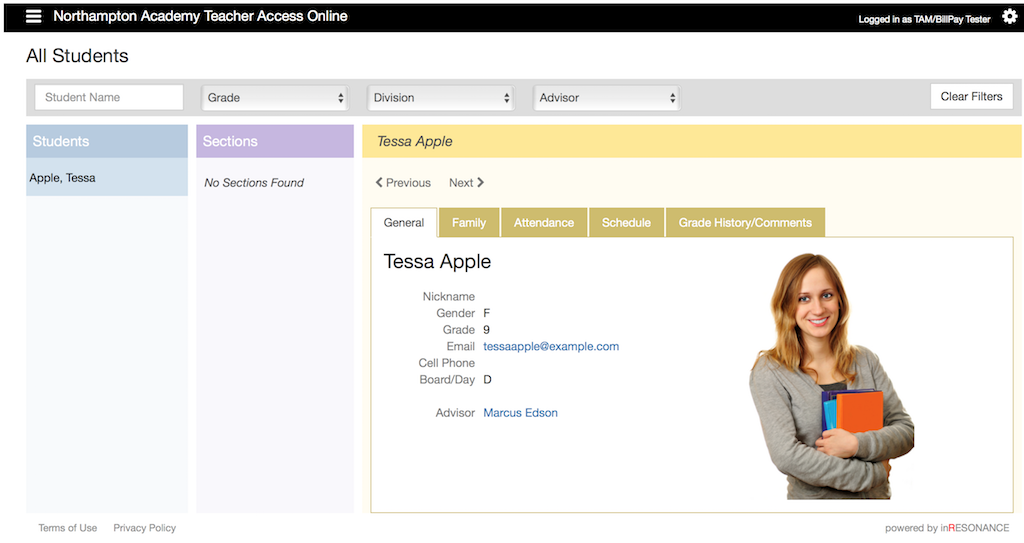
Student information is listed for each student in the My Students and All Students domains. It is divided into general, family, attendance, schedule, and grade history/comments tabs.
My Students lists the students in all the teacher’s sections for the current term. Only TAM2 users with the Teacher or Attendance roles have access to My Students.
All Students contains all the currently enrolled students and provides filters for finding groups of students. All TAM2 users have access to All Students.
Once a student is selected, the information about them is the same in either view.
Using My Students:
- Select My Students from the
 hamburger dropdown menu.
 - Select the Section. The students in that section will appear in the students column.
- Select the Student.
- Click the General tab to view student information such as grade, email and advisor name.
- Click the Family tab to view family information such as address and parent contact details, as well as emergency contact information. If a student has more than one family, each of their families will have a tab under the Family tab.
- Click on the Attendance tab to view the student’s attendance for the current academic year. The top grid shows the attendance summary by attendance codes and terms. The list at the bottom displays each attendance incident, including the section if relevant, and any attendance notes.
- Click on the Schedule tab to see the student’s schedule information. The Schedule grid displays the schedule for the current term. The Courses Information list below shows all the student’s section for this academic year. Please note that sections not assigned to a room or timeblock (such as an independent PE) will not display in the schedule grid, but will be on the list.
- Click on the Grade History/Comments tab to view the Marks and Comments for this section for the current marking period. You can click on View Section Comment to see the section comment for this marking period. Click on View Grading History to see a summary of all the marks and comments for this section for the current academic year.
Using All Students:
- Select All Students from the hamburger dropdown menu.
- You will see a list of all the students. You can either scroll down the list to find a student or use the filters at the top to find an individual student or group of students. You can also use the Student Name box to find students based on first or last names. To clear your filter selections, click on the Clear Filters button.
- Once you have found the student, click on their name to select them. You will then have a list of their sections. You will also see the general information for the student. The General, Family, Attendance, and Schedule tabs work the same as with My Students.
- To view Grade History/Comments first select a Section for the student, then click on the Grade History/Comments tab. To change sections, just select another section from the list. Otherwise the Grade History/Comments tab works the same as with My Students.