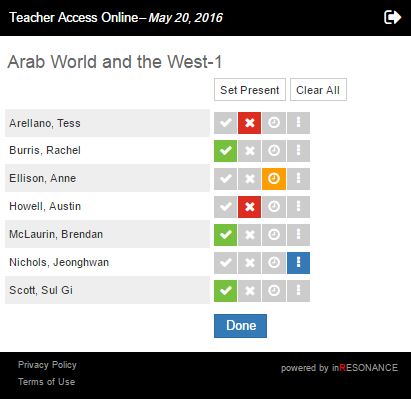
Section Attendance may be taken from the mobile application (MobileTAM). Please note the link for MobileTAM is different from the link for TAM2. If you do not know your MobileTAM link please contact your tech support, or inRESONANCE support.
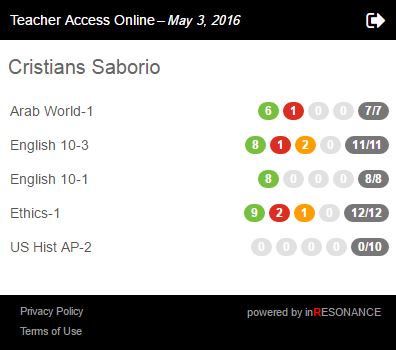
The fraction of students for whom attendance has be taken is displayed in gray next to the section name. The number of students who are:
- present is displayed in green
- absent is displayed in red
- late is displayed in yellow
- partially absent is displayed in blue
- Select the Section. The student list for that section will appear.
- Click All Present if all student are present.
- Select present, absent, or late for each student.
- Click the Clear All button to undo all attendance marks. Attendance notes will not be deleted.
- Click Done.