
Adding a vaccination record
- From the Home screen, Patients tab, click on Browse Patients.

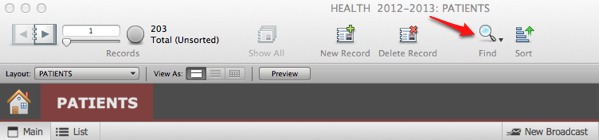
- Perform a find for the patient for whom you wish to add a record.
- Navigate to the Vaccinations tab.
- Locate the field for the vaccination that you would like to add. The name of the vaccinations are located to the left of the field.
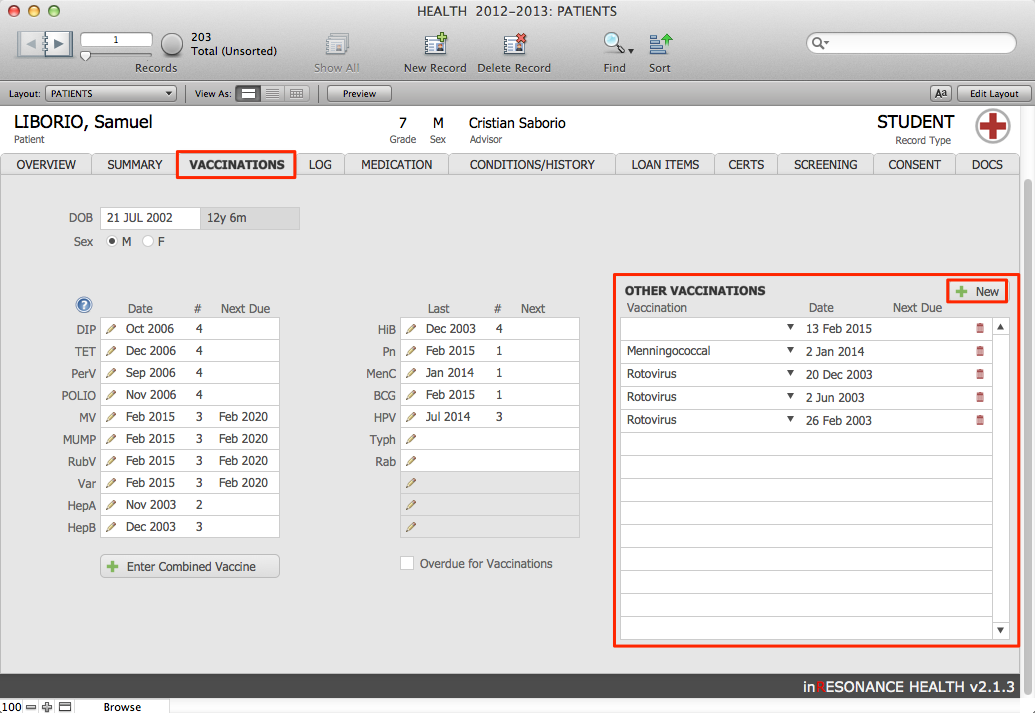
- Once you have located the proper vaccination, click the pencil icon next to the field.
- A dialog box will open, named Edit Vaccination.
- Click the New button. Today’s date will autofill.
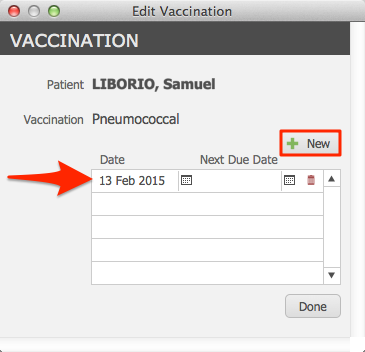
- Enter the Due Date and the Next Due Date.
- If you want to delete a vaccination that you’ve added, click the red trash can icon to the right of the vaccination.
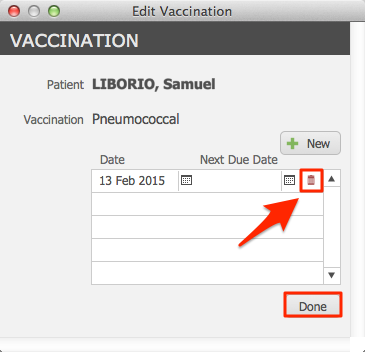
- Click Done.
Adding combined vaccinations
- At the bottom of the Vaccinations tab, click the New Combined Vaccination button.
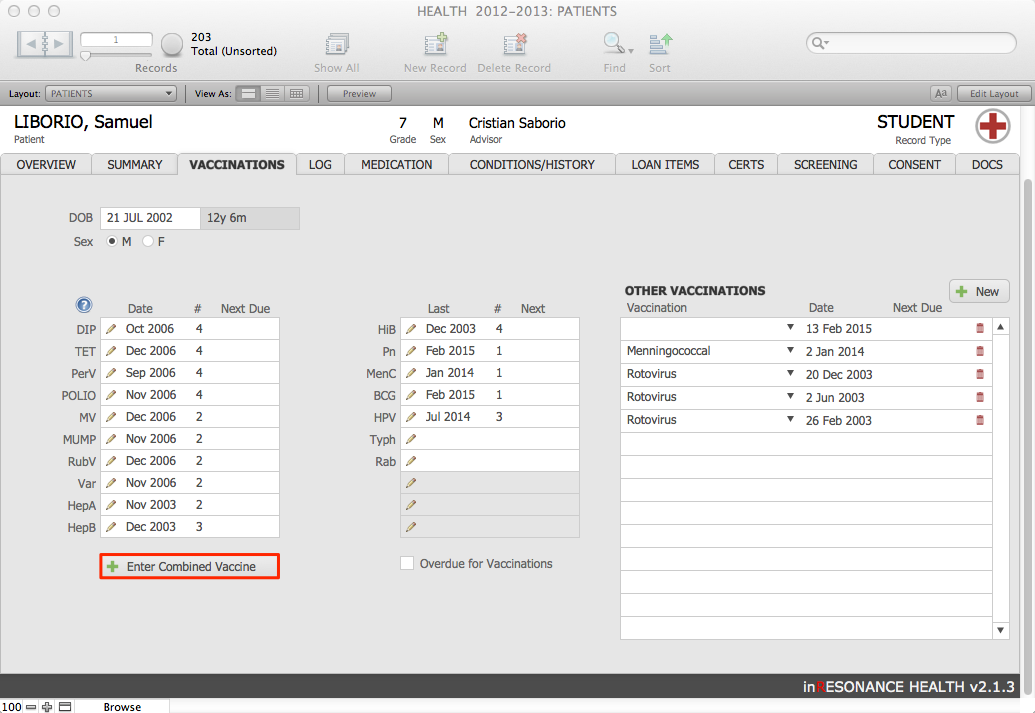
- The New Multi Vaccination window will appear, where you can enter details:

- Select the Vaccination from the pull-down menu.
- Enter the Date and Due Date.
- Click Add Vaccinations.
Adding other vaccinations
- Next to the Other Vaccinations field, click the New button.
- The Edit Other Vaccination(s) window will appear.
- Click New.
- Select the Vaccination you would like to add from the pull-down menu.
- Enter the Date and the Due Date.
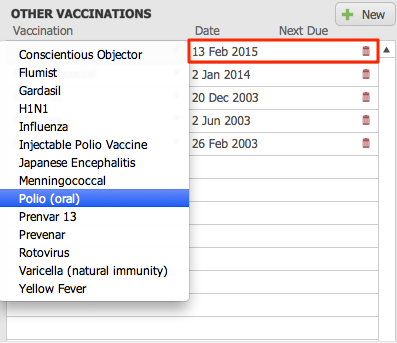
- If you want to delete a vaccination that you’ve added, click the red trash can icon to the right of the vaccination.
