
Within PWS: SOURCES MAIN, you can edit the email messages used in six notifications:
- Email Applicant that their application has been submitted. In the case of a multi-part application, this indicates all parts have been submitted.
- Email Applicant that their application payment has been submitted (Part One of an optional multi-part application).
- Email Inquiry that their inquiry has been submitted.
- Email School that an application payment has been submitted (Part One of an optional multi-part application).
- Email School that an application has been submitted.
- Email School that an inquiry has been submitted.
You can modify email notification messages in PWS: SOURCES.
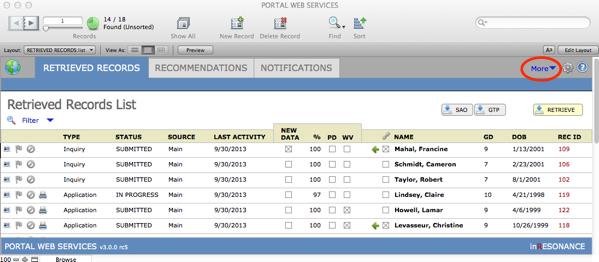
- Click on More > SOURCES in the top right task bar area. This will open the PWS: SOURCES window.

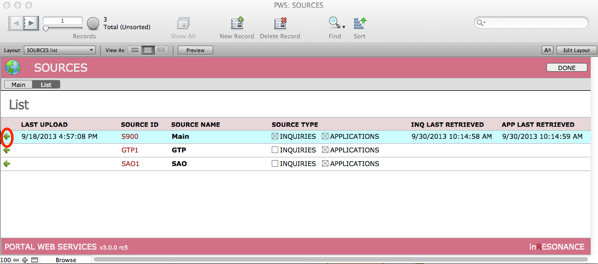
- If you accept applications via Gateway to Prep (GTP) or Standard Application Online (SAO), you will see this screen. Click on the green arrow at the left end of Source Name: Main. You will be taken to the PWS: SOURCES MAIN screen.
- On the SETTINGS tab, find EMAIL NOTICES. This is where you will edit the content of your email messages for notification purposes.

- Click the appropriate Email notice, and click Download.
- Edit the email:
- Email Applicant is received by the applicant once their application has been submitted to your Office. In the case of a multi-part application, this means all parts have been submitted. This email will be sent to the email address used by the applicant when creating their user/applicant account.
- Email Applicant Application Payment is received by the applicant to confirm that Part One of a multi-part application has been submitted.
- Email Inquiry is sent to all email addresses on the Inquiry form.
- Email School Application Submission is a notification received by the Admission Office when an application has been submitted online by an applicant.
- Email School Inquiry Submission is received by the Admission Office when an Inquiry has been submitted online.
- Use the Email To field to specify an “Email to” address where internal Inquiry Submission and Application Submission notices will be sent.
- For all notices, check that a correct Reply To and From email address, and an appropriate Subject Line appears in the appropriate fields. The email address will most often be the Admission Office email address.
- When you are finished editing your notices, click the Upload button in the upper right corner to upload your changes to PWS. When the Upload is complete, a dialog box will appear. Click OK to close.
Modifying Instructions for Inquiry, Application, Payment, and Recommendation ›
