
As PORTAL users, we have a few ways of informing applicants and their families that they are missing required documents to complete their application. We can use the Missing Items postcard letter, update our PORTAL Web Services website, and even call the families.
The Missing_Required calculation uses the built-in process step logic to build a text block of the missing forms (with the items separated by carriage returns). Once we build this calculation, we can include it as a merge field in letters or broadcasts. The customization for each is slightly different.
The following customization is offered in two versions. We recommend doing both:
- A customization to add a Missing_Required_ltrs field for the purpose of merging a list of missing items into anything that will be printed (letters, for example).
- A customization to add a Missing_Required_BC merge field to a message in BROADCASTER 3.
This documentation is designed for Level 2 users. You must be comfortable with creating and editing FileMaker database fields, and editing FileMaker layouts. This process should take about 30 minutes or less to complete.
How to construct Missing_Required calculation field in PORTAL 4 (for printed letters)
A customization to add a Missing_Required_ltrs field for the purpose of merging a list of missing items into anything that will be printed (letters, for example).
New Fields required:
- Missing_Required_ltrs (calc)
- ps_20_label (text) missing in versions up to and including PORTAL_4.2.1
Preparation work:
- Ensure that you have a good backup of your FileMaker databases.
- Download the Missing_Required.txt file.
Detailed instructions:
- Open the Missing_Required.txt file in a text editor (Text Edit, Notepad, Wordpad, etc.)
- Login to PORTAL with Admin level privileges.
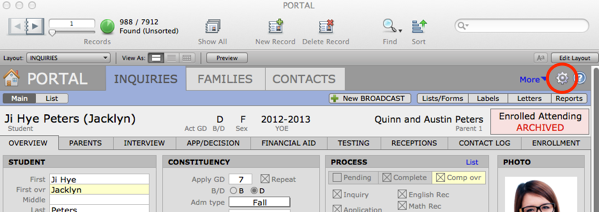
- Click on the gear button to go to PORTAL Preferences.
- Click on the Process tab and look at the label fields on the left side of the matrix.
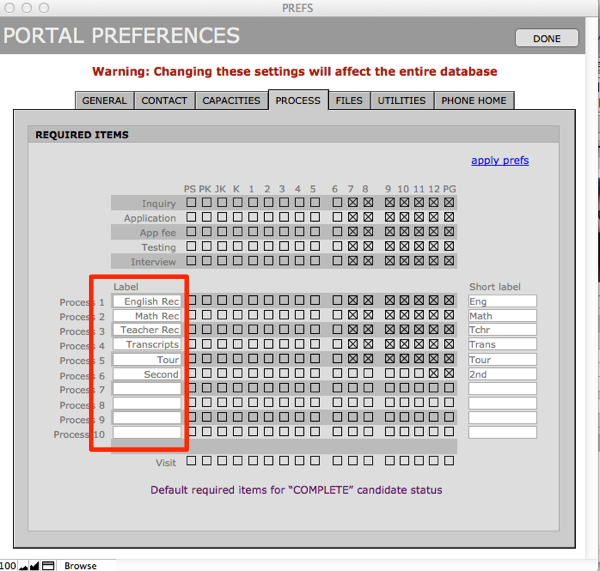
These names are what is included in the Missing_Required_ltrs calculation, so you want these labels to be meaningful to your parents. You may want to change the text of these labels (i.e. change Math Rec to Math Recommendation).
- When you are satisfied with the labels, click apply prefs, and then click Done.
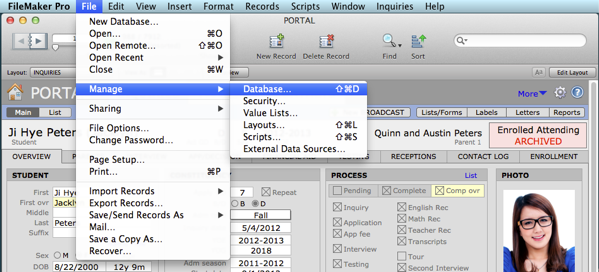
- Back at the Inquiries tab, go to FileMaker File menu > Manage Database.
- Make sure you are on the Fields tab and the table dropdown is set to INQUIRIES.
- Find the ps_20_label field and select it. Click on the Duplicate button. Then change the name to ps_21_label, and click on Change.
- This field is missing in earlier versions of PORTAL.
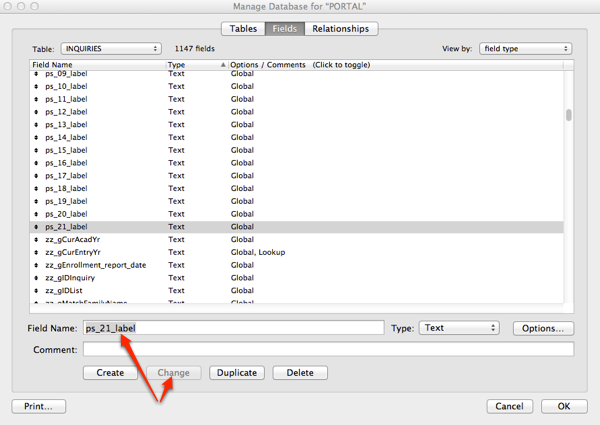
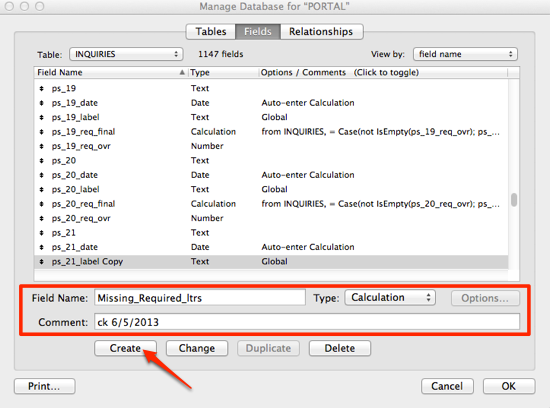
- You now need to create the Missing_Required_ltrs calculation field. While you have the ps_21_label field highlighted:
- Enter in the Field Name: Missing_Required_ltrs
- In the Comment section: Put in your initials and today’s date (so you have a record of when you made this change).
- For the Type, select: Calculation
- Click on the Create button.
The Specify Calculation window will open. You will need to make the following changes:
- Copy the text from the Missing_Required.txt file you downloaded, and Paste it into the large text box.
- Set the “Calculation Result is” to: Text
- Set the “Number of repetitions” to: 1
- Check the “Do not evaluate if all referenced fields are empty” checkbox.
- Click on the Storage Options button.
- Check the “Do not store calculation results” checkbox.
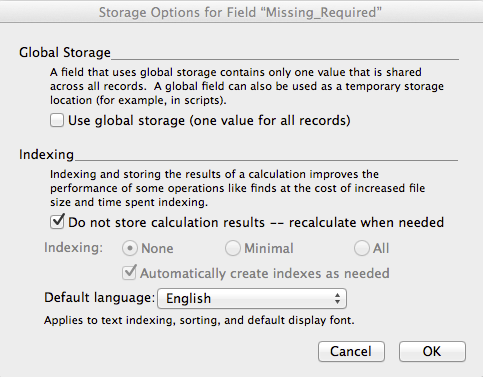
- Click on OK, OK, and OK to save your settings and exit Manage Database.
Testing Procedure:
- Back at Inquiries, go into Layout mode, Copy a bigger text box field (such as Second_visit_classes from the Receptions tab) and Paste it where you have some blank space on a layout (such as Financial Aid). This is just temporary.
- Point the new field at Missing_Required_ltrs, and save the layout.
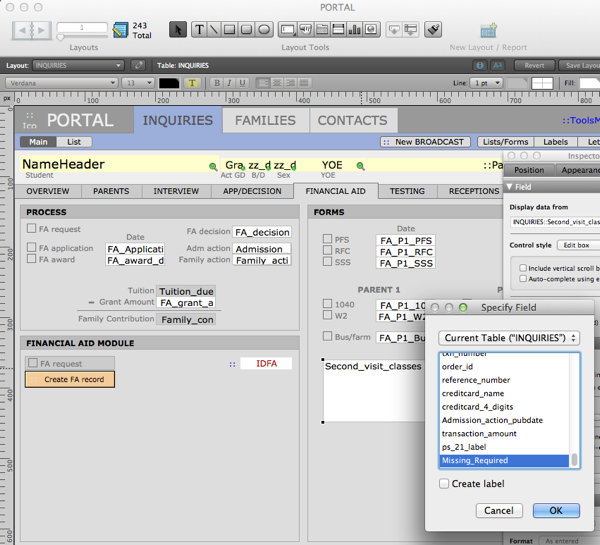
- In Browse mode, Find a few incomplete applications (missing required items), navigate to the Financial Aid tab where you have your Testing area set up, and see what shows up in their Missing_Required_ltrs text box.
- You may need to click in the box to have the calculation results appear.
- Check to make sure that all missing required items are listed.
- It is normal to have a blank line after the last missing item.
- Find a few complete applications and make sure they have no items in Missing_Required_ltrs.
- If all is well, go back into Layout mode, and get rid of the testing text box.
Using Missing_Required as a merge field in a Letter (print)
Missing_Required_ltrs is intended for use as a merge field in a printed letter. Since it returns a block of text it should probably be used as follows:
Dear <<INQUIRIES::NameFirst_final>>,
Thank you for your interest in <<SchoolName>>.
Your application to <<SchoolName>> cannot be processed until all of the items listed below have been received by the Admissions office. Please send incomplete items as soon as possible.
<<Missing_Required_ltrs>>
Sincerely,
Natalie Montgomery
Admissions Director
Northampton Academy
How to construct Missing_Required_BC calculation field in PORTAL 4 (to use with BROADCASTER 3)
This is a customization to add a Missing_Required_BC merge field to a message in BROADCASTER 3.
Perform the above customization before you do this version. The process for the second customization is identical to the process listed above, but the content of the calculation is different (it contains html), and the new field must be added to the list of merge fields in BROADCASTER 3.
New Fields required:
- Missing_Required_BC (calc)
Preparation work:
- Ensure that you have a good backup of your FileMaker databases.
- Download the Missing_Required_BC.txt file.
Detailed instructions:
- Open the Missing_Required_BC.txt file in a text editor (Text Edit, Notepad, Wordpad, etc.)
- Login to PORTAL with Admin level privileges.
- Click on the gear button to go to PORTAL Preferences.
- Click on the Process tab and look at the label fields on the left side of the matrix.
- When you are satisfied with the labels, click apply prefs, and then click Done.
- Back at the Inquiries tab, go to FileMaker File menu > Manage Database.
- Make sure you are on the Fields tab and the table dropdown is set to INQUIRIES.
- Find the Missing_Required_ltrs field and select it. Click on the Duplicate button. Then change the name to Missing_Required_BC, and click on Change.
- You now need to create the Missing_Required_BC calculation field. Double click to open the Missing_Required_BC field:
- Enter in the Field Name: Missing_Required_BC.
- Copy the text from the Missing_Required_BC.txt file you downloaded, and Paste it into the large text box, replacing the text from the “Missing_Required_ltrs” calculation.
- All other settings remain the same.
- Click on OK, and OK to save your settings and exit Manage Database.
- Follow the Testing Procedure listed in the first customization, above.
- You will have to add the Missing_Required_BC field to the list of Merge Fields in BROADCASTER before you can use the new field in a broadcast.
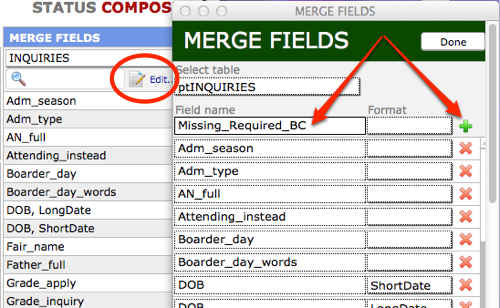
- Send the test Broadcast and verify that it is what was expected.
‹ Adding Fields to Import into KEYSTONE When You Click ADMIT in PORTAL (Video) inRESONANCE Documentation Home ›
