
Create teacher recommendation forms in PWS Recommendations: Forms. You may create a new form from scratch, or, if it will save you effort, you can duplicate an existing form and change it into a different form.
The workflow for creating a new form is:
- Review the paper form that will serve as your prototype and plan which form elements will work best for your form.
- Create New Form or Duplicate existing form.
- Enter form details.
- Add/edit form elements.
- Upload form.
Navigate to PWS Forms
- From within PWS Admin, click on MORE > FORMS.

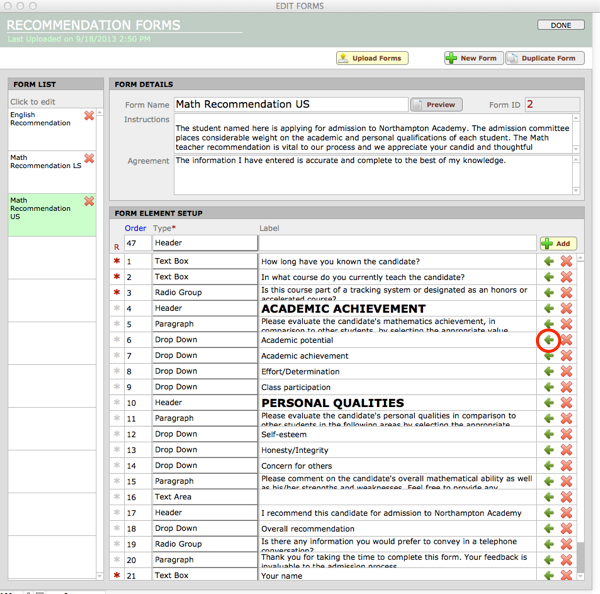
- This takes you to the Edit Forms window for creating recommendation forms, where you will be able to view a list of existing forms; clicking on one form in the Form List opens the structure of that form, which you can duplicate or edit. You can also begin building a new form here:
Form List
- A list of forms that already exist.
Form Details
- Form Name will display at the top of the form.
- Form ID is auto-generated by PWS.
- Instructions – This will display beneath the name of your online form. Insert a blank line before your text to give it padding.
- Agreement – A statement of confirmation for the Teacher’s agreement.
- NOTE: There is a Preview button here where you can view the form as it will display to a recommender. Preview your form as you edit.
Form Element Setup
This is where you construct your Recommendation Form, line-by-line.
Add a New element in the fields across the top of this list. New elements are automatically assumed to be added to the bottom of the list of elements, but the order of any element can be changed by changing the Order number. To view your elements in reverse order (which can be useful when building a long form), click the blue link Order.
Every element of your form must be associated with an element Type, as described in detail below.
A Label appears to the left of an element.
Creating a New Form
- Click the +New Form button. A new, blank form will be created. The name will auto-populate as New Form with the new Form ID.
- Fill in Form Details: Form Name, Instructions, and Agreement. The Instructions will display to the recommender, as will the Agreement. Add a blank line at the top of the instructions to create padding under the name of the form.
- Create new Form Elements (see below).
Creating a New Form by Making a Duplicate
Sometimes it is easier to create a new form by duplicating and editing a form that already exists.
IMPORTANT: When you duplicate a form, the value lists inside an element detail will not copy over. You will need to enter values for any elements that require them.
- From the Forms List on the left, select the form you want to duplicate as your starting point.
- Click Duplicate Form.
- A dialog box will pop up to confirm. Click Duplicate.
- Your new, duplicated form will appear, with COPY appended to the name, and a new, unique Form ID.
- Change the Form Name, Instructions, and Agreement. The Instructions are to the recommender, as is the Agreement.
- Add/edit Form Elements as needed. Remember to check the element details by clicking on the green arrow; values from the original form will not copy into the new form, you must enter new values in Element Detail.
Form Element Setup in PWS
Create new elements by entering data into the top row of the Form Element Setup.
- Every form designer will develop their own preferred workflow. To add a new Element, you can either first click the +Add button; a blank Element will appear below, in Form Element Setup—or you can fill out some or all of the details first and then click +Add. Elements can be edited after they are created.
- Set the Order in which the element will appear on the form (1 = top). For ease of creating long forms, you can click on the Order heading to reverse the order of the elements as you work. This changes the order only in this working location; it does not affect the order of elements in the form on the web site. Order numbers can be adjusted as you work on your design.
- Select a Type. See the next article, PWS Form Elements Explained, for more information on the different element types.
- Write a Label to appear for the created Element.
LAYOUT TIP: The Label appears to the left of your element. If you want a label to have a carriage return in a specific location, so as to create a particular line break, create your element first and then add the label after you have created the element.
When creating an online recommendation, simple formatting can be applied to the instructions, agreement, and field labels—using Filemaker’s formatting options (select the text to be formatted and control+click). The formats will appear properly in the PDF version of the recommendation as well as the online form.
Adding Detail to an Element
Many elements require more than just a label. To add detail or values to an element, use the Edit Element window.
- Navigate to the Edit Element window for any element by clicking the green arrow button at the right end of the line for the desired element.
- Edit the Label as appropriate, and enter Field Values. In the case of multiple values, place a return after each value.
- Click Done to return to the form.
Testing Your Recommendation Form
You can send a request for a recommendation to a test recommender in your office. Make sure you use a different email address than the one you use for submitting applications to the Admissions office.
Finishing and Uploading Your Form
- Click the Preview button to see your form as you work.
- When finished with your form, click Upload Forms to refresh the form.
