
- Open FileMaker Pro on your desktop.
- From the File menu, select Open Remote.
- Connect to the FileMaker Server and the Teacher Access file. Your FileMaker Server administrator will provide you with details on how to connect.
- Click Open.
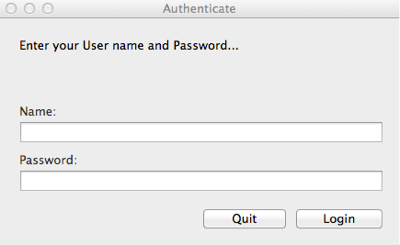
- You will be presented with an authentication dialog box. Enter your User name and Password (provided by your FileMaker Server administrator) then click Login to continue.
Getting Started
When you first log into Teacher Access, you are presented with the Dashboard. There are a total of four screens—Dashboard, and Students—where you will do your work:
- The Dashboard allows you to view your scheduled classes, see a list of your advisees, view or print your graphic schedule, and change your Teacher Access password.
- From Students you are able to view a list of your students, view biographical information about individual students and their family or families, view classes, grades, comments and attendance incidents for individual students, and record contacts with individual students.
