
Students allows you to view biographical information for each of your students and advisees, see what classes they are enrolled in for the current term, view attendance incidents, and record contacts made with them. Students is divided into four sub tabs: Profile, Classes, Attendance, and Contact Log to help make managing students easier for you.
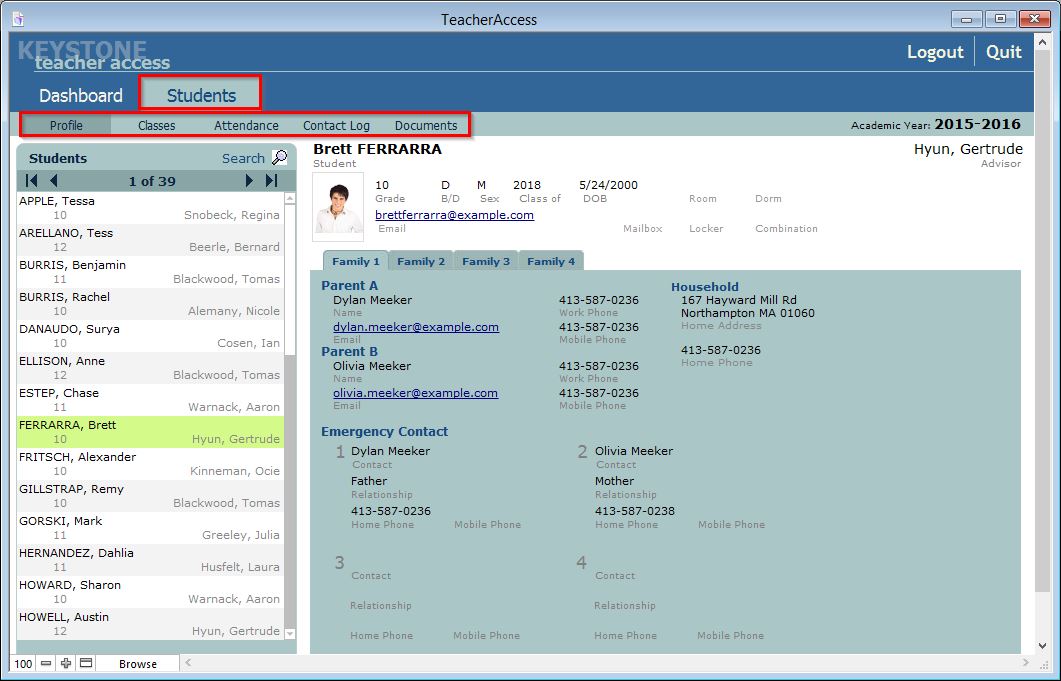
Searching for Students
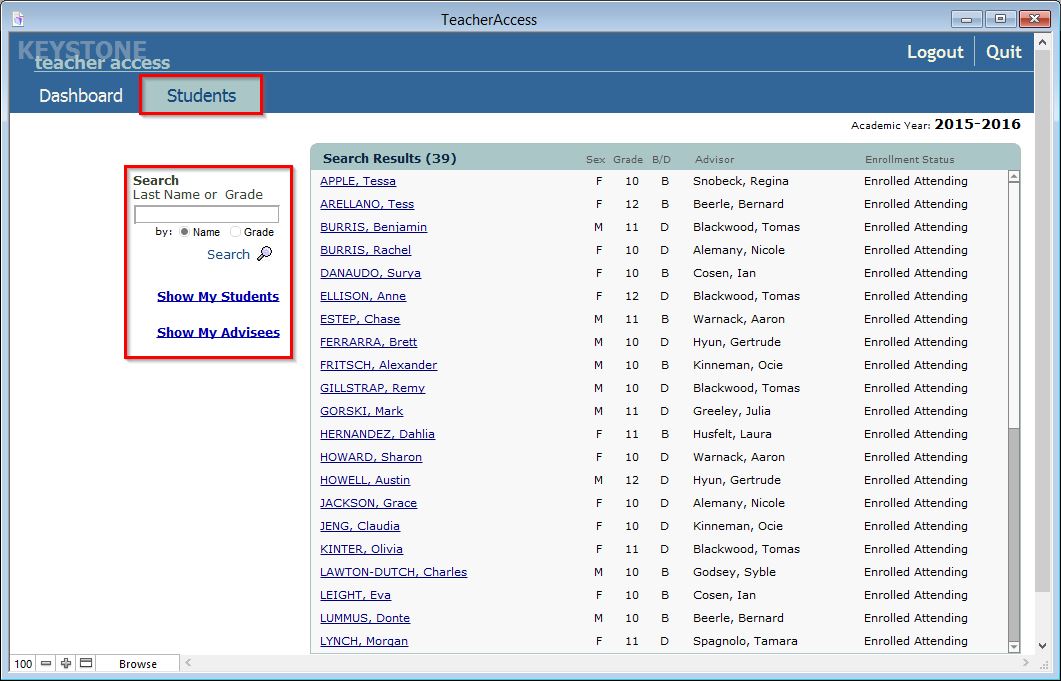
When you first click the Students tab you are presented with a screen that allows you to search for individual students by name or grade. Additionally, you can view a list of all the students you teach for the current term or all of your advisees.
When you first click the Students tab you are presented with the Search screen. You can return to this screen any time by clicking the Search icon.
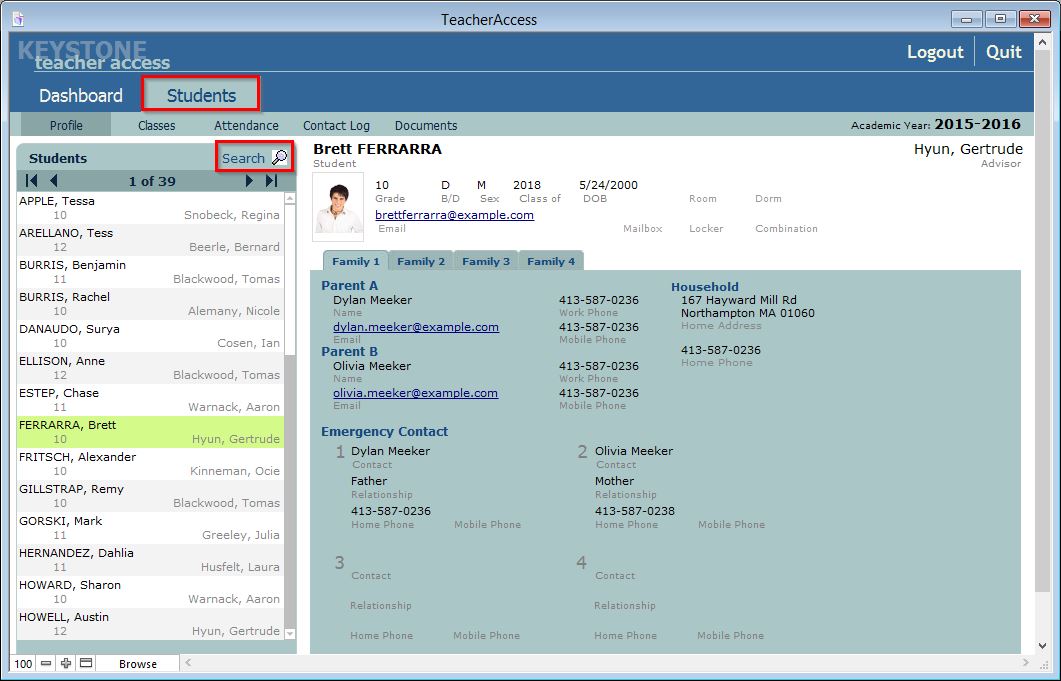
To search by a student’s name:
- If the Search field is not available, click the Search icon.
- Enter the full or partial name of the student in the Search field.
- Select the Name radio button and click the Search icon. You will see a list of all students with that name in the Search Results window on the right.
- Select the desired student by clicking on his or her name.
The Students > Profile screen will appear. To search for a new student, click the Search icon.
To search by a particular grade:
- Click the Search icon if you are not on the Search screen.
- Enter the grade of the student(s) in the Search field.
- Select the Grade radio button and click the Search icon. A list of all students in that grade will appear in the Search Results window on the right.
- Select the desired student by clicking on his or her name.
The Students > Profile screen will appear. To search for a new student, click the Search icon.
To display a list of all your students for the current term:
- Click the Search icon if you are not on the Search screen.
- Click the Show My Students link. A list of all your students will appear in the Search Results window on the right.
- Select the desired student by clicking on his or her name.
To search for a new student, click the Search icon.
To display a list of all your advisees for the current term:
- Click the Search icon.
- Click Show My Advisees link. link on the Dashboard. A list of all your advisees will appear in the Search Results window on the right.
- Select the desired student by clicking on his or her name.
To search for a new student, click the Search icon.
