
An applicant will be able to send email requests to teachers from inside the Action Items area of their own secure account in the PWS web site.
Please review this page regarding how to prevent recommendation emails being flagged as spam.
Send a Request for a Recommendation
These steps will be taken by the applicant.
- Login to their secure, online PWS account.
- Identify the required recommendations, and the due date. Required items are indicated by a red asterisk.
- To the right of the recommendation, click Send Request.
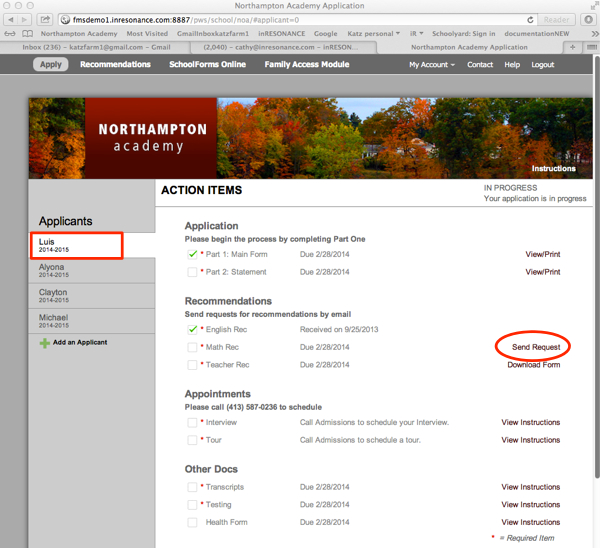
- A Recommendation Request dialog box will pop up.
- Enter the full email address of the desired recommender in the Email field.
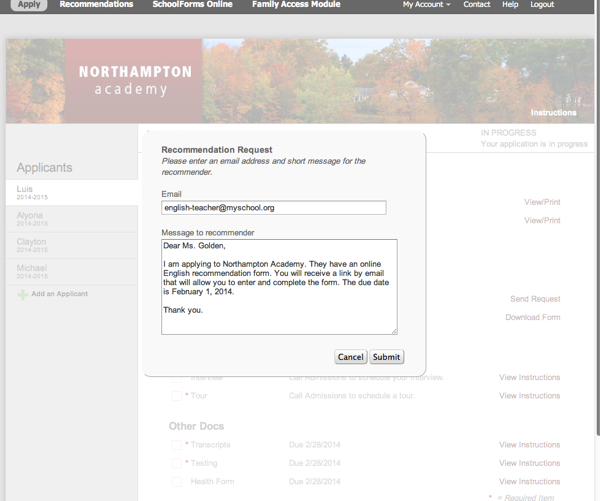
- Write a message to the recommender in the Message to recommender field. This message will appear in the email the recommender receives, along with directions auto-generated by PWS on how to activate their secure, online Recommender’s account and complete the recommendation. The applicant should include such information as what attributes they wish the recommender to highlight and, especially, the deadline for submitting the recommendation.
- Click Submit to send the request, or Cancel to exit.
Resend or Cancel a Request for a Recommendation
- The family should login to their online PWS account.
- Identify the request they wish to resend or cancel.
- To the right of the already-requested-but-missing recommendation, click Edit Request.
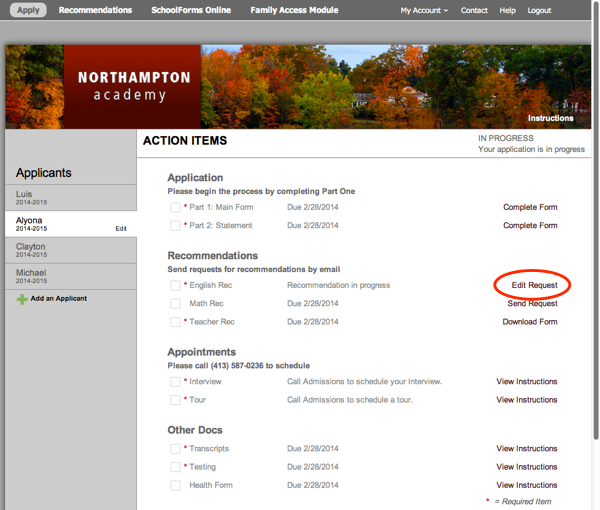
- A Resend or Cancel Recommendation Request dialog box will appear. The email address of the recommender will autofill in Email.
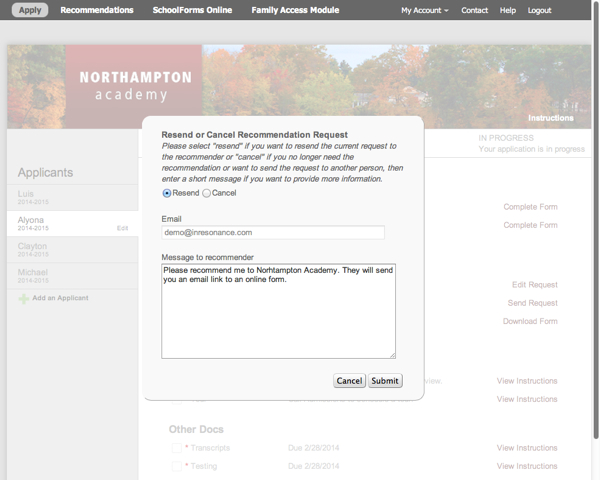
- Choose Resend or Cancel.
- Enter a message in the Message to recommender field.
- Click Submit to send the request, or Cancel to exit.
