
In BillPay, you are able to publish invoices and payments for your STUDENT BILLING (StuB) accounts. Fee payers in BillPay are those individuals from your family records in PORTAL or SANDBOX who are designated to have fiduciary responsibility as defined by the Payment Rule assigned to the student in STUDENT BILLING. StuB shares student data from Inquiries.
The workflow for creating logins in BillPay is:
- Sync logins
- Enable access
- Resolve conflicts
- Test the web site
- Notify accounts
Creating logins/roles with a sync
Sync Logins identifies all the potential logins/roles that are appropriate for BillPay.
NOTE: Sync logins works on a found set. If you want to sync logins for all students, select Show All records (in the FileMaker status area at the top of the window) before you perform the sync. If you wish to work on only one student, do a find for that student (or group of students) before you perform the sync.
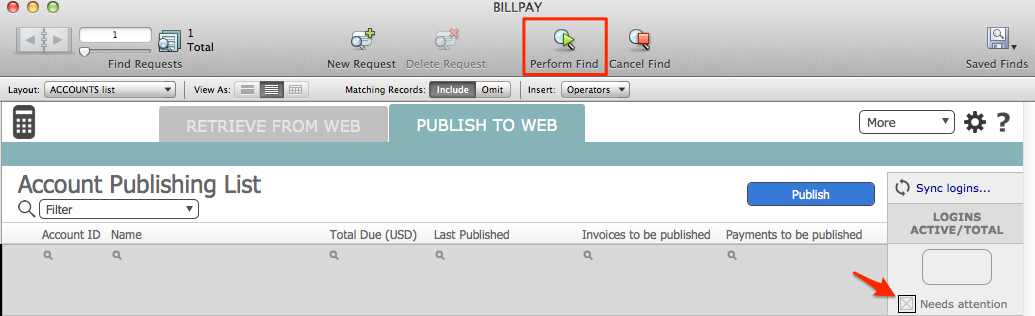
- Within BillPay > Publish to Web tab, perform a Find to gather your found set.
Look at the right hand column of the Account Publishing List.
- Click Sync logins.
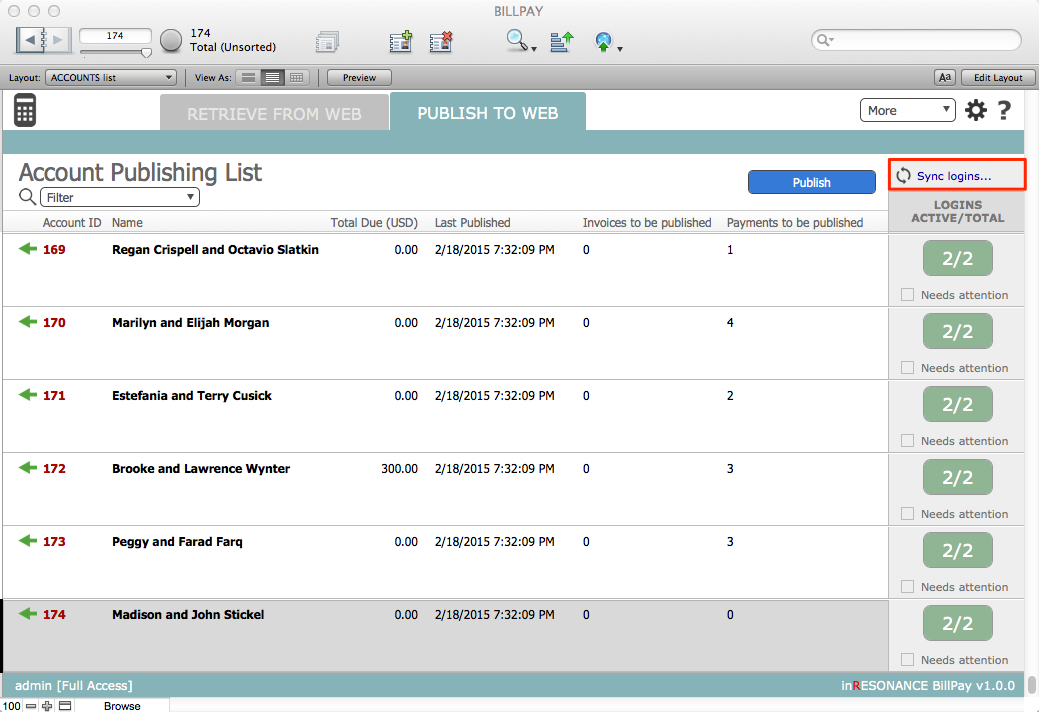
There may be a slight delay while BillPay processes your sync.
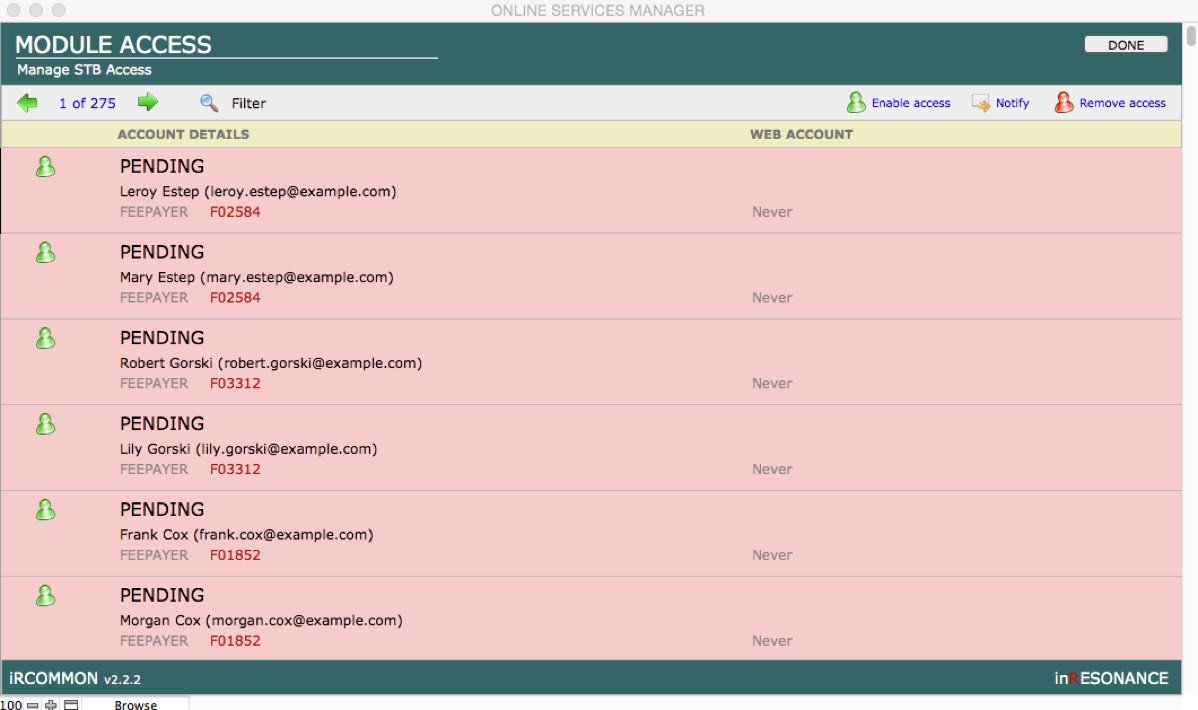
The Module Access screen opens, displaying a list of all possible logins/roles for this web service (BillPay). Note that you have entered iR COMMON, but you are looking at a filtered view specific to your web service.
The first time you perform a sync, all possible logins/roles will appear with a status of pending; they will be highlighted in pink.
Enabling access
In the Module Access screen, buttons that appear in the task bar across the top of the list—Enable access, Notify, Remove access—will act on every record in the found set.
- Click the Enable access button in the top task bar to enable access for the found set.

Resolving conflicts
- Scroll through your list to find highlighted records. These highlighted records have errors or conflicts that need to be resolved.
- White records (no highlight) – This role is enabled for this login.
- Pink highlight – This role is pending, not enabled. This usually indicates a conflict because one email address is being utilized by two people in this login family.
- Orange highlight – The role is attached to a login, but there is a conflict with data in the login family. A data conflict could be something as simple as a name appearing as all caps instead of what is expected. Click here for more information on resolving orange conflicts.
REMINDER: If you change data in your solution for a student or family, remember to go back into STUDENT BILLING and Deactivate and Activate the Student. This process will pull in any updated data.
Web services logins are created based upon an email address. Each login must have a unique email address. If there are two records in Module Access with the same email address, one login will be flagged as having a conflict.
NOTE: If two potential logins have the same email address, it is impossible to predict which of the two logins needs to be changed. Which of the two records is highlighted will be determined strictly by the order in which logins were created: the first one is created and the second one with the same email will be flagged. The point is, the highlighted login (which was created second) may be correct, and the one that was created first (but not highlighted) may in fact be the one that needs to be changed.
- Click Resolve conflict. A window showing the detail of the login will open.
- Determine whether the information in the white band at the top is correct (name, email, ID). Take special note to compare the IDs displayed.
- If the information in the white band is wrong,
- Correct it in the source (your core solution).
- Return to the web services file and Sync logins.
- Find the login and enable it again.
- If the information in the white band is correct,
- In the bottom left-hand area, select the correct login or enter a new email address.
- Click Enable access. If the login already had a different role for the same module, that role will be overwritten (information from the left will overwrite information on the right).
- If the information in the white band is wrong,
- Repeat until all logins have been created and enabled.
- When you are satisfied, click Done. This will return you to the Account Publishing List.
NOTE: If ever you want to return to the Module Access screen, perform a sync. There is no penalty affecting the work you have already done creating logins if you perform a sync.
Reviewing active accounts
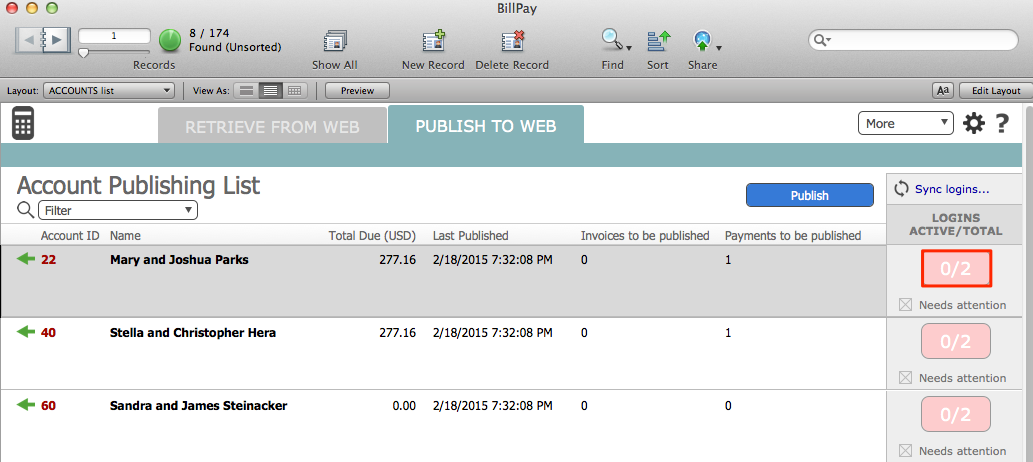
Check to see that all of the logins you wish to activate are ready. In the sync logins column, logins that are fully ready are green. Logins that require review are pink.
- On the Account Publishing List, perform a Find for any records where Needs Attention is checked. Logins that need attention are those where not all of the total possible ligins for a student are active.
- If your find produces any records that are not enabled, click into the pink LOGINS ACTIVE/TOTAL button to see a list of all possible logins related to a fee payer.
The Module Access interface will show you all the possible actions you can take for any one login. The buttons on the left act upon only the individual record.
NOTE: You do not have to enable every login. There will be cases where you do not want to enable a login.

- Decide if you wish to enable the logins with a pending status. If yes, click on the Enable access (green) figure.
- Click Done.
- A dialog box will appear to confirm your action.
