
Every transaction is marked with the Primary Constituent Code (PC) of the donor at the time the gift was entered. Even though a donor may have multiple Constituent Codes, only the Primary Code is attached to the transaction. Even after a donor’s PC changes (e.g. an Alumnus becomes a Trustee, or a Current Parent becomes an Alumni Parent after the student graduates), the PC attached to past transactions does not change.
In GENERATIONS, reports for a given fiscal year use the PC in a constituent record at the time the report is created. So be sure to run your year-end reports reflecting giving for different constituencies (not only the PC) before you adjust constituent codes for the next fiscal year.
For instance, a constituent might be an Alumna, a Current Parent, and a Trustee. You will want to report that constituent’s gifts in all three categories of your Annual Report, but it will be counted only once for the overall giving totals.
Run all of your year-end reports for constituent groups, then save them as pdfs for future reference.
To Run a Year-End Report
- Search for the Constituent Code on which you want to report. For example, in the Constituents > Overview screen, use the All Codes field to search for anyone who has a constituent code of Current parent (CP). All Codes will find any constituent with a particular code, even if it is not the Primary Code (PC).
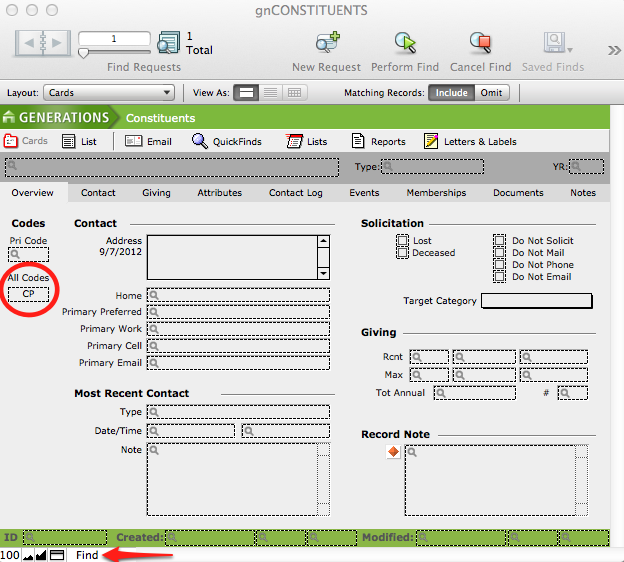
- Perform Find.
- The report we want to run is in the Transactions file; navigate there by using the Scripts menu > Show Related Transactions.
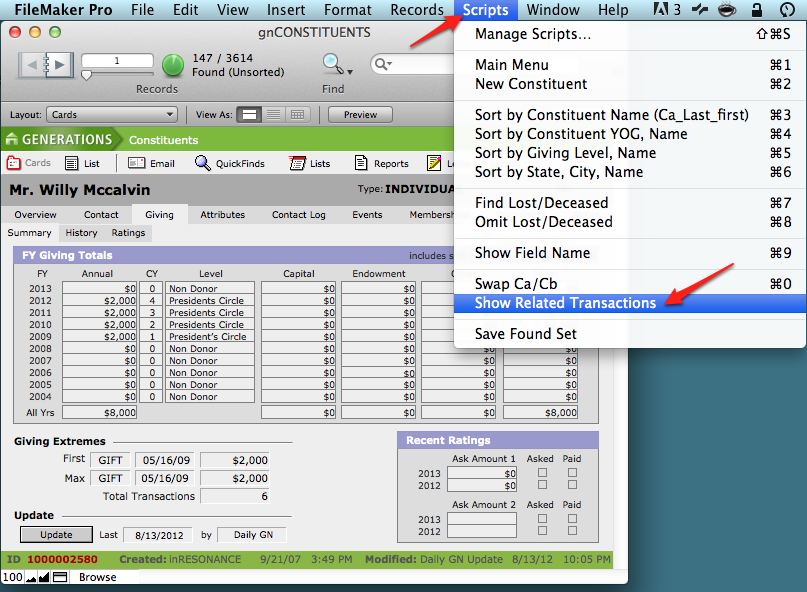
- This brings all the transactions of every type ever linked to the constituents in your found set.
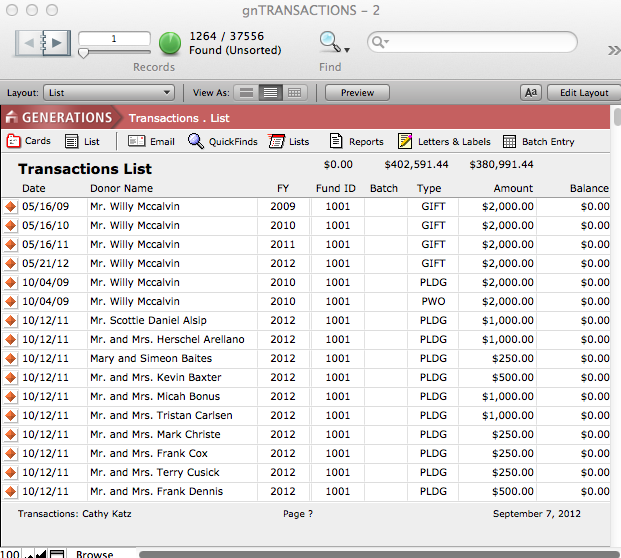
Now limit the list to transactions that were entered during the fiscal year in question.
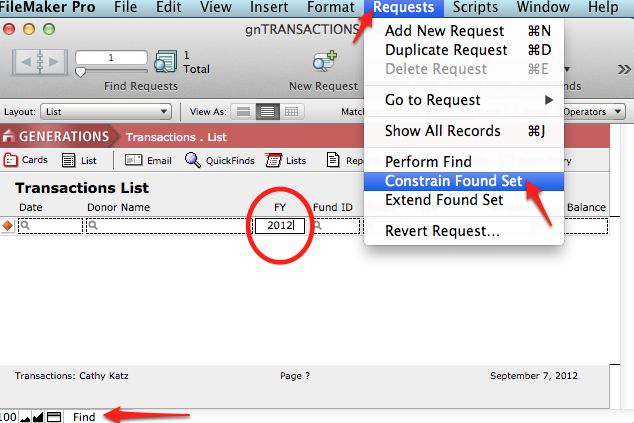
- Enter Find mode, type in the fiscal year on which you want to report, and in the Records menu > Constrain Found Set.
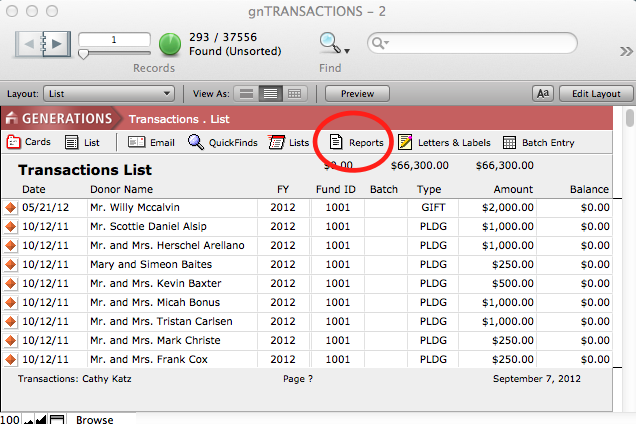
- Navigate to Reports by clicking on the Reports button in the task bar.
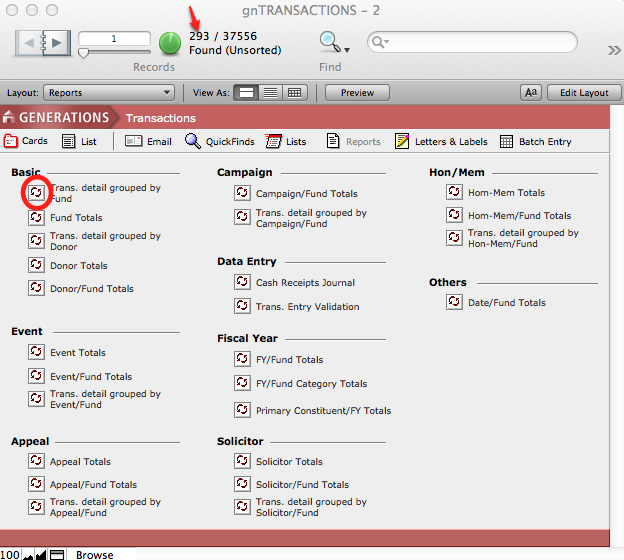
- Select your Report. Notice your found set.
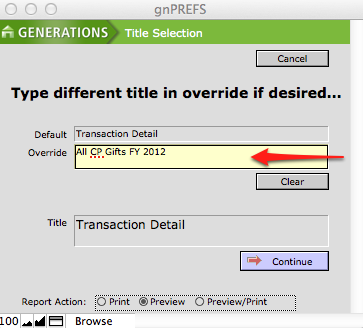
- A dialog will pop up inviting you to give your report a descriptive name. This is a good place to enter the gifts you are looking at for the report. Enter a new title, if desired, and click Continue.
- Reports open in Preview mode. Click through the pages of the Book in the Status area to review all the pages of a report.
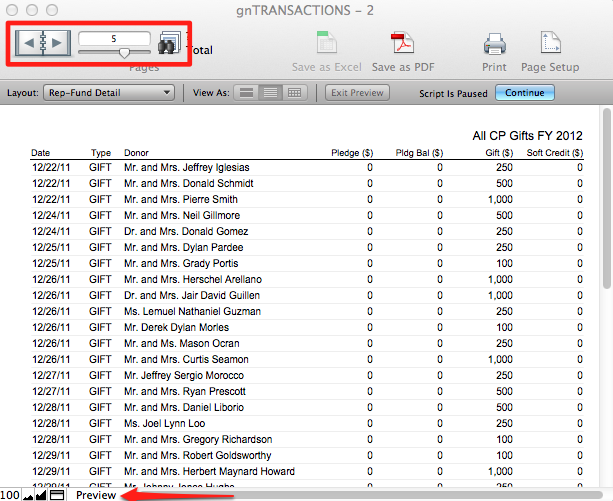
- Print the report, or save it as a pdf for future reference.
- Repeat, running all the reports you will want to keep, for each constituent group, before you update constituent codes for the new year.
