
Transactions can be created and then matched by another constituent in the database that is designated as an organization. To indicate that a constituent matches donations refer to Entering New Constituents. Gift Matching is assumed to be one-to-one unless otherwise indicated on the screen Constituents > Attributes > Organization.
- Create a new transaction for your constituent gift in Batch Entry.
- Once the transaction has been added to the session and appears in the Session window, click the Match button.
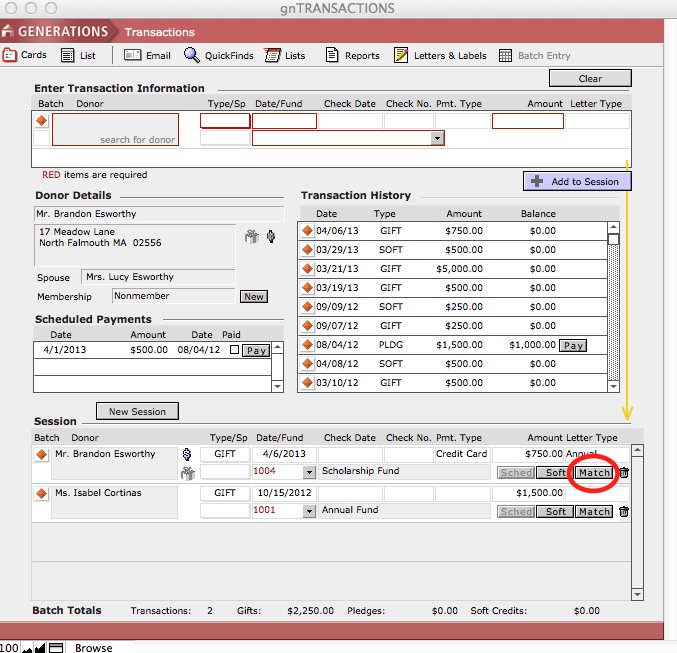
A search window will appear to prompt you to Find Matching Donor.
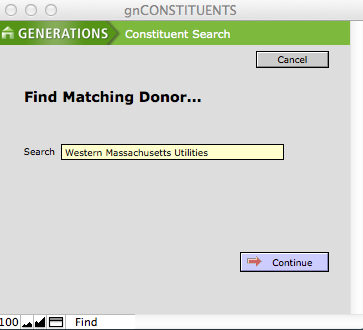
- Enter enough information to identify the matching organization. Click Continue.
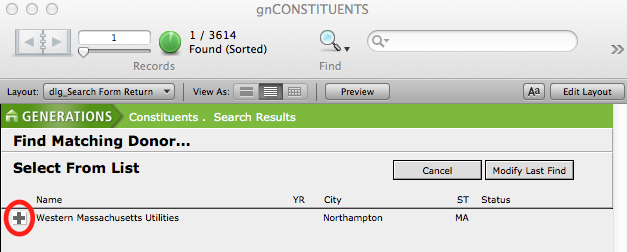
- A list of organizations will appear that meet your criteria. Select the desired one by clicking the + Selector icon.
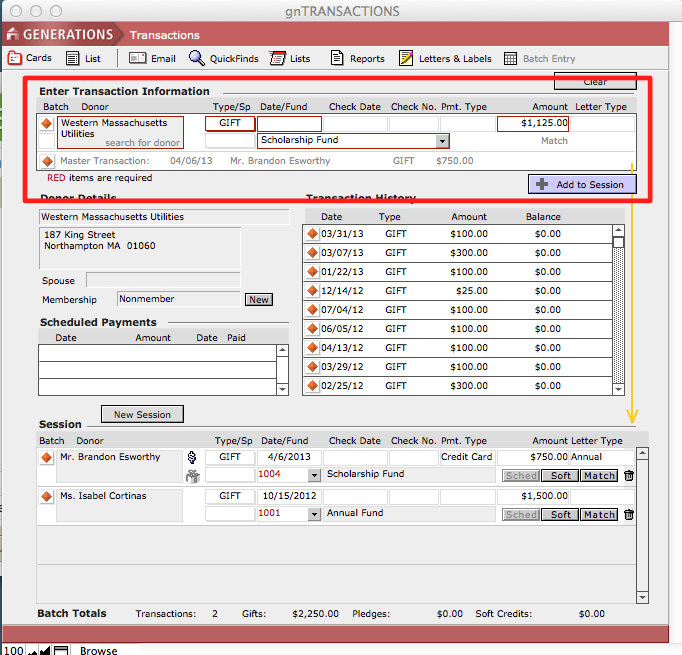
- Complete the transaction information for the organization and click the Add to Session button.
NOTE: The transaction amount will be based on the organization’s match factor as indicated in the Constituents file. The master transaction will be listed below the organization’s name in the Enter Transaction Information window.
Linked transaction information is also displayed in the Overview screen in the Master and Child Transaction window. You can navigate between the master and child transactions by clicking the orange diamond buttons located beside each transaction.
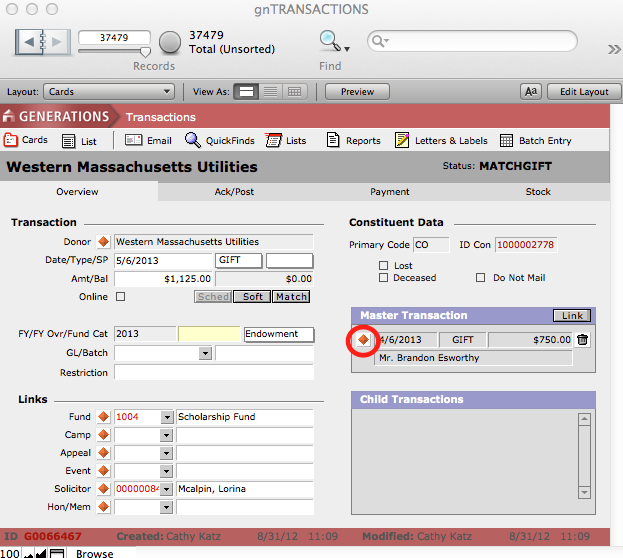
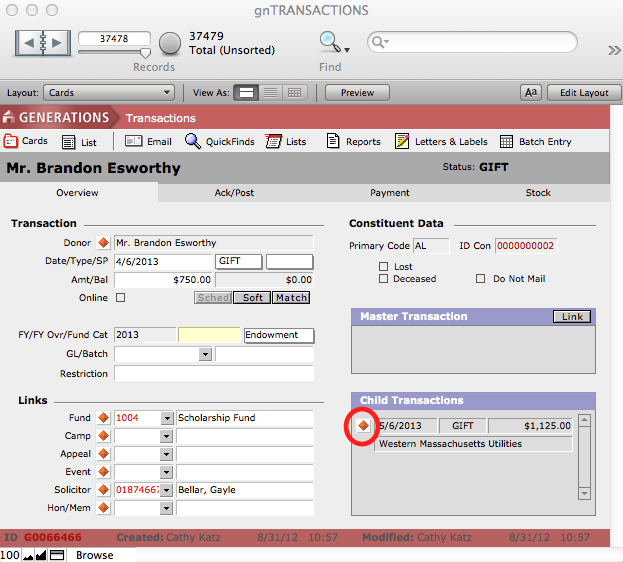
- To delete a matched transaction, navigate to the Overview screen in Transactions and find the transaction you wish to delete.
- Select Delete Record from the Records menu at the top of the screen.
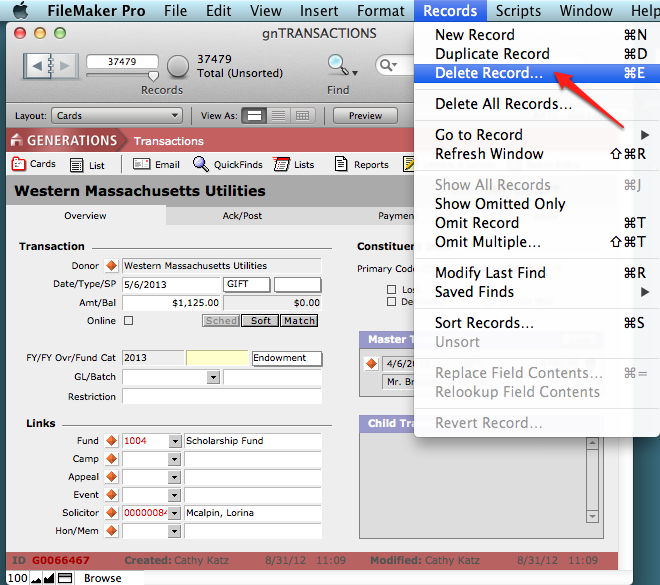
This will delete the transaction from the Transactions file and remove the transaction information from the master or child transaction record.
