
The sbgnSync interface will assist you in making sure the Constituent records in GENERATIONS match the corresponding Families records in SANDBOX. The sbgnSync file sits between the two solutions.
A Sync can be performed on a regular basis (to pick up regular changes in family information), as well as being the final step after specific changes have been made, such as having adjusted family records in a divorce situation.
The expected workflow is that changes to family information will be made in SANDBOX; the GENERATIONS user will use the sync file to pick up changes.
In this example, we have already adjusted records in SANDBOX for the Gomez parents, who have divorced. In this example, the GENERATIONS user will bring the new Family records into GENERATIONS from SANDBOX via the sbgnSync interface.
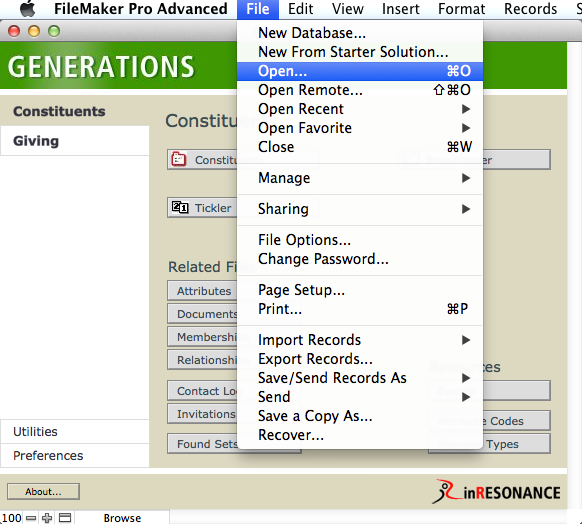
- Select Open in the GENERATIONS FMP FILE menu.
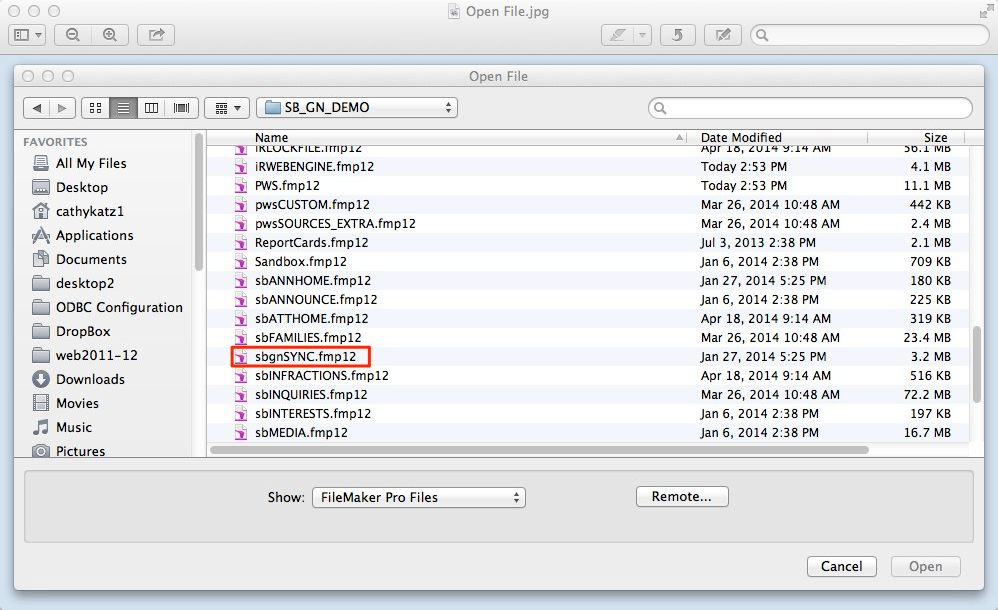
- Open the sbgnSYNC File.
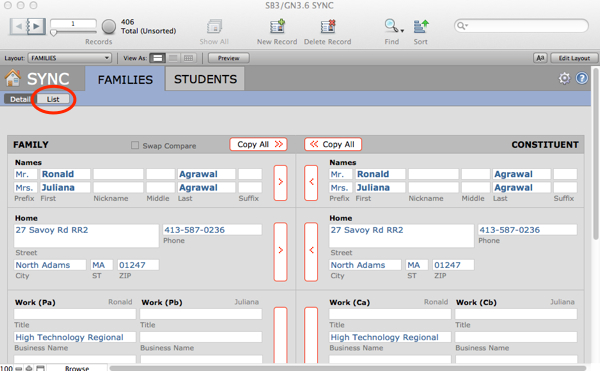
The Sync interface opens; it includes all records from the current Families file.
The Sync interface brokers data between the SANDBOX Family record (on the left) and the GENERATIONS Constituent record (on the right).
- Click List to enter list view.
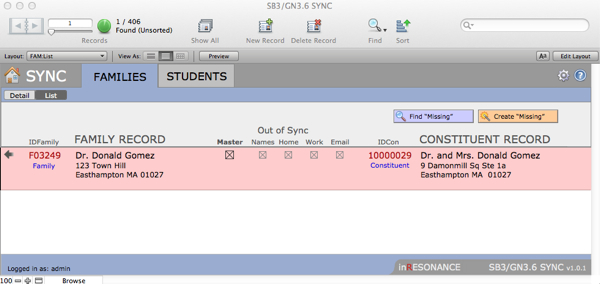
- Perform a find for the divorced family. In this case, we can see that the Sync file has one SANDBOX record (displayed on the left) that now has data for only one of the parents, and GENERATIONS (on the right) still has the two parents combined in one record.
Add the new Family 2 record to the Sync file
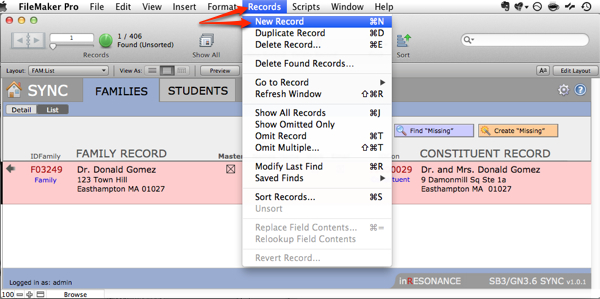
- Still in list view, select New Record from the FMP Records menu. This creates a new record within the Sync file.
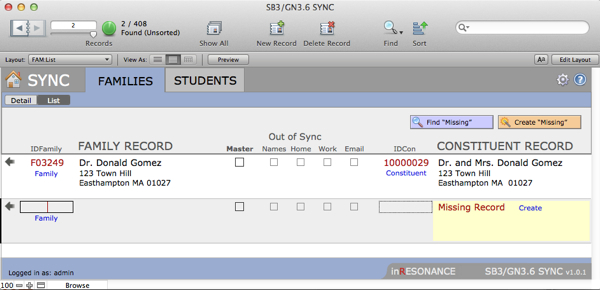
- Find the Family ID for the new Family 2 record you created in SANDBOX, and enter it into the new Sync record. Click outside the ID field to commit the change.

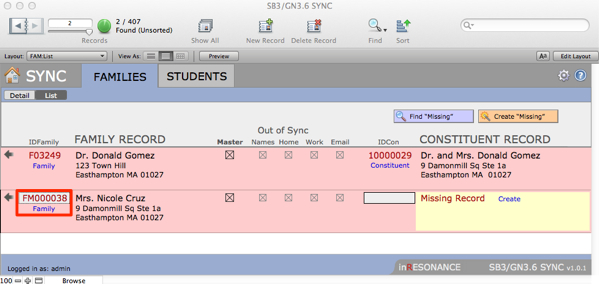
- The SANDBOX data will display on the left.
- You will see on the right that this new record is missing from GENERATIONS, as expected. Click Create to make a new Constituent record in GENERATIONS for the new Family.

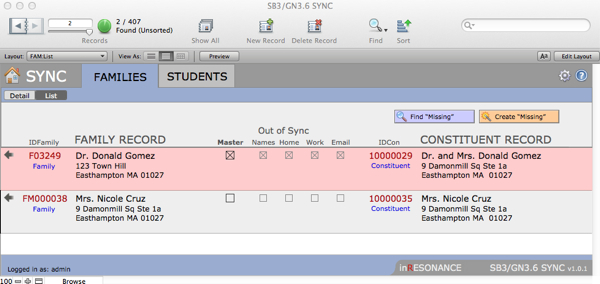
Update data in the Sync file
Now you will adjust the contact information within the two, now-separated records in GENERATIONSto reflect the divorced status.
- With your found set of the two records, click on the Detail button to enter the Sync data brokering screen for the selected record. Notice that the new record you just created is in sync with the SANDBOX data.
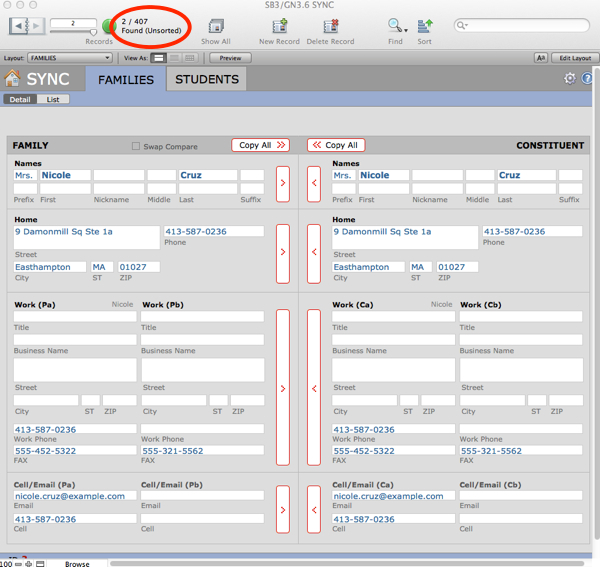
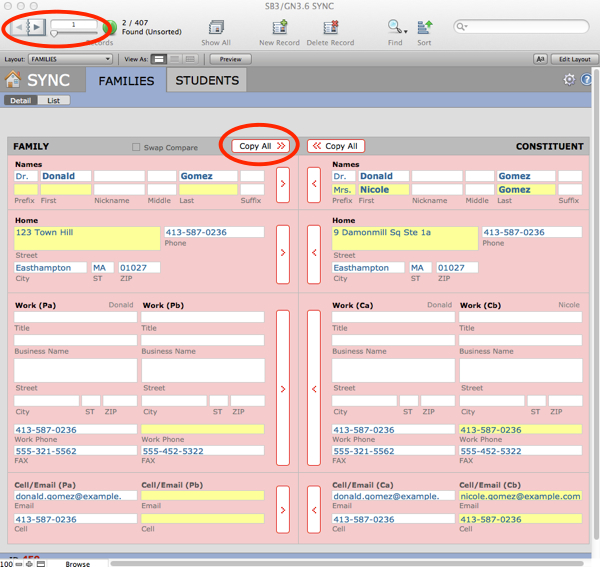
- Use the book in the top task area to navigate to the other record. Data that is not in sync will be highlighted in pink. Click Copy All to move all the data from SANDBOX into GENERATIONS for this record.
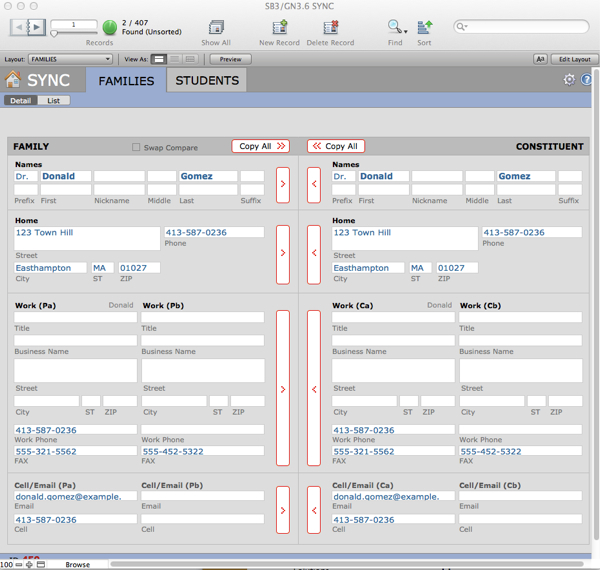
Both records should now be in Sync.
Adjust Details in GENERATIONS
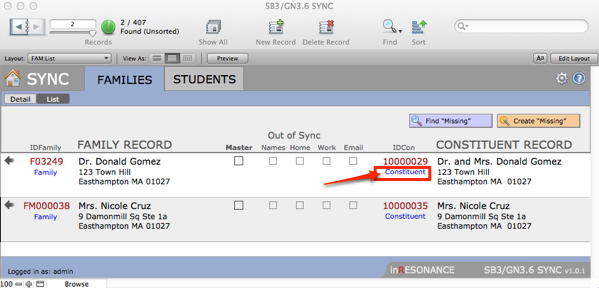
The GENERATIONS user will need to review/adjust the contact information for both of these Constituent records. Clicking the Constituent link on the Sync screen for either record will navigate into the corresponding GENERATIONS Constituent record.
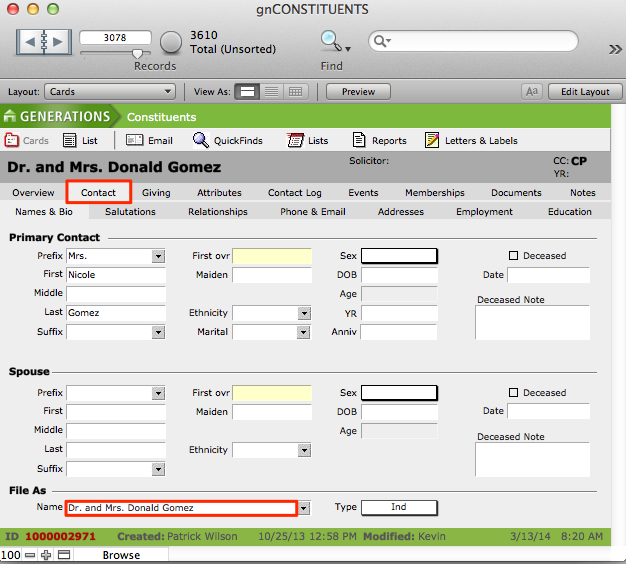
- Navigate to the Contact tab > Names & Bio subtab.
- Change the File As Name and Prefix to accomodate the new situation.
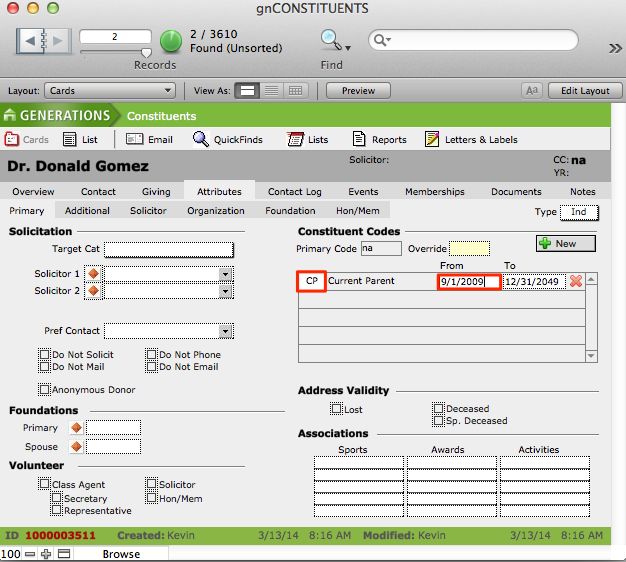
- Navigate to Attributes tab > Primary subtab.
- Set Constituent Code as Current Parent (or whatever code is appropriate) and make sure that the From-To dates are correct.
- Return to the second parent’s record and adjust in the same manner.
- The GENERATIONS user will need to adjust gift/pledge Tranasactions for the two records. This procedure is covered in the article “How to Divorce Families in GENERATIONS.”
