
The Enrollment process is defined as the set of processes and procedures by which candidates who have been admitted by the Admission Office are matriculated into the student body of the school and their numbers tracked. This also may involve creating electronic records in other databases as well as moving the physical records from one location to the next.
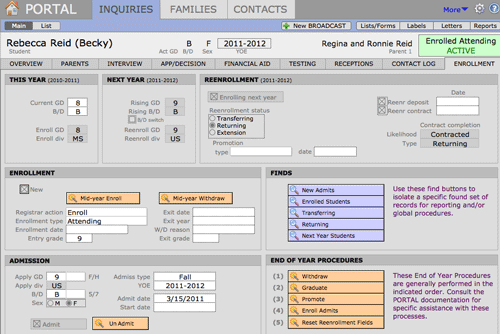
The Re-enrollment process is defined as the set of processes and procedures by which students currently enrolled in the school confirm their place for the coming year, are contracted, and submit all necessary forms for attending in the coming year.
Both of these processes are managed with INQUIRIES. The vast majority of the screens and reports in the INQUIRIES file are dedicated to the Admission Realm, but the Enrollment Realm functionality is found on the Enrollment screen.
Depending on the custom of the school, there may or may not be a person or office responsible for maintaining school records for the students who have been admitted by the Admission Office. In some situations, the Admission Office is the defacto Registrar for the whole school. In any case, the Admission Office will mirror the actions of a Registrar and will enroll the admitted children and follow them in PORTAL through re-enrollment and withdrawal or graduation. Otherwise, the Admission Office will not be able to accurately determine how many places are available at any given time. If a school does not have a Registrar solution and wishes to manage all enrollment tasks with PORTAL, there will need to be significant customization to the solution. We strongly advise against this however.
Enrollment AEStatus
The AEStatus for the Enrollment Realm is calculated based on the values present in the Registrar Action and Enrollment Type fields. There are two phases—Matriculated Phase and the Alumni Phase. Within these two phases are multiple AEStatuses possible, all of which are explained in the following sections.
Registrar Actions
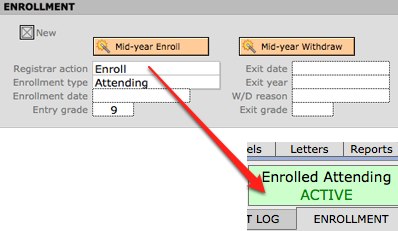
There are three actions that can be taken by the Registrar, or the person mirroring that for the Office of Admission: they can Enroll, Withdraw, and Graduate students. Once a child moves into the Enrollment Realm his or her AEStatus can never revert back to an Admission Realm value.
While the Registrar Action can be set or edited manually, generally it is better to use the buttons on the Enrollment screen because the scripts attached to these buttons set values in other important fields while also setting the Registrar Type.
Matriculation Phase
When the Registrar Action is set to Enroll, one of the Enrollment Types below can be selected. All records having a Registrar Action of Enroll should also have a Current GD. Conversely, any record with a Current GD should have one of the four Enrollment AEStatuses.
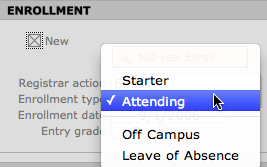
The four Enrollment Types are:
- Attending: Attending designates a student who is physically attending classes at the school. His or her AEStatus will be Enrolled Attending.
- Starter: An Enrolled student who is not yet attending the school is a Starter. The student will begin attending on the Start Date. This usually occurs when a family is relocating to a new area. It is possible for a school to enroll students for the next year during the previous spring and flag them as starters for September, but the recommended procedure is to leave them in the Admitted status until after the close of the current year. These students will have an AEStatus of Enrolled Starter.
- OC (Off Campus): A student who is currently enrolled but who is not attending the school for the term or year because of participation in another program is considered to be Off Campus (OC) The school may choose to accept another student for this place. The student is assumed to be re-enrolling for the coming year, has a Rising GD and is counted in the numbers for the coming year. These students will have an AEStatus of OC.
- LOA (Leave of Absence): This designates an enrolled student who is attending for the current academic year, but who is absent for an extended period due to illness or other reasons. The student is assumed to be returning to classes before the end of the year. This student continues to take an enrollment place and is assumed to be re-enrolling. The student retains his or her Current GD and has a Rising GD and a ReEnr GD based on that Current GD. These students will have an AEStatus of Enrolled LOA.
- Leaver: This designates a student currently attending the school but planning to withdraw before the end of the current academic year. The student will withdraw on the Leave Date. There is no AEStatus for this; the student remains Enrolled Attending. Once the student has left, he or she is marked as Withdrawn and is no longer a Leaver.
Alumni Phase
All currently enrolled students eventually progress to the Alumni Phase. Individuals may move away during the school year or summer or decide not to return, or a class may graduate together at the end of the academic year. PORTAL tracks this status separately from the Registrar to allow the Admission Office to operate on its own appropriate schedule. The Registrar may choose to enroll students on June 15, while the Admission Office prefers to wait until July or August. Tracking students separately allows both offices to operate as they feel is appropriate for the work they do.
The two AEStatuses for the Alumni Phase are:
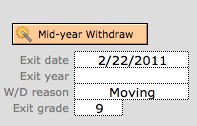
- Withdraw: The Registrar Action is set to Withdraw and the AEStatus changes to Withdrawn. These records will already have been archived. The Withdraw Script should be used to withdraw students as it performs several steps at once. One of the most important is that the Current GD is removed and written into the Exit GD. Withdrawn students will no longer have a Current GD.
- Graduated: When students are ready to be graduated, there is an automated process that sets the Registrar Action to Graduate and changes the AEStatus to Graduated. These records will already have been Archived. This script performs multiple tasks including emptying the Current GD field and transferring it to the Exit GD, as graduates do not have a Current GD.
