
When you have run all the reports you may want to save for future reference after the close of your fiscal year, you are ready to update your constituent codes.
The Constituent Code (ConCode) indicates how a particular donor should be solicited.
- If you have students in GENERATIONS, those who have graduated should have their codes changed from Current Student to Alumnus/a.
- Parents of recent graduates should be changed from Current Parent to Past Parent if they no longer have a student enrolled in the school.
- Grandparents of recent graduates should be changed from Current Grandparent to Past Grandparent.
- Faculty and staff members who leave the school should be changed to Past Faculty.
- The Board of Trustees may have some movement on/off the Board.
- Volunteers will change their status.
Updating Constituent Codes for New Alumni
- Find the students who have been graduated by navigating to Constituents > Contact> Names & Bio tab, enter the year of Graduation in the YR field, and Perform Find.
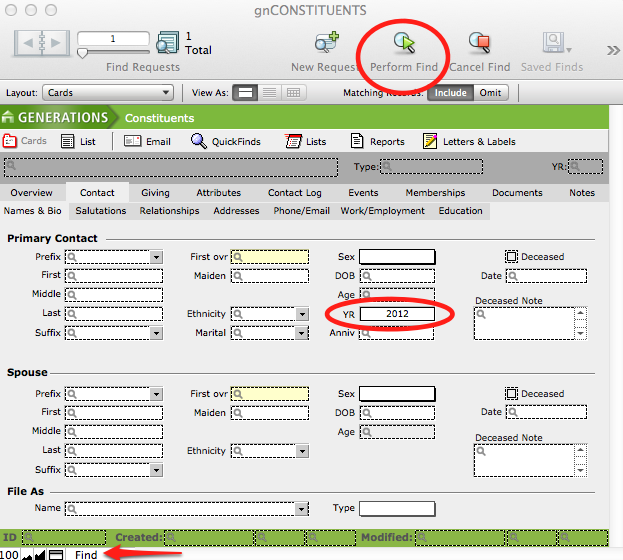
- Scroll through your found set using the Book icon in the Status area, or see your found set in List view. You can omit a selected, unwanted record from the list by using the Records menu > Omit Record in either List view or Card view.
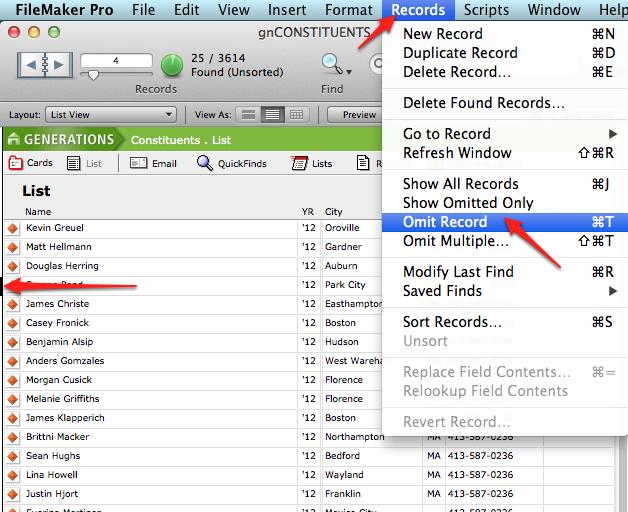
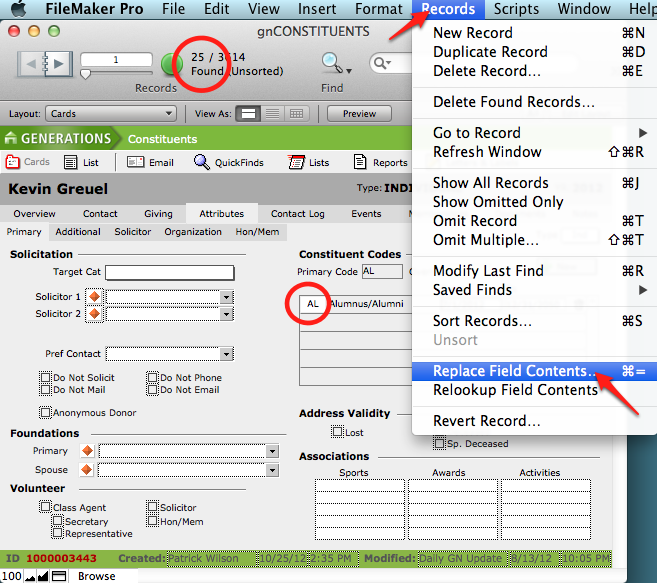
When you are certain of your list, you can navigate to Card view and change the Current Student (CS) attribute to Alumni (AL) for the entire found set. It is assumed that current students will have only one Constituent Code at this point, so this is a simple Replace Field Contents for the found set.
- Navigate to the Card view.
- Change CS to AL in the list of Constituent Codes.
- With your cursor still inside the Constituent Code field, select the Records menu > Replace Field Contents.
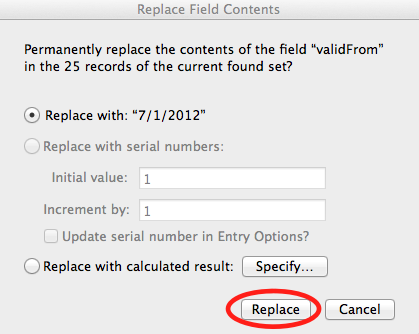
- A dialog box will pop up asking you to confirm that you want to replace this field contents in all records in the found set.
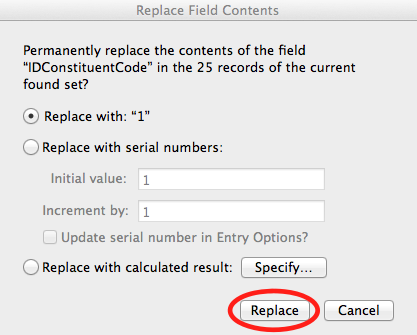
- Type in a start date for the new constituent code status, and replace field contents for all records in the found set.
Updating Constituent Codes for Relatives of New Alumni
When a student has graduated, the parents and grandparents of that student should be solicited moving forward as Parents of Alumni (AP), and Grandparents of Alumni (AG).
NOTE: If there is a sibling of a recent graduate still enrolled at the school, the Parent and Grandparent constituent codes will not be changed until all related children have been graduated. Remove them from the found set before you change constituent codes.
To Update Constituent Codes for Parents of Recent Graduates
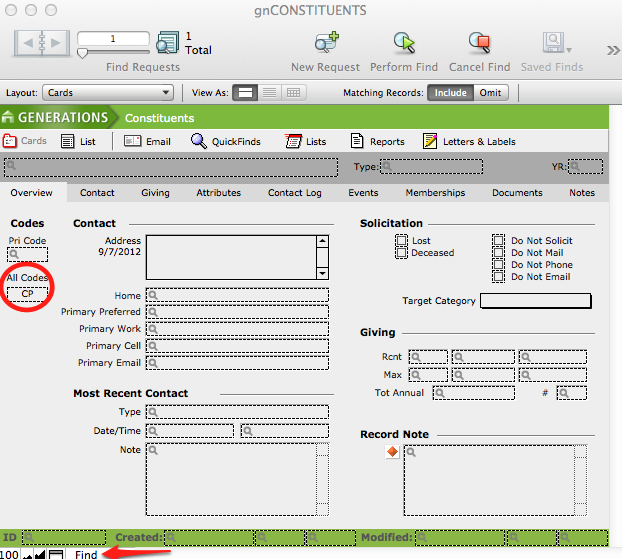
- From Constituents > Overview screen, use the All Codes field to Find CPs.
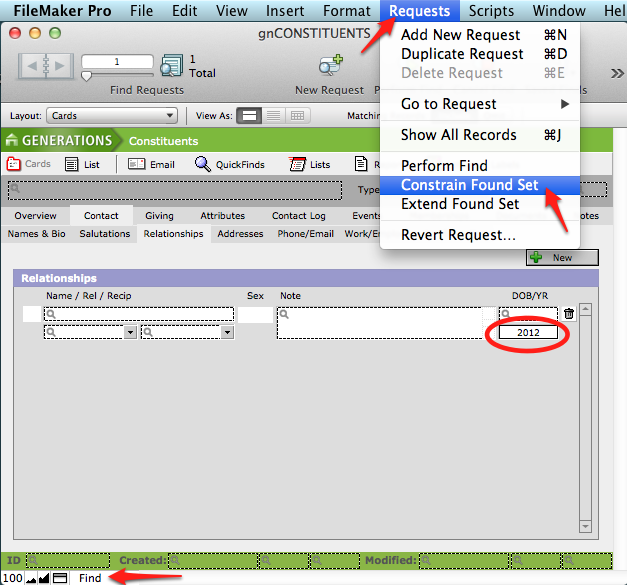
- Navigate to Contact > Relationships tab, enter Find mode, type in the year of graduation (YR), and then go to Requests menu > Constrain Found Set. This results in CPs who have a relationship to this particular graduating class.
- Scroll through your found set using the Book icon in the Status area, or see your found set in List view. Look for constituents who still have a child enrolled in the school, and omit them from this found set, as their CP status will not change while they have a child enrolled.
- You can omit a selected, unwanted record from the list by using the Records menu > Omit Record in either List view or Card view.
- As you scroll through the list, find any CPs who should be changed to APs, who have other attributes as well (TR or AL). Change these CPs to APs as you encounter them. Then omit them from the found set.
- When you have your final found set of CPs who still have to be changed to APs, you can do a Replace as in Steps 4–7 above.
To Update Constituent Codes for Grandparents of Recent Graduates
Repeat the process you used for changing ConCodes of Parents.
Adding Attributes to specify which individual in a shared Constituent record belongs to a particular Constituent Code, and in what year(s)
When a constituent record has a primary constituent and also a spouse, and the record has a ConCode of TR, or a checkbox indicating Volunteer activity, it is not clear if the TR is the primary or the secondary constituent.
An easy way to clarify is to use the Additional Attribute card, where you can specify both the individual, the year(s) of service and the specific duties held.
This will help you get an accurate found set for a particular year.
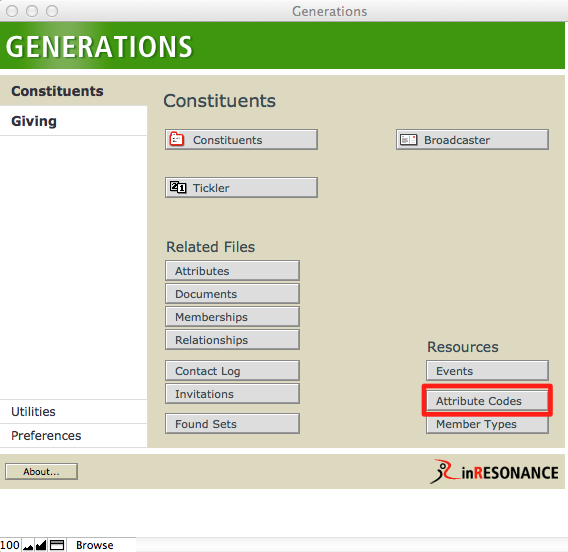
- First add a new attribute code. From Central Navigation, click on Attribute Codes.
- Add a New Record by clicking on the New Record button in the status area, or from the Records menu > New Record.
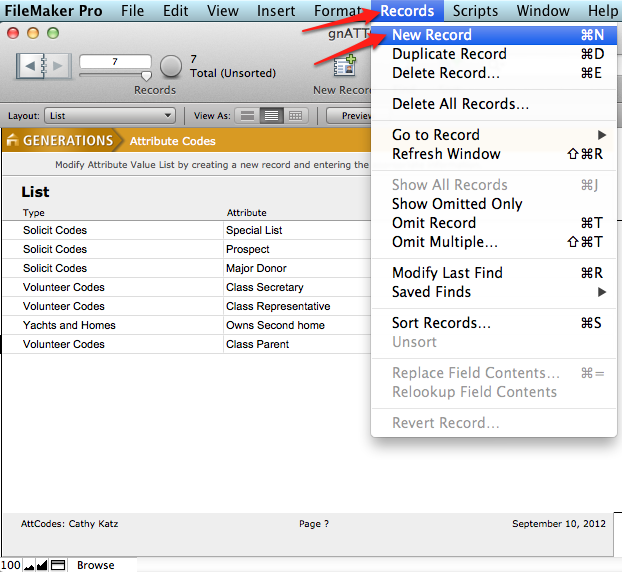
- Add a new type: Board and new attribute: Trustee. Click out of the field (anywhere in the window) to commit your new type.
- Now globally add this new attribute to your found set.
- Navigate to Central Navigation > Utilities > Global Adds tab.
- Click on Globally Add an Attribute.
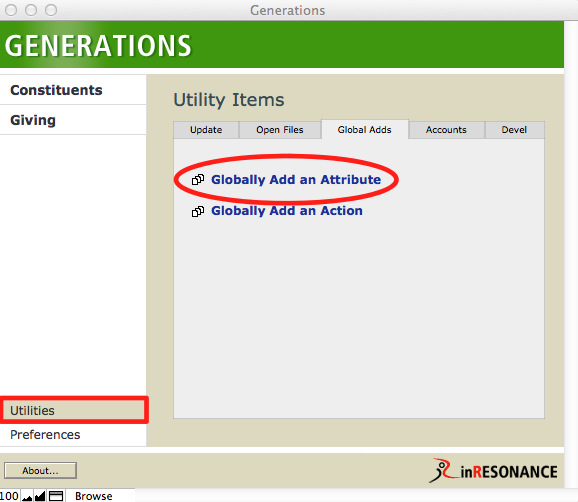
- Fill in the information you want to add to every record in your found set. For Board or Volunteer service, begin your notation with the academic year written as a double quad (2012-2013) for easy identification.
- Click Globally Add this Attribute.
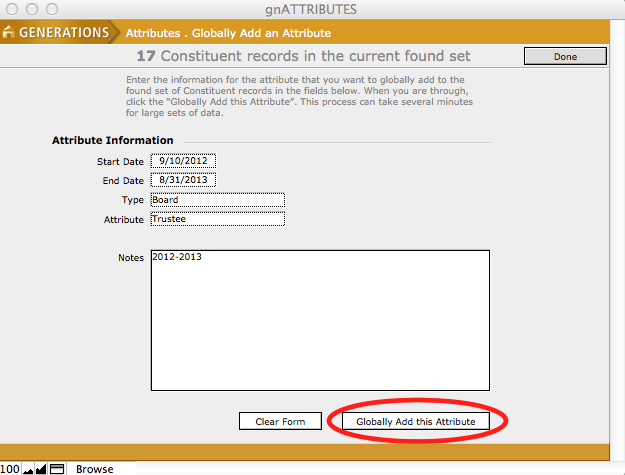
- A dialog box will pop up asking you to confirm that you want to add the attribute to your found set. Click OK.

- When the status bar indicates the Adding Attribute operation is 100% complete, click Continue.
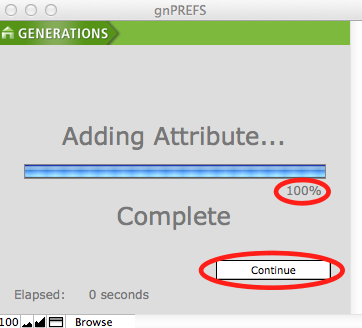
- The attribute will be added to every record in your found set. Now you can move through, record-by-record, and add the particular constituent’s name and any additional notes about their service.
