
Found Sets allow you to save different found sets of records. A saved found set can be retrieved at a later date, saving you time. Found sets does not save an actual find request but instead saves a static list of records that the original find request produced. While the original find might have taken many minutes to obtain a result, a saved found set can be recalled nearly instantly.
Found Sets will save a found set of either constituents or transactions. Found Sets are named and saved in the Found Sets file.
Saving a Found Set
- Perform a Find to arrive at a set of constituents or transactions you wish to save.
- From the Scripts menu, choose Save Found Set.
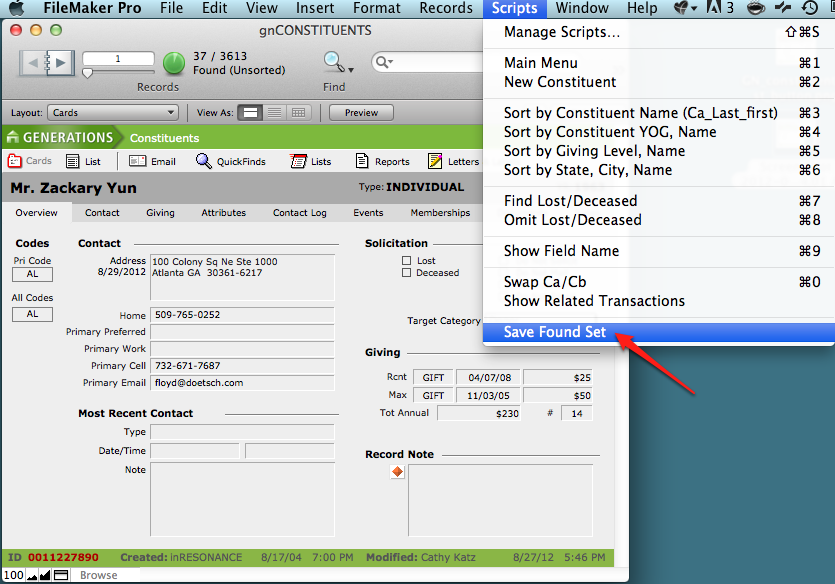
- In the window that appears, verify the set you are saving, and type a name and a description.
You should be thoughtful in deciding on a name, for it is the name that will identify the Found Set later. You can always change the name at a later date.
- Press the Save Found Set button.
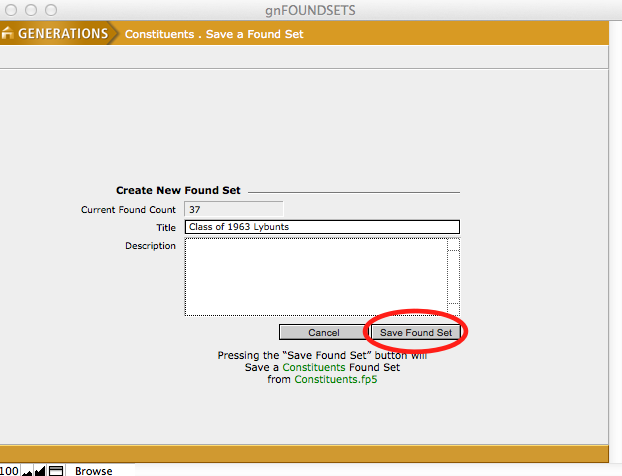
A dialogue box will appear stating the Found Set has been saved.
NOTE: Normally, the Save Found Set action should take no longer than a minute. If you are trying to save an especially large set of records, a warning will be displayed offering you the chance to cancel. Large sets may take 5 or 10 minutes to save, but all sets are recalled nearly instantly.
Special Note About Saving Transactions
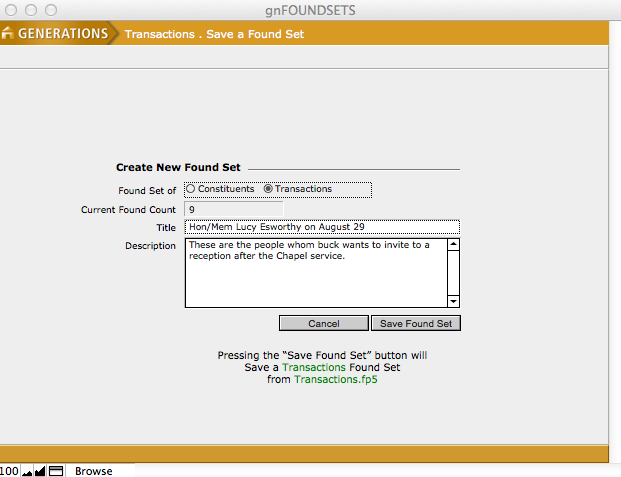
When you initiate the Save Found Set script from the Transactions file, you have two options for what type of found set will be saved. The standard (and default) is to save a straight set of transactions. The other option is to save the related constituents. This choice is made by selecting either the Constituents or Transactions radio button.
Retrieving a Saved Found Set
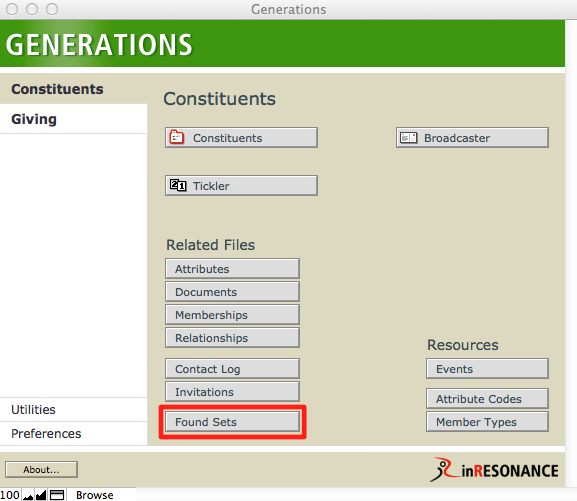
- Click the Found Sets button in the Central Navigation file. This will navigate you to the Found Sets file.
- Find the found set you wish to retrieve by either performing a Find using the name of the found set, flipping through the records using the Book in the FileMaker status area at the top of the screen, or viewing the found sets in the list view.
- From the Overview screen of the desired found set, you can restore the found set either by going to the Scripts menu > Restore Found Set, or click the Restore Found Set button.
- This will navigate you to either the Constituents file or the Transactions file (depending on the origin of the found set) and display the desired found set.
