
This section will show you how to link individual students to teachers, or to link a group of students to a single teacher. Be aware that every homeroom teacher must be marked as a teacher in sbPERSONNEL in order to be linked to their students.
Linking an Individual Student to a Teacher
- Navigate to sbSTUDENTS > Overview.
- Find the child you wish to link to a homeroom teacher.
- Click Teacher ID and choose from the list of teachers. If a name does not appear it is because that teacher’s status was not marked as Teacher in their sbPERSONNEL file. The First, Last, and Homeroom fields will autofill.
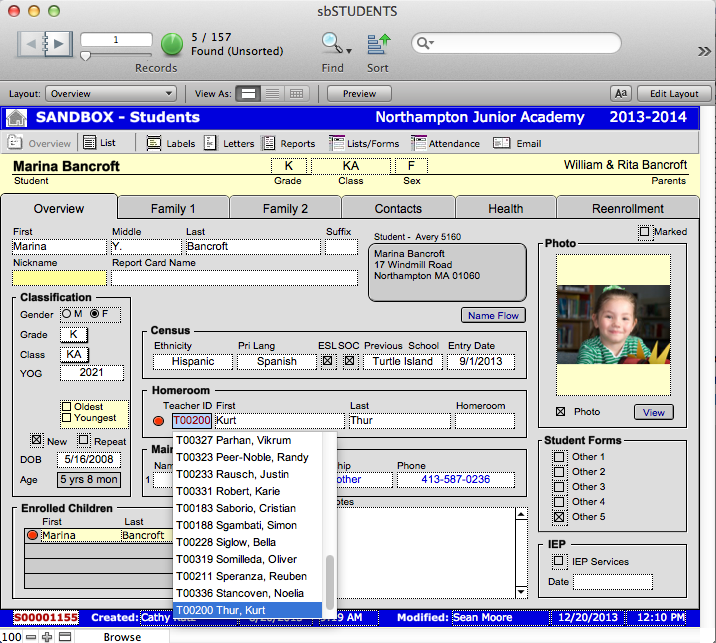
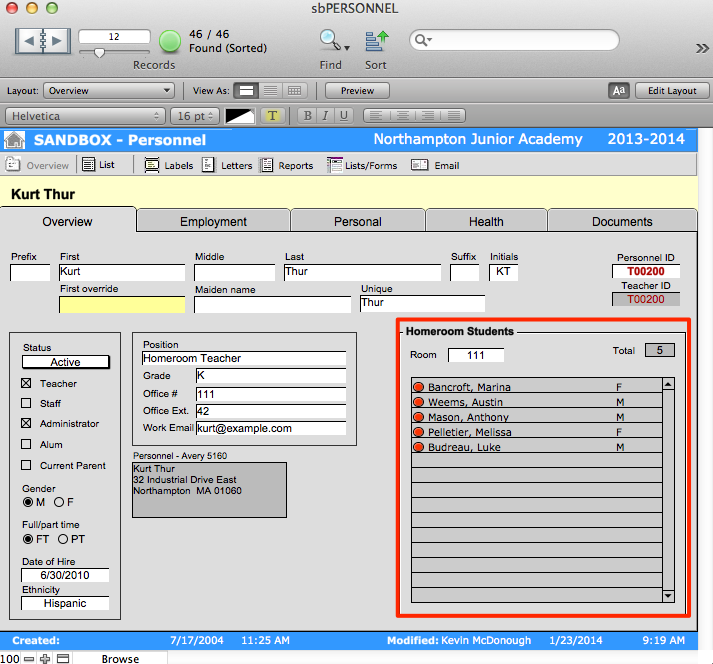
- Click on the Red Circle beside the teacher’s name. This will navigate you to that teacher’s record in sbPERSONNEL. As students are linked to teachers, the Homeroom Students list on the Overview screen will display that teacher’s students.
Linking a Group of Students to a Teacher
- Navigate to sbSTUDENTS > Overview.
- Find the students for whom you wish to link to a particular teacher. A helpful way to do this is to Find a particular grade.
- Click Teacher ID and choose from the list of teachers. If a name does not appear it is because that teacher’s status was not marked as Teacher in their sbPERSONNEL file. The First, Last, and Homeroom fields will autofill.
- Click Teacher ID to ensure the field is active. Allow the drop-down menu to remain exposed, or the field to remain highlighted in blue.
CAUTION: It is very important that the menu remain open or the field remain highlighted in blue or you may end up replacing the contents of another field in the found set. There is no undo.
- From the Records menu at the top of the screen select Replace Field Contents. A dialogue box will appear asking you if you want to permanently replace the contents of field IDTeacher in the current amount of records in your found set. Read this dialog box carefully and make sure the number of records is the proper number of students you want to associate with this teacher. There is no undo.

- Click Replace.
- Navigate through your found set in sbSTUDENTS > Overview. Note that all students in your found set will now have the same homeroom teacher.
- Repeat this process for all other teachers and their students.
