
Entering and tracking inquiry information about students and their families is a crucial task. The Input Screen is designed to handle all of the various types of inquiries you receive over the course of an Admission Season. This is always your starting point whether the inquiry is new or a re-inquiry. The Input Screen is not needed to add or edit information later. You will do that by navigating directly to the desired student or family record and editing data in the appropriate record.
Using the Input Screen begins with a search to determine if there are existing family and/or inquiry records in SANDBOX that match the child or family you are entering. The following situations may occur:
Case 1: No Match Exists for Either the Child or the Family
In this case, the inquiry is new. A new inquiry record is created in sbINQUIRIES and a new family record is created in sbFAMILIES and they are linked to one another.
Case 2: Family Exists but the Child Does Not
This may be a sibling of a child who has already inquired or is attending. A new inquiry record in sbINQUIRIES is created and linked to the existing family record in sbFAMILIES.
Case 3: Both the Family and the Child Exist
In this case, you must decide whether this is a re-inquiry for the same child but for a different Year of Entry (YOE) or if this is an existing inquiry for the same year. If it is a re-inquiry, then a new inquiry record will be created and linked to the existing family record. If the inquiry already exists for the current YOE, then you have the opportunity to update information in either the family or the inquiry record as needed, but new a record is not created.
Case 4: Child Exists but Family Does Not
In this case, the family record may have been deleted or never created. You will need to decide how to proceed, but a new family record can be created and linked to the inquiry record. This is generally a remnant of incomplete records that were converted from a different system.
Using the Input Screen
- Navigate to sbINQUIRIES > Input.
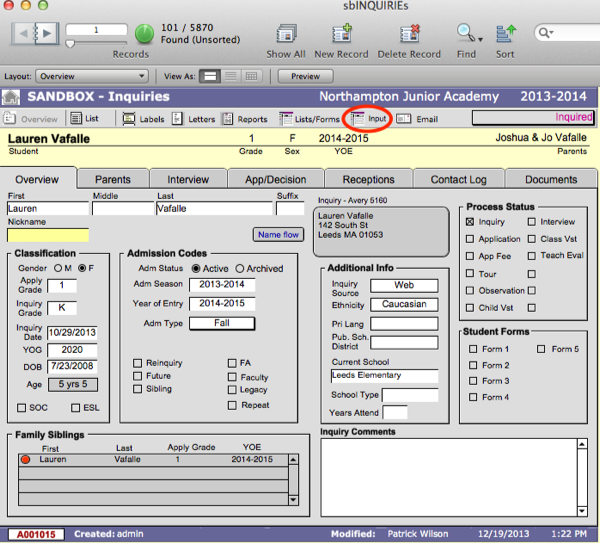
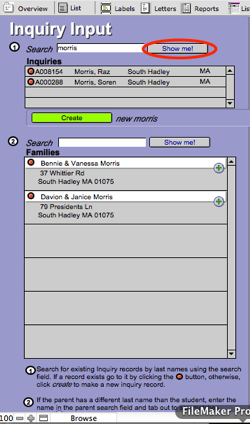
- In Search, enter the last name of the child and click Show Me!
Case 1: No Match Exists for Either the Child or the Family
If no name matches exist, the Inquiries and the Families areas will be blank as there are no existing records in SANDBOX.
Or, if a child exists in sbINQUIRIES with the same last name, he or she will appear in the Inquiries area. Likewise, if a family exists in sbFAMILIES with the same name, the name and address will be displayed in the Families area. There may be multiple families with the same name. In either case, you will need to determine if any of these records is indeed the inquiry or family you are searching for. Refer to Creating a New Inquiry and a New Family below.
Case 2: Family Exists but the Child Does Not
If a match is found for the family (examine the address data to be certain) but not the child—as in the case of a sibling inquiring to the school—you will need to create a new inquiry record and link it to the existing family record. Refer to Creating a New Inquiry and Linking To An Existing Family below.
Case 3: Both the Family and the Child Exist
If an inquiry match is found, you will need to investigate further to determine if this child is re-inquiring for a new year or if this inquiry is a duplicate of an existing inquiry record for the current Admissions Season. In the first case you will want to create a new inquiry record and link it to the existing family record. In the second case, you will want to verify any information submitted and possibly update the existing family and/or inquiry record.
To determine whether or not this is a re-inquiry, check the YOE. If the YOE of the existing inquiry record is for a different year, then this is a re-inquiry and you will create a new inquiry record and link it to the existing family record. Refer to Creating a Re-Inquiry Record below.
If the YOE is the same, then you will want to verify information submitted and perhaps update the existing records. Refer to the section below, Verifying and Updating Existing Inquiry Information.
If you need to examine a record in detail, click the Red Circle to the left of the name to open that record in either sbFAMILIES or sbINQUIRIES. When you are finished viewing the record, return to the Input screen to continue.
Creating a New Inquiry and a New Family
If there are no matching family or inquiry records you will create both a new family and a new inquiry record and link them.
- Click the green Create button. This will add the searched last name into the Last field in the Student section on the right. A new sbINQUIRIES record and a new sbFAMILIES record are created and linked automatically.
- Complete the information on the right side of the Input screen as detailed below:
- Student Information: Complete information for First, Middle, Nickname (if applicable), Suffix, Apply Grade, Inquiry Grade, Sex, and DOB.
- Family Information: Complete information for Prefix, Pa First, Pa Middle, Pa Last, Pa Suffix, Pb First, Pb Last, Address, Home Phone, and Email.
- Additional Data: Complete information for Ethnicity, Cur. School, and Comments Inquiry.
- Navigate to the Overview screen. Notice that the information for this record now appears in the appropriate fields.
If this child is a Future (inquiring for a YOE after the current YOE), refer to the article Processing Futures.
Creating a New Inquiry and Linking to an Existing Family (Sibling)
If a family match is found but the child sbINQUIRIES record does not exist, you will create a new sbINQUIRIES record and link it to the existing family record.
- Click the green Create button to create a new record. The existing family will appear in the family area.
- Click the green + button to link the appropriate family record to the inquiry record. The family information should appear in blue text in the Family 1 Names section on the right.
- Complete the information on the right side of the screen as described in section Creating a New Inquiry and a New Family above.
- Navigate to the Overview screen. Notice that the information for this record now appears in the appropriate fields.
Creating a Re-Inquiry Record
If a match is found for the child inquiry, you need to review the child’s sbINQUIRIES record to determine if this is a Re-inquiry or if this is a duplicate inquiry with perhaps new information that may need updating.
- Click on the Red Circle to the left of the child’s name to look at their record in sbINQUIRIES.
- Note the YOE.
If the child is inquiring for the same YOE, the record is not a Reinquiry. Skip down to Verifying and Updating Existing Inquiry Information.
If the child is inquiring for a different YOE than what is entered in the existing sbINQUIRIES record, the inquiry is considered a Reinquiry and will have two sbINQUIRIES records going forward.
- Click Input to return to the Input screen
- Click the green Create button to create a new record.
- Click the green + to link the appropriate family record to the inquiry record. The family information should appear in blue text in the Family 1 Names section on the right.
- Click the Reinquiry box to note that this student is reinquiring to the school.
- Complete the information on the right side of the screen as describe in section Creating a New Inquiry with an Existing Family above.
- Navigate to the Overview screen. Notice that the information for this record now appears in the appropriate fields.
Verifying and Updating Existing Inquiry Information
If the YOE is the same, then this should not be treated as a new inquiry and instead you will need to navigate to the existing record in sbINQUIRIES and update information as needed. A new inquiry record should not be created.
