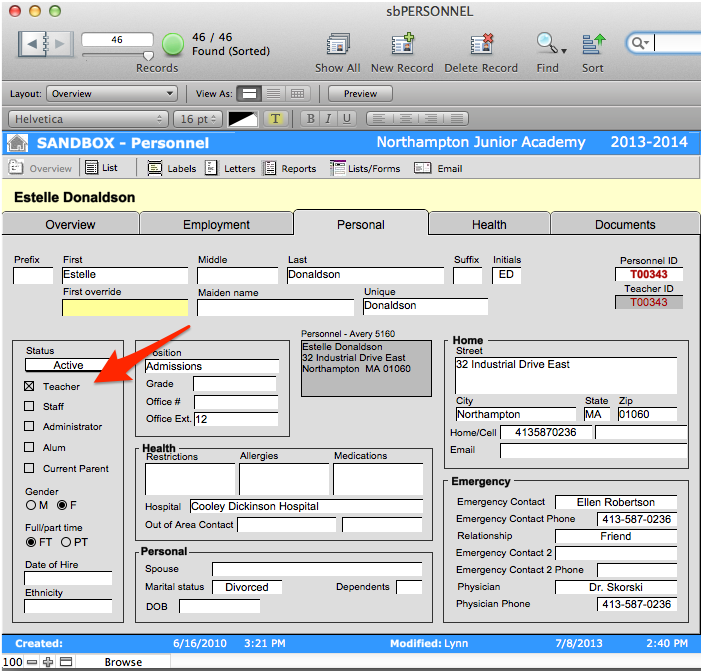
NOTE: Regarding screenshots and instruction, this page may have been modified in your set upon installation or at a later date, and may look different than the example page seen here.
To enter new personnel into the solution, sbPERSONNEL will be used.
- Navigate to sbPERSONNEL > Overview.
- Click New Record in the Status Area, or click New Record from the Record menu at the top of the screen.
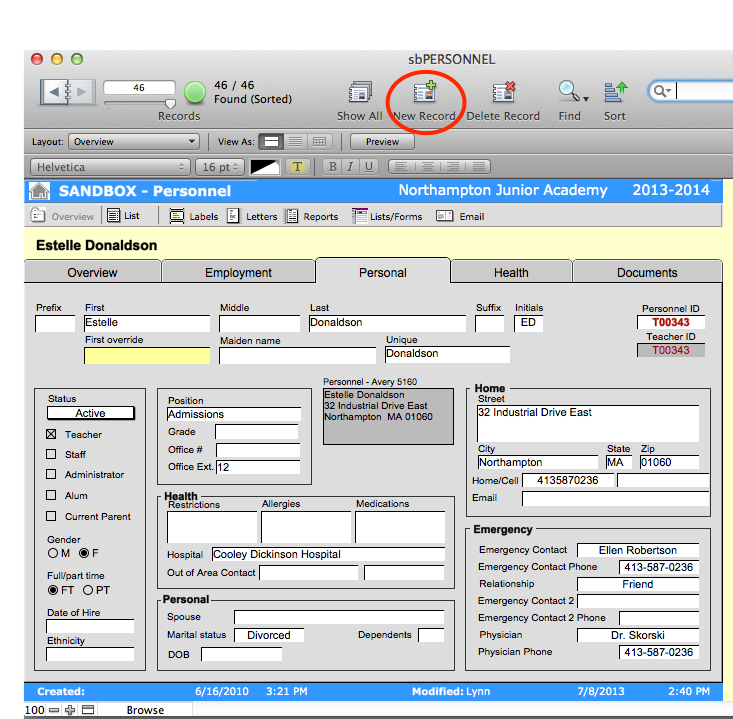
- Enter information as appropriate.
NOTE: It is important to mark teachers as Teachers in the Personnel Status Area of the Overview screen. Doing so, allows you to associate students with teachers from the sbSTUDENTS Overview screen. If teachers are not indicated as such, their names will not appear in the drop down menu. For more information on how to associate students with their homeroom teachers, see Assigning Homeroom Teachers to Students in the Managing Enrolled Students section.