
- In the sbFAMILIES file, perform a find for the affected family.
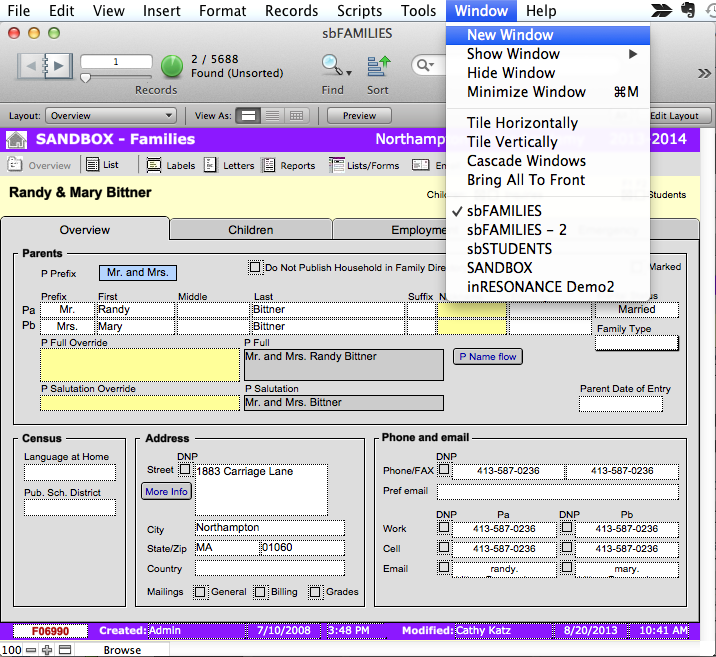
- Select New Window From the FMP Window menu.
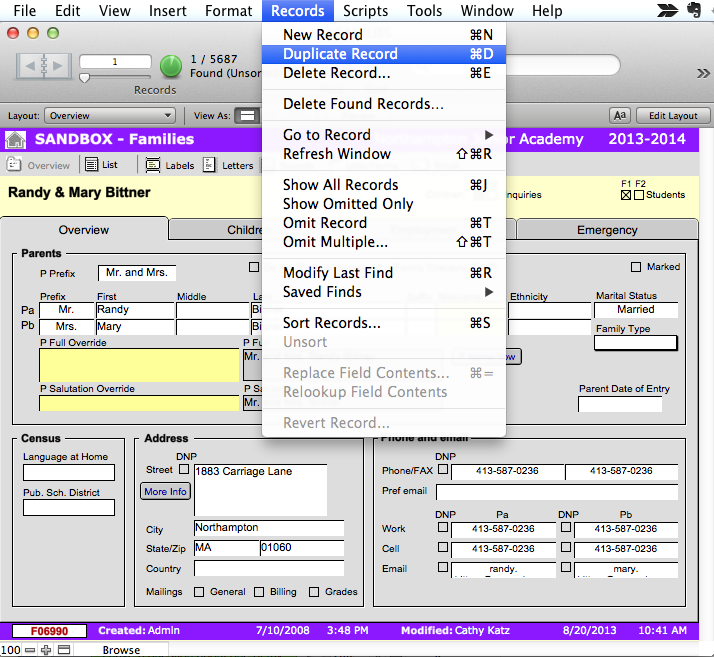
- Select Duplicate Record from the FMP Records menu.
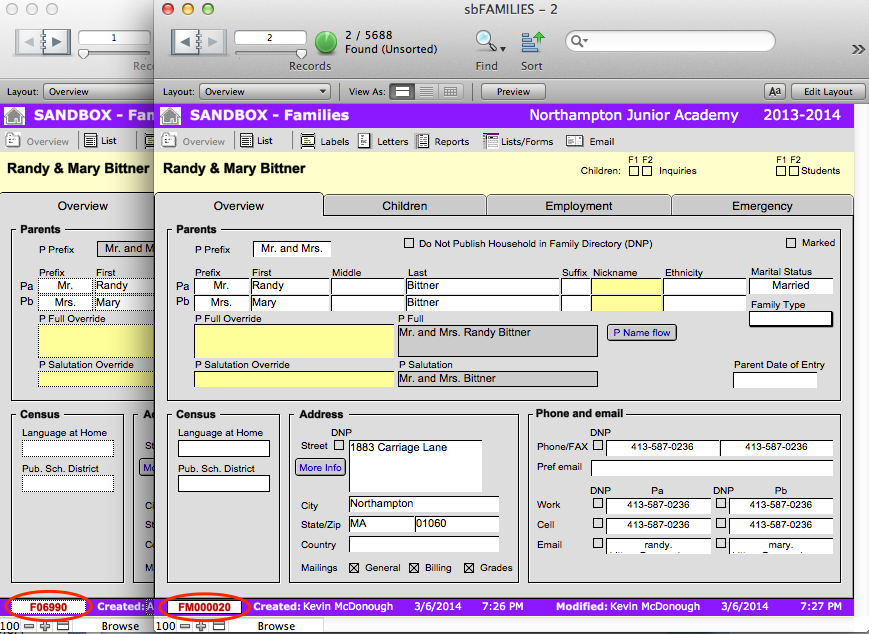
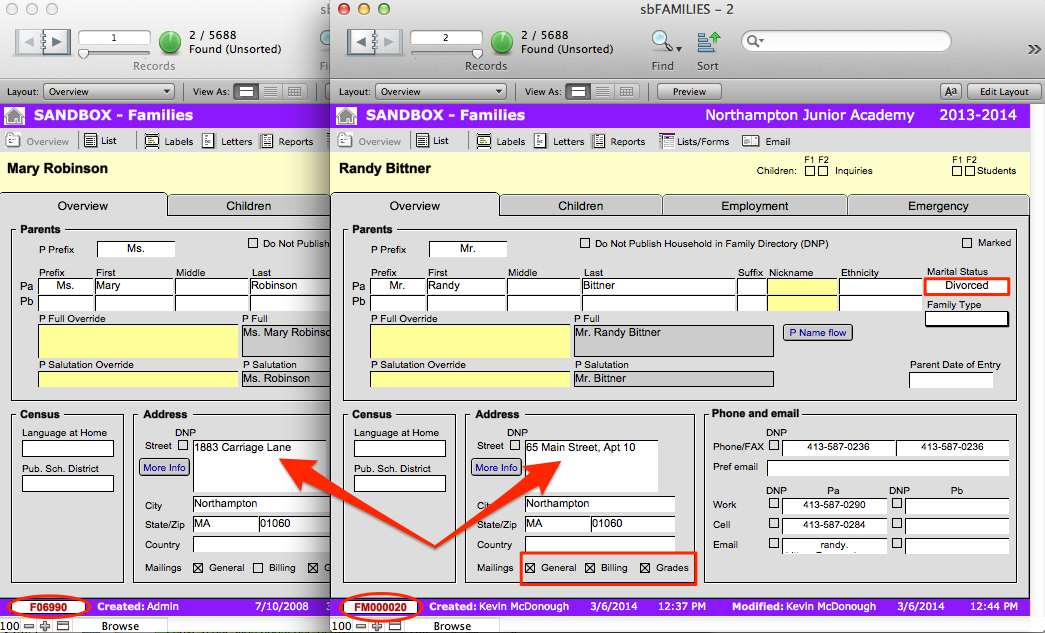
You now have 2 windows open with identical records.
IMPORTANT: Before changing any data, notice that each record window has a unique ID number in the bottom left of the page.
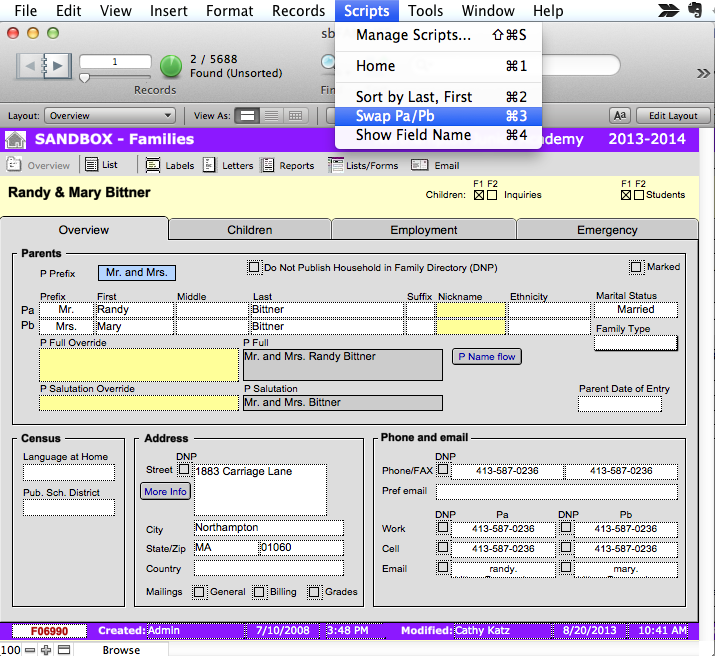
- From the original record, select Swap Pa/Pb from the Scripts menu.
- On the Overview tab, delete the Pb data from both windows.
- Change the Marital Status to Divorced in both windows.
- Change any other relevant data, including Email address, Street address, Last name, Billing designation, etc.
- Navigate to sbStudents on the main SANDBOX navigation menu.
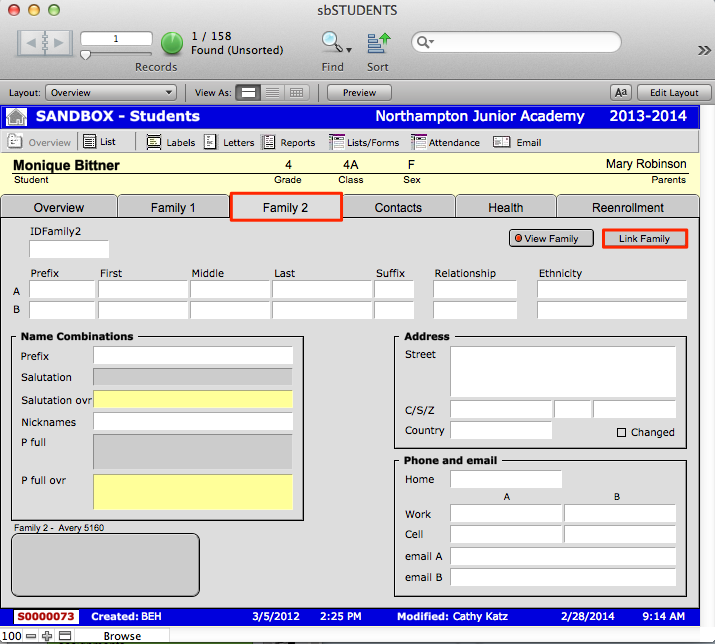
- Perform a find for the affected student(s). Click the Family 2 tab.
- Click the Link Family button.
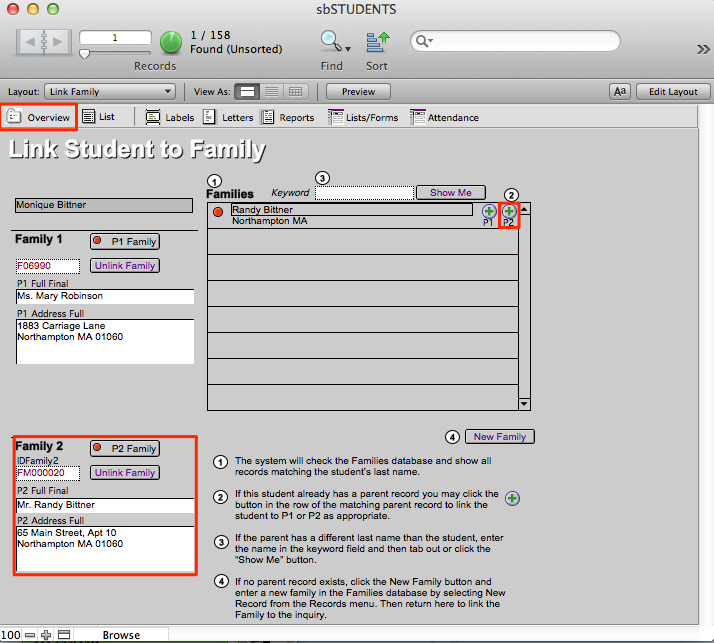
- Select the new Family 2 from the Families list. If the appropriate family is not on the list, perform a find using the Keyword box: enter the name and click Show Me.
- Click the small green plus sign on the right that is labeled P2. Notice that the family information is automatically filled in for Family 2.
- Navigate to the sbINQUIRIES page.
- Perform a find for the affected child.
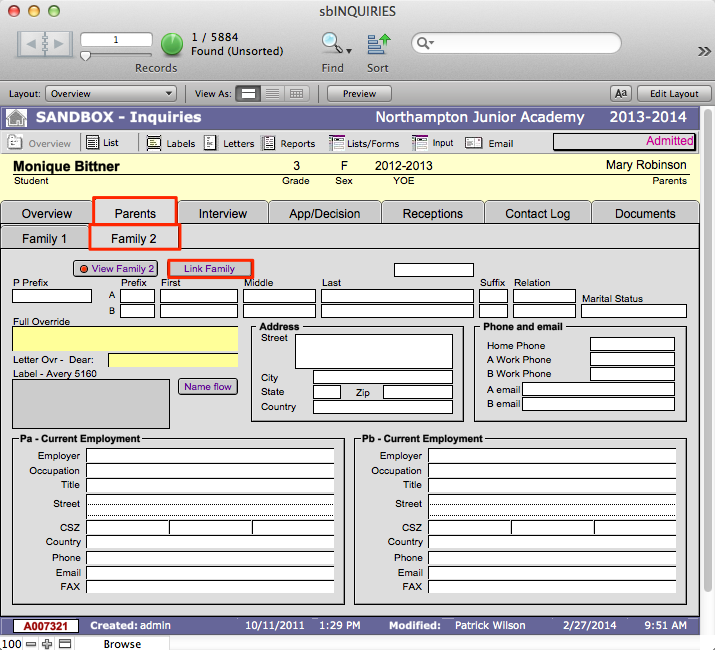
- Click the Parents tab.
- Click the Family 2 subtab.
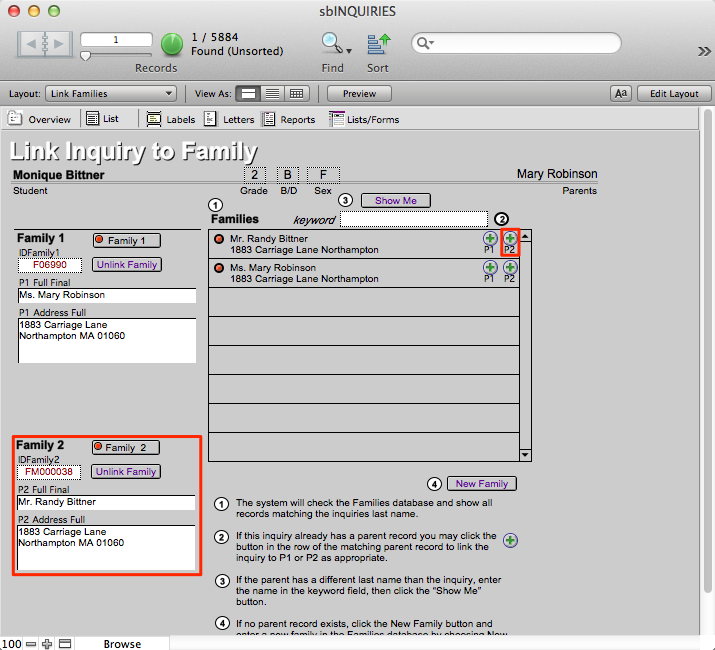
- Click the Link Family button.
- Select the new Family 2 from the Families list. If the appropriate family is not on the list, perform a find using the Keyword box: enter the name and click Show Me.
- Click the small green plus sign on the right that is labeled P2. Notice that the family information is automatically filled in for Family 2.
- Navigate to sbARCHIVES and follow steps 13-19 of this page.
