Depending on your school’s application process, you may or may not conduct interviews on prospective applicants. The Interview screen allows for you to collect interview data on prospective applicants and also allows you to easily print this information so it can be added to a paper admissions folder, or saved as a PDF for further use.
Note that these screens may have been modified for you upon implementation or at a later date.
Scheduling an Interview
- Navigate to sbINQUIRIES > Overview.
- Find the child for whom you wish to schedule an interview.
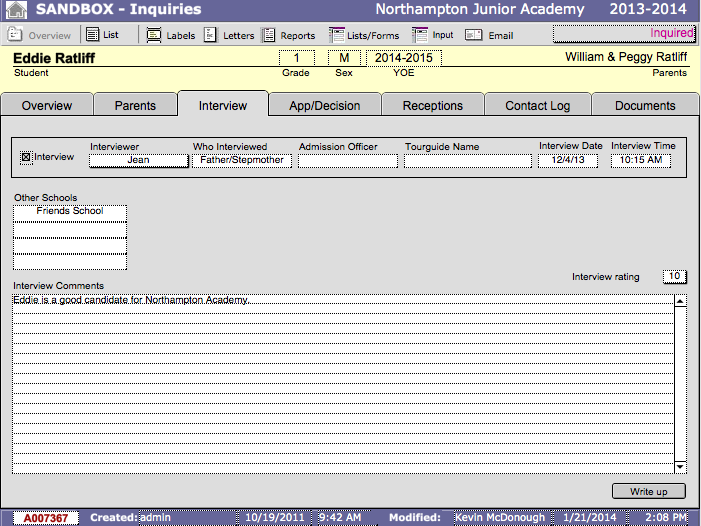
- Click the Interview tab.
- Enter the Interview Date.
- Click on Interviewer and choose the appropriate interviewer. If the interviewer does not appear here, choose Edit… and type their name into the dialogue box.
- Fill in the Admission Officer if there is an admission officer associated with the applicant.
- Fill in the Tourguide Name if the applicant and/or family was given a tour of the school.
- Fill in the Interview Time to reflect the time the interview took/will take place.
After the Interview Has Occurred
- Click the Interview checkbox to indicate the interview took place.
- Click on Who Interviewed and choose which parents/guardians were interviewed. If these terms do not cover the persons interviewed, choose Edit… and type the appropriate terms into the dialogue box that appears.If the applicant is applying to other schools, these may be recorded in Other Schools.
- Make notes about the interview in Interview Comments.
- Enter a rating of the interview in Interview Rating if desired.
- If you wish to print or save this interview, click Write Up to view a summary of the interview.
- Click Preview above the Task Bar to check the formatting for printing.
- Print or Save as desired.
- Click Continue to exit.
Appointment Schedule
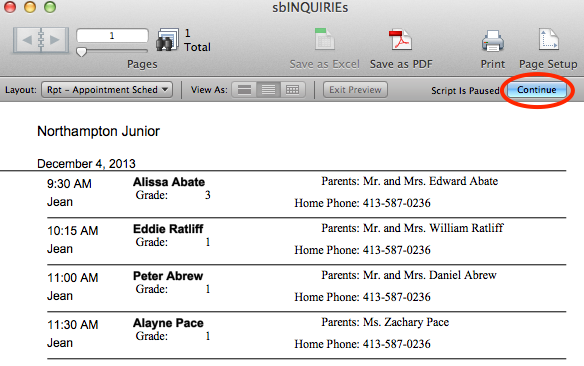
The Appointment Schedule allows you to print out a list of scheduled interviews. It is constrained by your found set.
- Navigate to sbINQUIRIES > Overview.
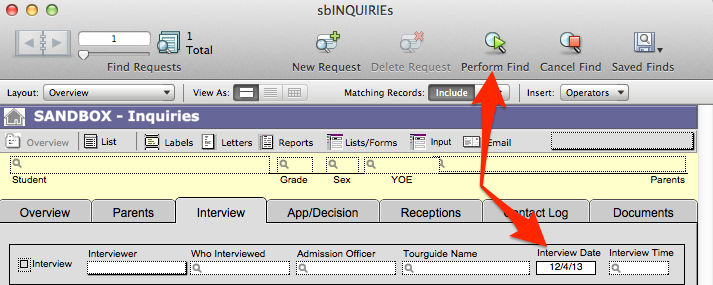
- Click on the Interview tab.
- Find the date or date range you wish to report.
- Click Reports.
- Click on Appointment Schedule. A preview of the Appointment Schedule will appear. If you have found for a date range, navigate days using the book. Each day is a separate page.
- Print or Save as desired. Particular days may be printed by choosing the appropriate pages when printing.
- Click Continue to exit.