
Teacher and Room Graphic Schedules
The data for the teacher and room graphic schedules come from the ksSECTION records.
Student Graphic Schedules
The data for student graphic schedules come from ksSTUDENTREG records.
Update Schedules
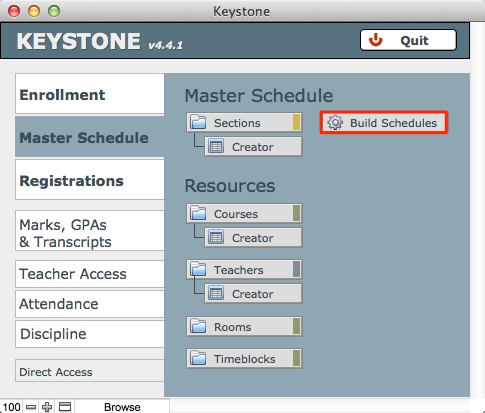
- Return to KEYSTONE Central Navigation > Master Schedule.
- Click Build Schedules. This will update all schedules.
Viewing Graphic Schedules
Graphic schedules can be viewed for students, teachers and rooms. There are many points of entry, including:
- ksVIEWS (students, teachers and rooms)
- ksSTUDENTS > Academics tab
- ksTEACHERS > Sections tab
- ksROOMS > Sections tab
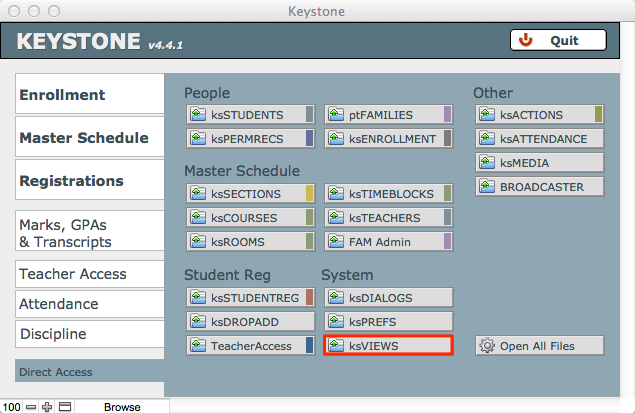
- From Central Navigation, click Direct Access.
- Under the heading System, click on ksVIEWS.
- ksVIEWS displays graphical schedules for a found set of records.
- Use the button in the FMP status bar at the top of the window to Show All records, or
- Use the FMP Records menu > Show All Records, or
- Perform a Find to get the found set of records whose schedules you want to see.
- From the Layouts dropdown menu, select the layout you wish to view for your found set:
- Student Schedules
- Teacher Schedules
- Room Schedules
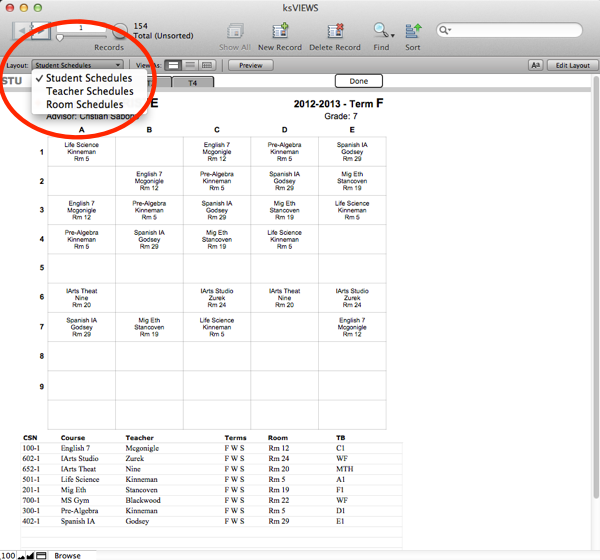
You can perform a Find within a graphical schedule. for example, if you wish to find an available room for a particular slot in the Rooms schedule, you can Find for any data in a particular slot (use the *), OMIT, then Perform Find to see which rooms are unscheduled during that time slot.
