
You can change the order in which grades appear on reports.
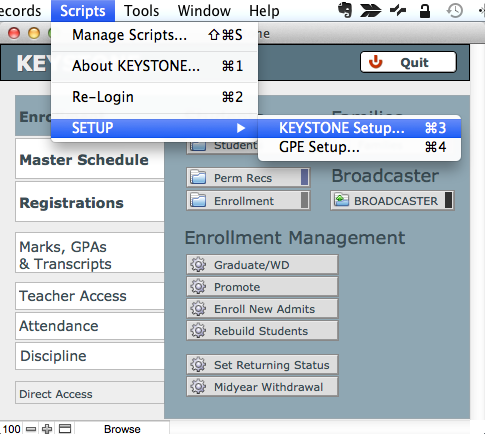
- From KEYSTONE Central Nav > Scripts menu, select KEYSTONE Setup.
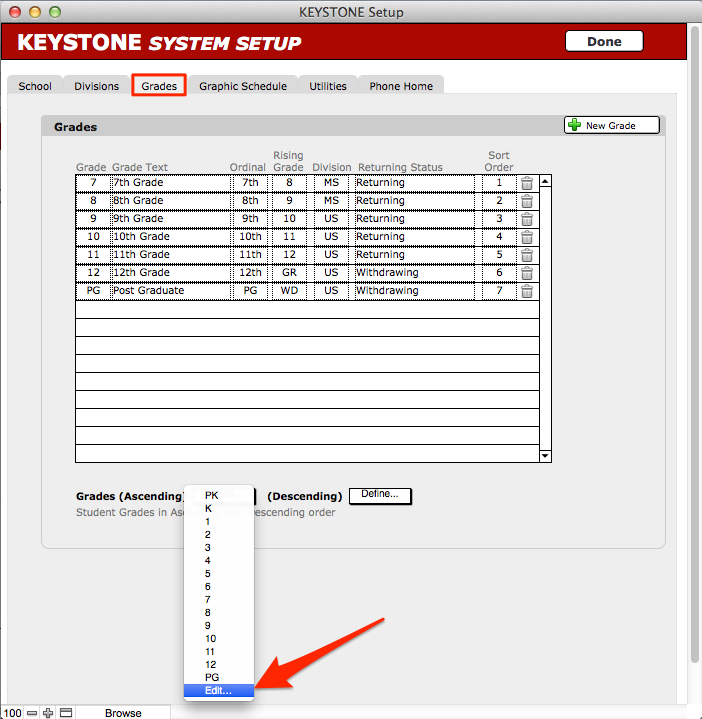
- In the Grades tab, click Define next to the label Grades (Ascending) or (Descending) at the bottom left side of the screen.
- Click Edit at the bottom of the list of grades. The Edit Value List Grade_asc/Grade_dec screen will open.
- Change the order of grades here to match the correct ascending sort order (Ascending: PK before K or 12 before PG; Descending: K before PK or PG before 12).
- When you have completed making your changes, click OK to return to the KEYSTONE System Setup screen.
- Click Done.
