
Discipline can be entered in two places:
- KEYSTONE Central Nav > Discipline
- TAM by individual teachers
Entering Discipline Incidents in KEYSTONE
If the teacher is entering incidents in KEYSTONE, those incident records will flow into all rosters viewed by teachers in TAM.
- Click on Discipline in Central Nav.
- Under the heading Enter Discipline click By Student.
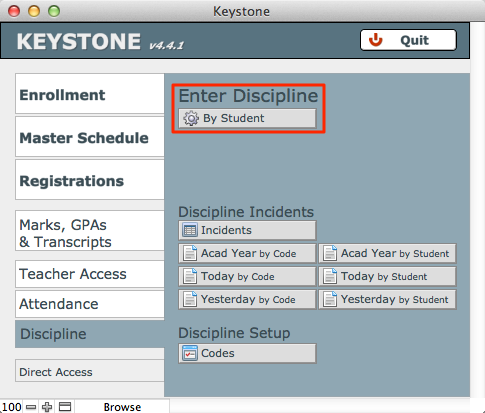
The discipline interface will open ready to accept your selections.
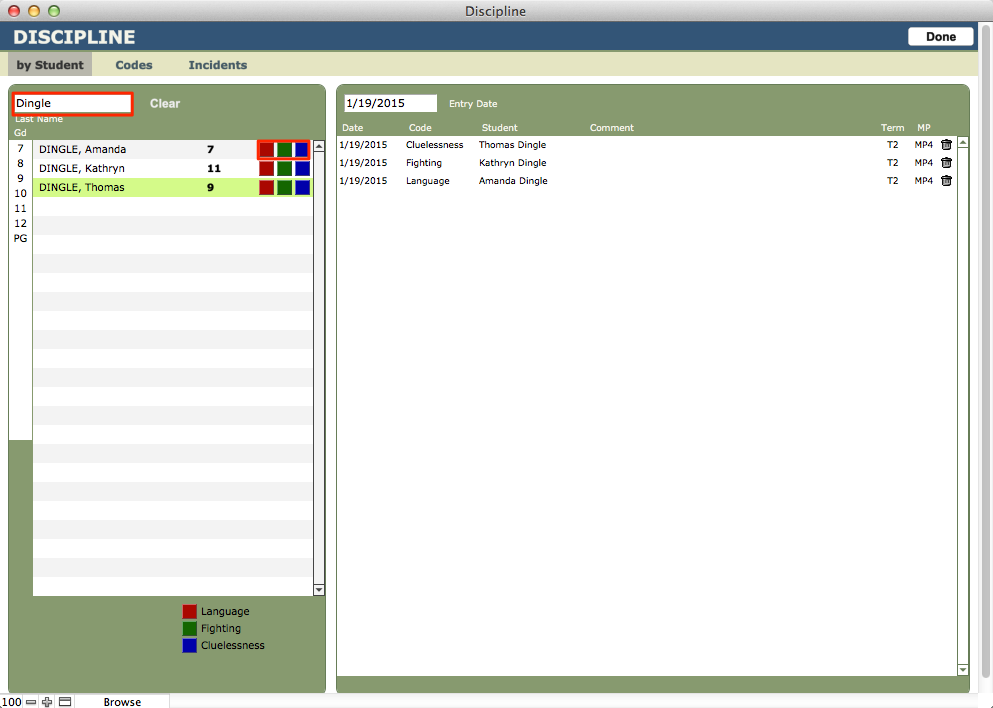
Enter the name of the student for whom you want to log a discipline incident.
Click the appropriate colored square next to the student’s name. There is a key below the display showing the codes associated with each color. The incident will appear on the right as one of today’s discipline incidents.
Entering Discipline Incidents in TAM
Faculty will use the Discipline tab in their TAM account to enter discipline incidents. See the article in the TAM Faculty Guide for more detail.
Discipline Incidents Reports
On the Incidents tab, you can perform a Find on any field to get a found set of records.
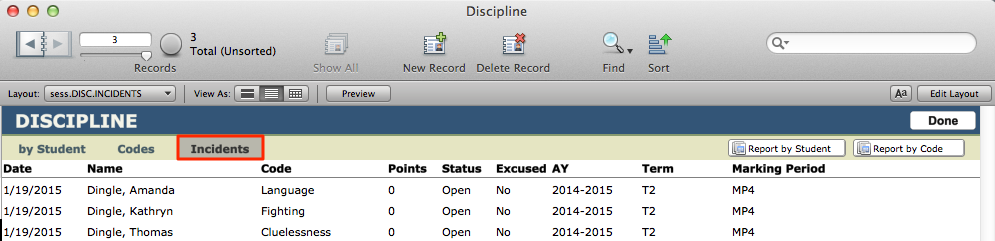
You can then click on Report by Student or Report by Code to get a printable report.
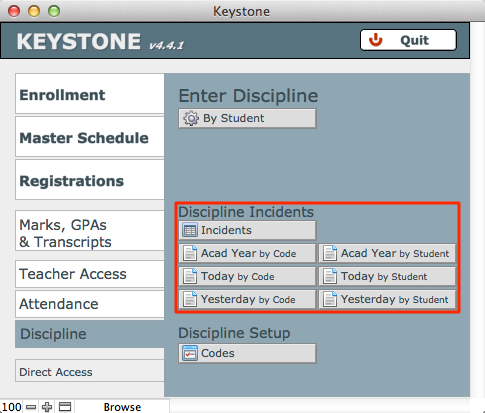
You can also pull reports from Central Nav > Discipline, under the Discipline Incidents heading.
Discipline Codes Setup
From Central Nav > Discipline select Codes from under the Discipline Setup heading. This is where you can set the language describing the Code and the Description for what each of the colored buttons represents, within the By Student and By Section interfaces.
