
New students are added to KEYSTONE from the PORTAL Admissions solution. In KEYSTONE they need to be processed in Enrollment Management to become part of the school population.
Note: If your school does not use the PORTAL Admissions solution, your KEYSTONE administrator will be able to provide you with instructions on how new students are enrolled.
- From Central Nav > Enrollment, select Enroll New Admits under the Enrollment Management heading.
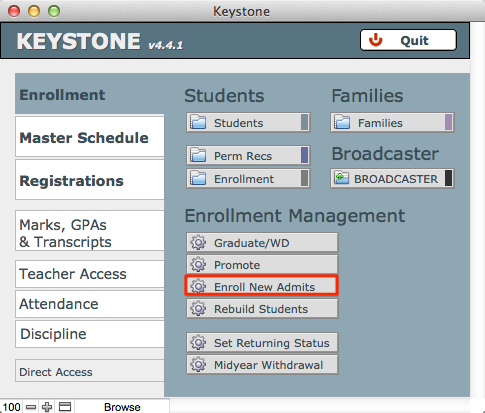
- The Enroll screen will open. Before you begin, verify that the selected enrollment year is set to the academic year into which you are enrolling students.
- Select students to be enrolled (see Graduate/Withdraw for methods). Only new admits will be visible in the scrollable list.
- Click Enroll.
- Confirm your choice. You will see a status bar indicating the progress of your action.
- When the action is completed, click Done to return to Central Nav.
