
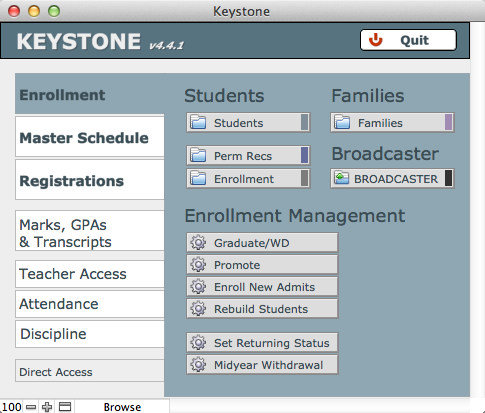
- From Central Nav > Enrollment, select Graduate/WD under the Enrollment Management heading.
- The Graduate/Withdraw screen will open. Before you begin, verify that the selected enrollment year is the academic year from which you are graduating/withdrawing students.
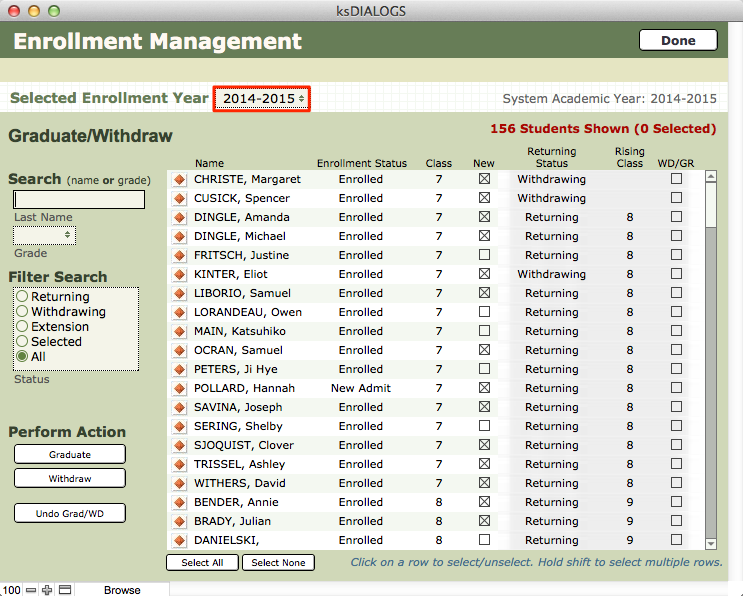
- Use the scrollable list that occupies most of the screen to select the group of students you are going to graduate or withdraw.
Three Ways to Make Selections in Enrollment Management
- Single clicking a student’s name will cause it to become highlighted in green. This student is now selected. You may also notice that the number of selected students is tallied at the top right of the student list. To de-select the student, click on their name again and the highlight will disappear and the student will no longer be counted.
- Select a continuous group of students by clicking on the topmost student you want to include, holding down the shift key, and clicking on the last student record you want to include. You may then release the shift key. You will notice that all the students in between the record you clicked and shift-clicked are now highlighted and tallied above.
- You may also use the Select All button at the bottom of the student list to highlight all visible records. These buttons are useful when used with the Name and Grade search fields, as well as using the radio buttons in the Filter Search area to filter the displayed students.
- If you wish to clear your selections at any time, click Select None.
- Click Graduate or Withdraw under Perform Action.
- Confirm your choice by clicking either Graduate or Withdraw (depending on whether you chose to graduate or withdraw the selected students), or Cancel. KEYSTONE will display a status bar indicating the progress of your action.
- When the action is completed, click Done to return to Central Nav.
