Blend Timeblocks and Ad Hoc Timeblocks into a Master Schedule
The Master Schedule is the collection of ksSECTIONS records for a given academic year. These records combine all the resources—courses, teachers and rooms—into a set of sections with enough capacity to allow students to register for their requested classes without conflict.
Each section is associated with a Timeblock in the master schedule. Timeblocks represent a repeating pattern in your schedule. Timeblocks are created by the inRESONANCE implementor as part of your initial setup. When exceptions to the schedule are required—such as when one section will change meeting times for one term; or when a student wants to use a Study period once a week to meet with a tutor—you will make such changes using Ad Hoc Timeblock scheduling.
Timeblocks and Ad Hoc Timeblocks are not mutually exclusive in KEYSTONE 4.3. Timeblocks may be used for some sections while ad hoc timeblock scheduling is used for others. Ad hoc scheduling—for sections or individuals—may be used to override the slots assigned through the association of a section with a specific timeblock.
Ad Hoc Timeblocks can be applied on a section-by-section basis, on a term-by-term basis, or at the student registration level.
Timeblocks vs. Ad Hoc Scheduling
There are two ways to assign a specific section to slots in the academic schedule in KEYSTONE 4.3:
- Timeblocks
- Ad Hoc Timeblocks
Timeblocks are for repeating patterns
Timeblocks are best used for patterns that repeat in the schedule. A typical timeblock would be Period 1 on Monday, Period 2 on Tuesday, Period 3 on Wednesday, Period 4 on Thursday, Period 5 on Friday. Or Period 3 all week, except for a double period on Thursday. Another kind of timeblock would be to assign one slot as a Study Hall, creating these singleton timeblocks for every possible study hall period.
KEYSTONE has the ability to keep track of a schedule that is anywhere from 1-12 days. A typical schedule is five days across, from 1-12 periods per day.
A typical school may have 7 or 8 timeblocks, and then many exceptions to that basic schedule. In other schools, there is a different pattern for almost every section.
When exceptions to the schedule are required—such as when a student who is assigned to a Study Hall that meets Period 4 every day wants to use a Study period once a week to meet with a tutor—you will make such changes using Ad Hoc Timeblock scheduling.
Some schools may choose to do their entire Master Schedule using ad hoc scheduling.
Understanding Timeblocks
A Timeblock is a pattern of meeting periods that can be assigned to course sections.
Timeblocks are part of the Master Schedule domain.
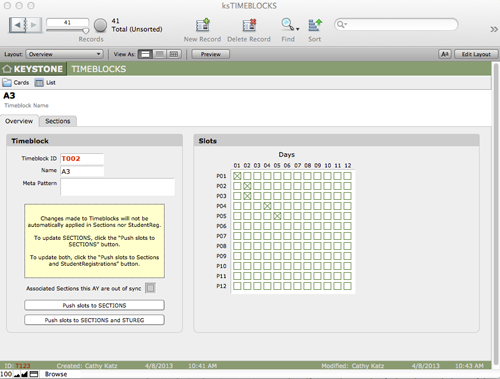
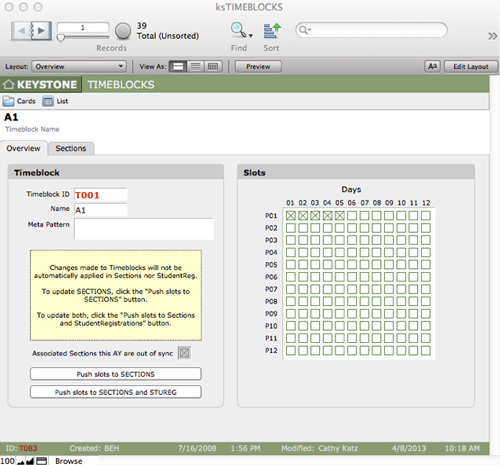
Every ksTIMEBLOCKS record will have a Timeblock ID and a Timeblock Name. Timeblock ID numbers will be auto-created with T as the ID prefix as each timeblock is created. Timeblock IDs should not be reused.
KEYSTONE uses the concept of a Slot to define the division of a school day. A Slot is a schedulable interval during a day. This roughly corresponds to the concept of a period. A regular seven-period day with lunch, would be considered to have 8 slots per day. With after-school sports and an evening study hall, that would total 10 slots. KEYSTONE can support up to 12 slots per day without customization. The slots do not need to be of the same duration, and can be different durations on different days.
✢ BEST PRACTICES: Unless the school uses a very simple timeblock scheme such as A to G, it is usually not practical to try to describe the timeblock in a name. These names get too long and if complicated are inappropriate for viewing by anyone except the Registrar. A name such as “D1-2/3 D3/4 D4/1D5/6” is not practical. It is better to have the name be A1 or A2 or such indicating a variation of a meta-pattern, and leave the details out.
Day Rotations
Most schedules also include a repeat after a certain number of days. Examples include an A/B (2 day) repeat, a simple five-day repeat, a seven-day cycle, 10-day (two week) or eleven-day (two week with every other Saturday). KEYSTONE can support up to a 12-day repeat without customization.
Multiplying the slots per day, times the number of days provides the total number of slots. An 8 period day with a five-day repeat would have 40 slots. We generally refer to this as an 8×5 (eight by five) schedule. The default graphic schedule in KEYSTONE is 8 x 5, but this can be configured to any combination of 12 x 12.
The concept of timeblocks is illustrated below using a simple 8 x 5 schedule. A section, or other activity, can be scheduled into any combination of the 40 slots. The most common practice is to schedule each section once a day—perhaps with one day missed.
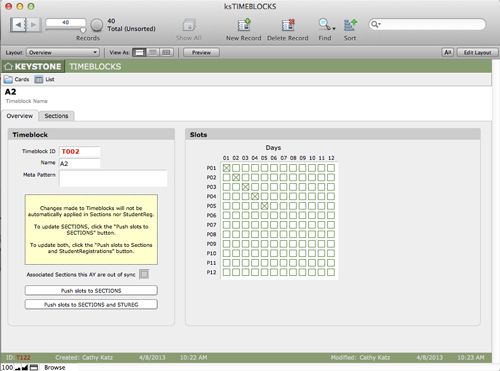
This pattern could be Timeblock T001, named A1. The slots are D01P01, D02P01, D03P01, D04P01, D05P01. The idea here is to display a scheme with some regularity. The name of the pattern is derived from the location of the first meeting.
This pattern could be Timeblock T002, named A2. The slots are D01P01, D02P02, D03P03, D04P04, D05P05. Any section taught in Timeblock A2 would meet these five slots. There could be many such sections, but no room, teacher or student could have more than one section meeting at this timeblock. Also, no room, teacher or student could have two sections using T001 for one and T002 for another because they conflict with D01P01.
Another common pattern is a double period, especially for science labs. Below is a Timeblock illustrated with a double period. This is D01P01, D02P02, D02P03, D04P04, D05P05.
This is the challenge posed in creating the master schedule: to let every student take all the courses requested without a conflict of room, teacher or timeblock. It may be this is mathematically impossible, even with the use of a computer. Sometimes the only solution is to have some students take their second choice class or to get more rooms or more teachers.
Fixed Timeblocks
One way to make conflict checking easier is to use fixed timeblocks. Below are two common schemes. These are essentially identical in complexity but the second provides some daily variation for the students and teachers. In either case, no teacher, room or student can have more than one section in a single timeblock.
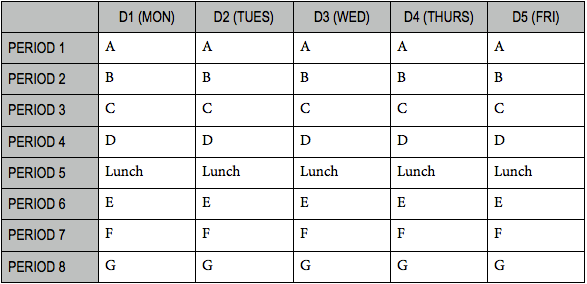
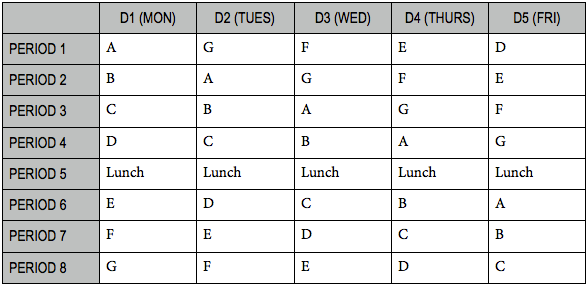
With fixed timeblocks the Registrar must simply ensure that no teacher, room or student uses the same timeblock as another teacher, room or student for their sections. If each student takes five or perhaps six classes, then there is always one timeblock free for each student for study hall, tutoring, lessons, meetings and such. The complication with fixed timeblocks is that double periods break the simple pattern and cross timeblocks, and seriously restrict the possibilities.
Rotating Blocks
Schools will often use more complex schedules to increase the number of possibilities to allow more students to get more of their choices. This may include a 7-day rotation, or a schedule that skips a day for each pattern. Below is an 8 x 6 with sections meeting 5 out of 6 days with a skipped day.
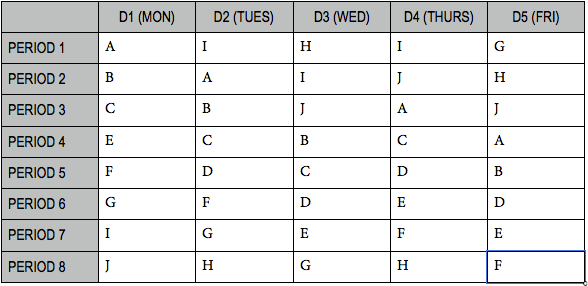
This kind of schedule is very hard for the users to learn, especially if it changes slightly each year. A printed graphical schedule is very important for everyone to know when his or her appointments happen. In this scheme, students could have their lunch scheduled along with classes, and lunch period could change in time from day to day.
Meta-Patterns
KEYSTONE also uses the concept of a meta-pattern. This is a combined set of slots that can have sub-slots. It is possible to schedule two classes in sub-slots while using only one main pattern. This again increases the number of possibilities.
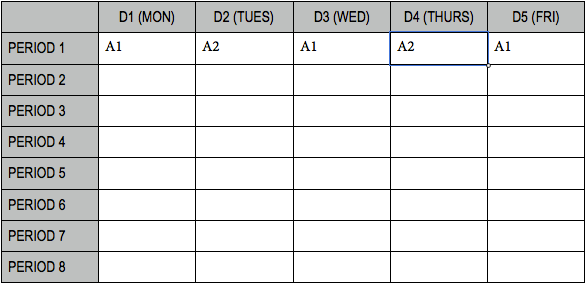
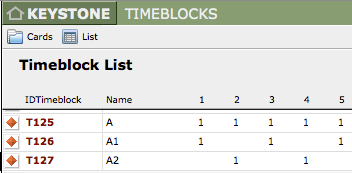
In this example, the meta-pattern is A, with slots D01P01, D02P01, D03P01,D04P01, D05P01. Timeblock A1 is a sub-block using the Meta-pattern A. The slots are D01P01, D03P01, D05P01. Timeblock A2 is another sub-block, with slots D02P01, D04P01. A student can take half-classes using both A1 and A2 without a conflict, but not A1 and A or A2 and A.
Singleton Slot Timeblocks
For the purposes of scheduling single events, KEYSTONE can have a timeblock for each individual slot. These slots may belong to a meta-pattern, but they often are scheduled separately. A common example is study halls or music lessons, where each will essentially be a different section, with a different group of students and a different teacher. For this purpose, timeblocks might use an S timeblock for each slot.
Any one-slot activity can now be defined as a section, scheduled for that timeblock, and displayed on a graphic schedule. Clearly, that one-slot activity cannot conflict with the meta-pattern that contains it.
Free Rotation Scheduling
To maximize the possibilities for a school, it might be necessary to have different schemes for mutually exclusive groups. If the senior sections, for example, seldom overlap with freshman offerings, then the timeblock patterns for Seniors could be different than those for Freshmen, depending on the course requests that year. The number of possibilities grows into the millions once a school elects to schedule this way, and without a computerized scheduling algorithm, is almost impossible to develop.
Many timeblocks may share the same slot, so no room, teacher or student can use those conflicting timeblocks. The matrix of conflicting timeblocks can be extremely complex with free rotation. This is the exact opposite of fixed blocks where timeblocks never share slots.
Period Length Variations
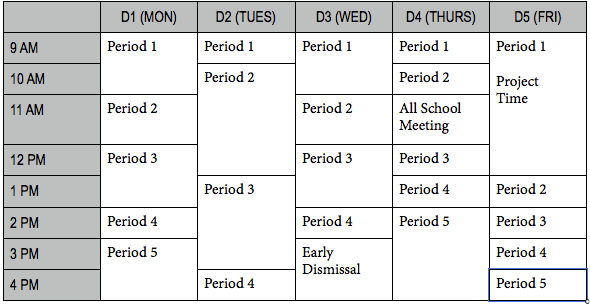
Because KEYSTONE uses the concept of a slot, the duration of that can be variable and displayed to scale on the graphic schedule. So far we have examined only a regular 8 x 5 schedule. Many schools have variable length blocks during the day that also vary from day-to-day.
KEYSTONE calculates conflicts on the basis of slots, not time, so it does not matter when a slot begins or ends or how long it lasts—no room, student or teacher can use the same slot for two sections at the same time without causing a conflict.
In this example, the periods conform to exact hours but they can be of any length and vary each day. A conflict would be a student, teacher or room assigned to different sections meeting Period 3 on D03. These variable length periods could use either a fixed or free block rotation scheme.
Non-supported Schedules
KEYSTONE will not manage a schedule that is not based on the concept of periods but instead uses time intervals. The latter is the way that many calendaring programs work, displaying an event on a daily time grid using the start and end times. These are usually capable of displaying down to the 5-minute, or even minute, variation.
Because of this fundamental difference, some things in KEYSTONE are not possible. KEYSTONE is not a scheduler and will not detect conflicts over time, across different divisions. So if Period 5 for the Lower School is 11:05 to 12:00 but Period 5 for the Middle School is 11:45 to 1:00 PM, there is no indication of a conflict. The Registrar would need to understand this and not schedule people across divisions into timeblocks that use the same time. This generally is well understood by the person who schedules the school and the reason that schools attempt to make the schedules and periods overlap as little as possible.
Division-specific Graphic Schedule Limitations
KEYSTONE can display different time schedules for each division. Teachers and rooms that cross divisions will have to consult two different schedules, however. There is no comparison of time conflicts across divisions, so that will have to be addressed by the Registrar being aware of how the schedules differ and conflict. Clearly, if a school has two divisions each with free rotating, variable length timetables and teachers crossing divisions, scheduling in general will be very tedious.
There is proper navigation to the correct divisional graphic schedule based on the tab that is selected in ksROOMS, ksTEACHERS or ksSTUDENTS. It is impossible, however, to have one printout display different time schedules. This is a limitation both of KEYSTONE and to some degree of timetables. What the teacher and room schedules display is a proper rendition of the distribution of time, periods and days for that division.
Ad Hoc Timeblocks Scheduling for an individual Section
Ad Hoc Timeblock scheduling allows the scheduler to create/edit a timeblock for an individual section. This is done within the section record itself by selecting slots on a simple grid.
Creating an Ad Hoc Timeblock schedule for a particular Section
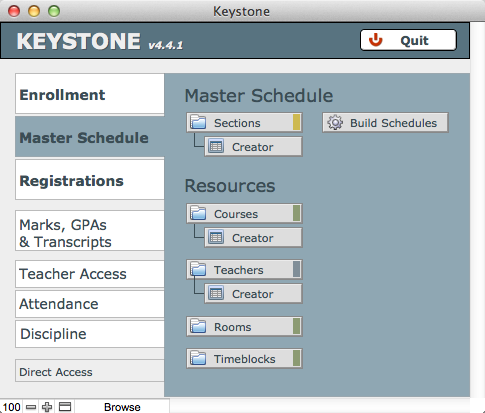
- From KEYSTONE Central Navigation > Master Schedule > Sections (or Sections > Creator), perform a Find for the section whose schedule you wish to create/edit.
- Click on the Slots Detail tab of the section.
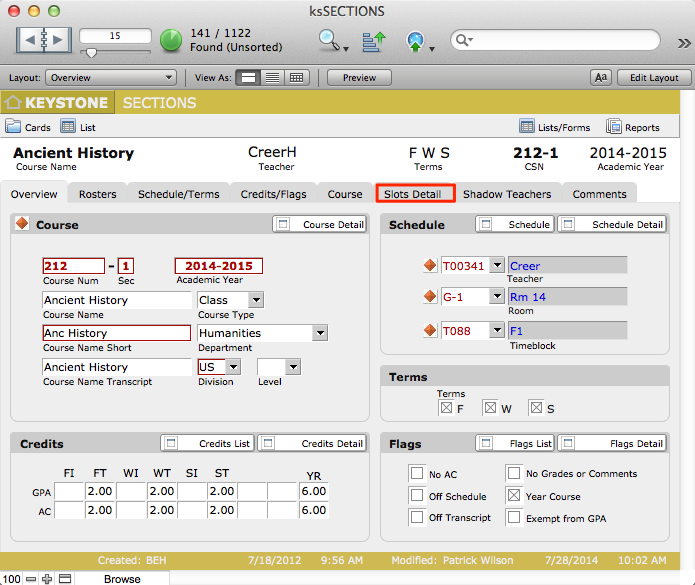
- In Slots Detail, select the appropriate sub-tab: Default (if you will create/edit the schedule for all terms assigned to the section); or select T1, T2, T3 or T4 Override if you will create/edit the schedule term-by-term.NOTE: There is a Clear All button beneath the slots grid that will clear the entire schedule for the section, which will allow you to start a new timeblock.In this example, the section has already been assigned the D1 Timeblock. In Term 1, we will change the Saturday meeting time from Period 7 to Period 5.
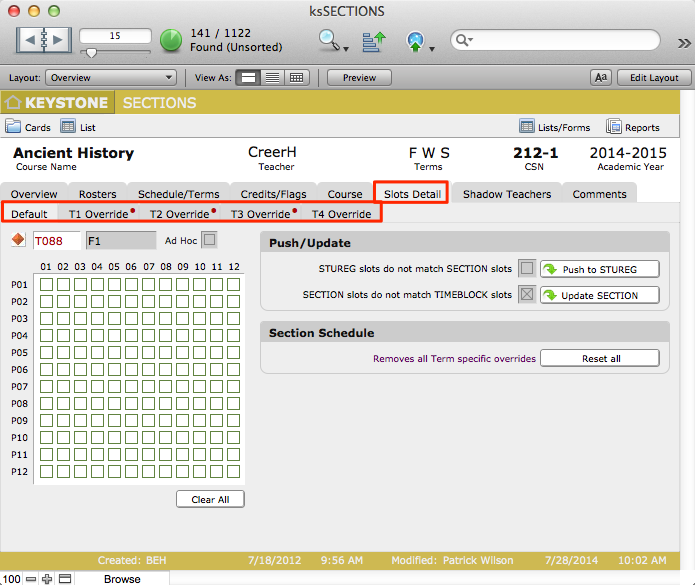
- Navigate to T1 Override sub-tab and change the Saturday slot (Day 6) to Period 5 (P05).
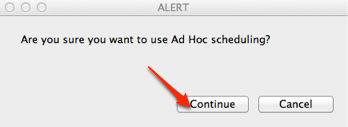
- An alert dialog box will pop up, asking you to confirm that you want to use ad hoc scheduling. Click Continue.
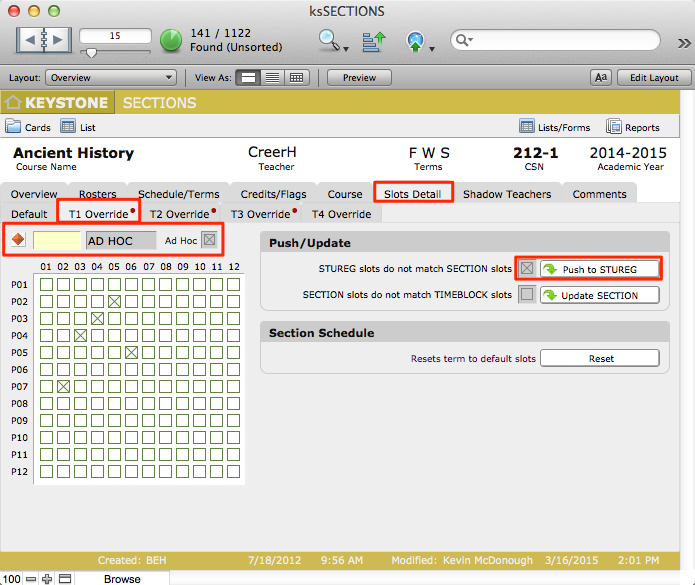
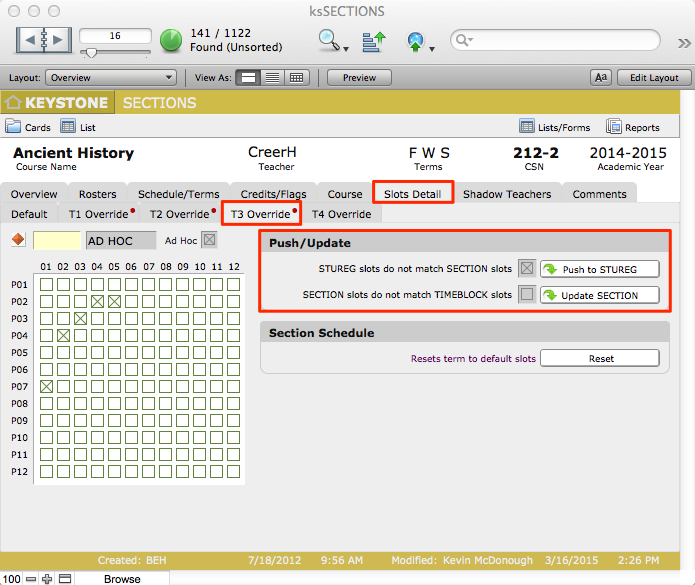
The schedule for this section, T1, has been changed. Note that the T1 Override tab now displays a red dot (indicating that an override exists), the Timeblock ID is gone, and the Timeblock name now displays AD HOC.
The Ad Hoc checkbox has been checked. This checkbox makes it easy to perform a Find for Ad Hoc schedules.
Another change is in the Push/Update area, which alerts you that the STUREG slots do not match the SECTION slots. A similar alert would signal that SECTION slots do not match STUREG slots. Buttons to the right of the alerts allow you to take appropriate action:
- Click Push to STUREG to update records properly, and/or Update SECTION.
Ad Hoc Scheduling for an individual Student
You have the power in KEYSTONE 4.3 to change the slots assigned to an individual student. This is done in the Student Registration record. A good example of when this might be useful would be when an individual student will use one study period a week for a private music lesson. The slots for that student can be changed without affecting any other students in the section.
- Navigate to the Student Registration record for the section whose schedule you wish to edit.
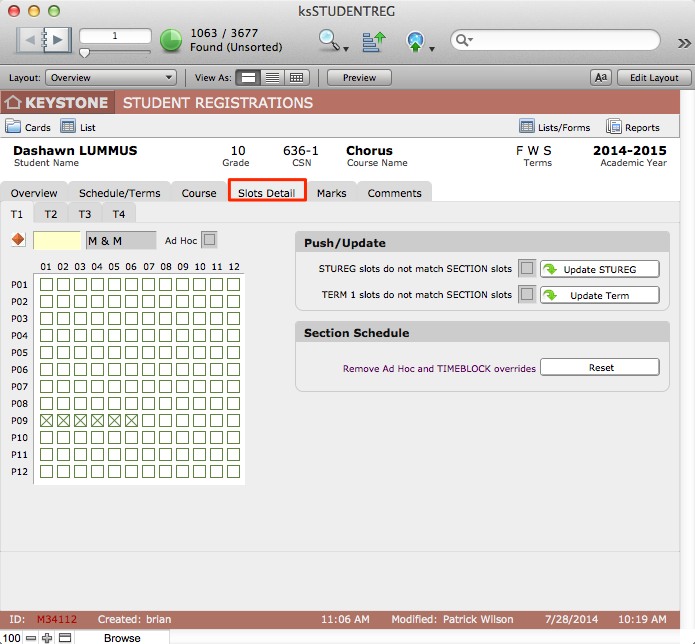
- Click the slot(s) you wish to change. A dialog will pop up to confirm that you want to do Ad Hoc scheduling.
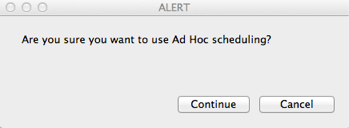
- Click Continue.
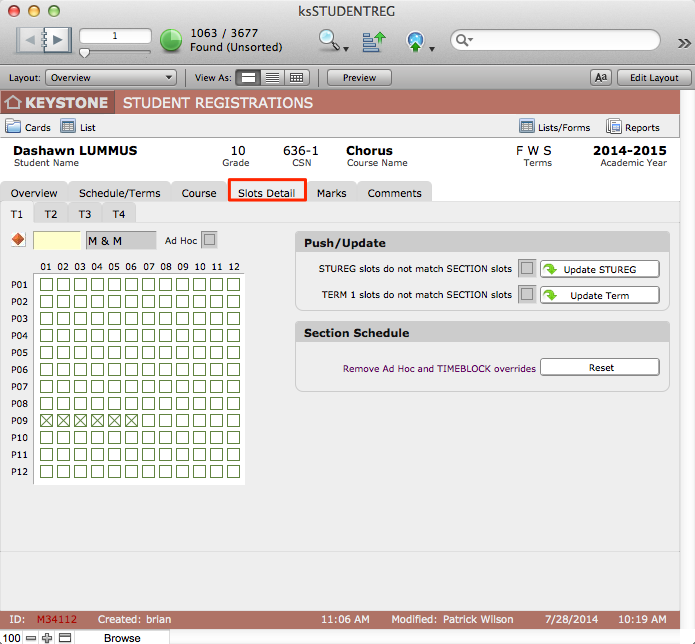
Undoing Ad Hoc Timeblock changes
In the Section Schedule area on the Slots Detail tab, you can reset a timeblock back to the default for the section:
- Click the Reset button.
Detecting the need to Update Changes to Slots
Registrations and schedules are complex relationships. When you make a data change to key fields, you need to make certain your changes are updated in related records.
To understand when data changes need to be updated elsewhere, refer to the article in KEYSTONE Concepts, Data Inheritance: Lookups and Related Data.
There is functionality built into KEYSTONE 4.3 to allow schedulers to easily detect when updates to slots are needed in Sections and Student Registration records.
Updating changes in Timeblocks
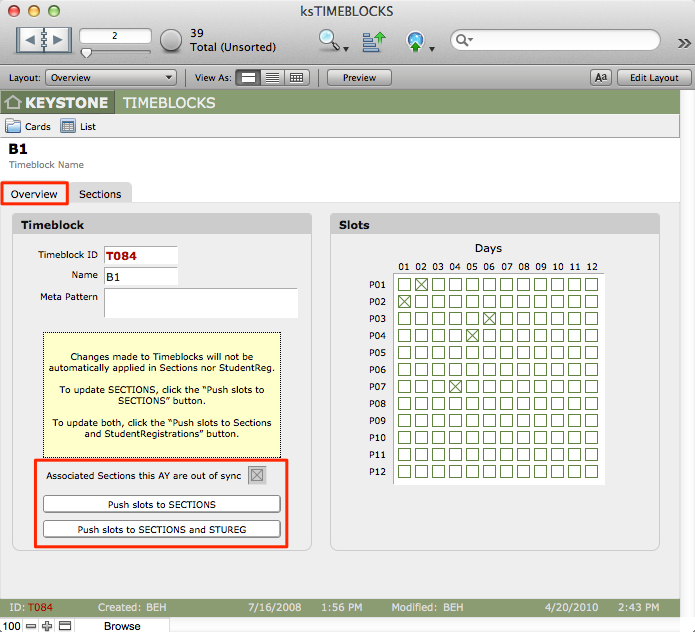
Your changes can be pushed out to Sections and Student Registration records when changes are made to a Timeblock:
- Notice if the checkbox is checked, indicating Associated Sections this AY are out of sync.
- Select an action:
- Push slots to SECTIONS.
- Push slots to SECTIONS and STUREG.
Updating changes in SECTIONS
Your changes can be pushed out to Student Registration records when changes are made to a Section’s meeting times, or pulled into Student Registration Records and Sections when these are seen to be out of sync with the Sections or Timeblocks with which they are associated.
Push/Update will assist you in identifying and resolving conflicts.
IMPORTANT: Push/Update is not foundset based. You must address each conflict separately. Perform a Find on each Push/Update checkbox, and then address each record one-at-a-time by clicking in the book in the FileMaker status area.
If after making ad hoc schedule changes your records are not in sync, Push/Update will alert you and give you an appropriate action to take:
- STUREG slots do not match SECTION slots
- TERM slots do not match SECTION slots
- Within the Slots detail tab, in the Push/Update area, look for a checkbox that is checked.
- Click the related button—Update STUREG or Update Term—to push changes appropriately.