
Once the faculty have entered final grades and comments for the year, you can prepare transcripts.
- From Central Nav > Marks, GPA’s & Transcripts, select Transcripts.
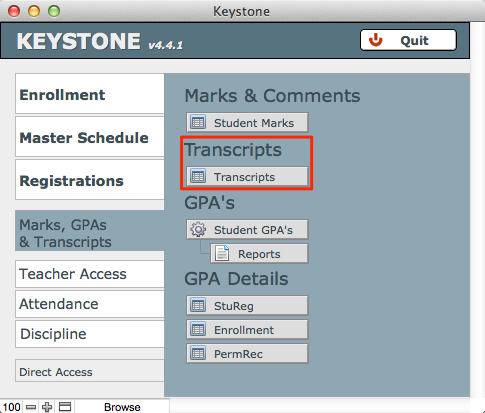
This opens the Transcripts List in ksPERMRECS.
- Perform a Find to get the group you want; in this example, a Find on YOG to get this year’s graduates.
- If you wish, sort your list by going to the FMP Scripts menu > Sort by Name.
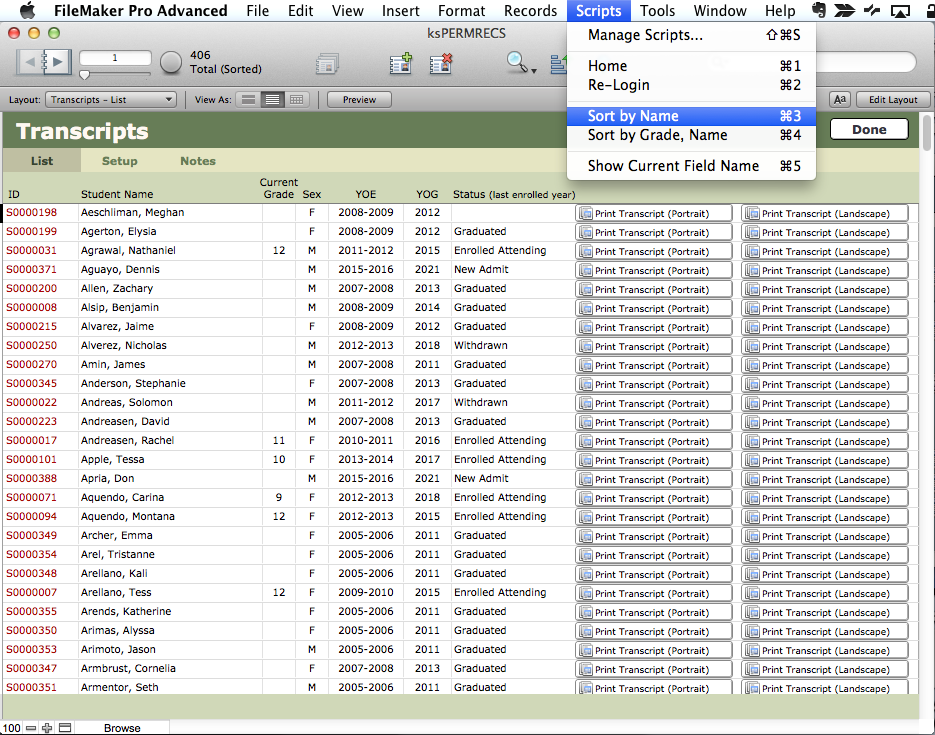
- Click the Setup tab.
- Enrollment records for your found set will display in a Transcript Setup layout. You can click through the book to view and edit each transcript individually.
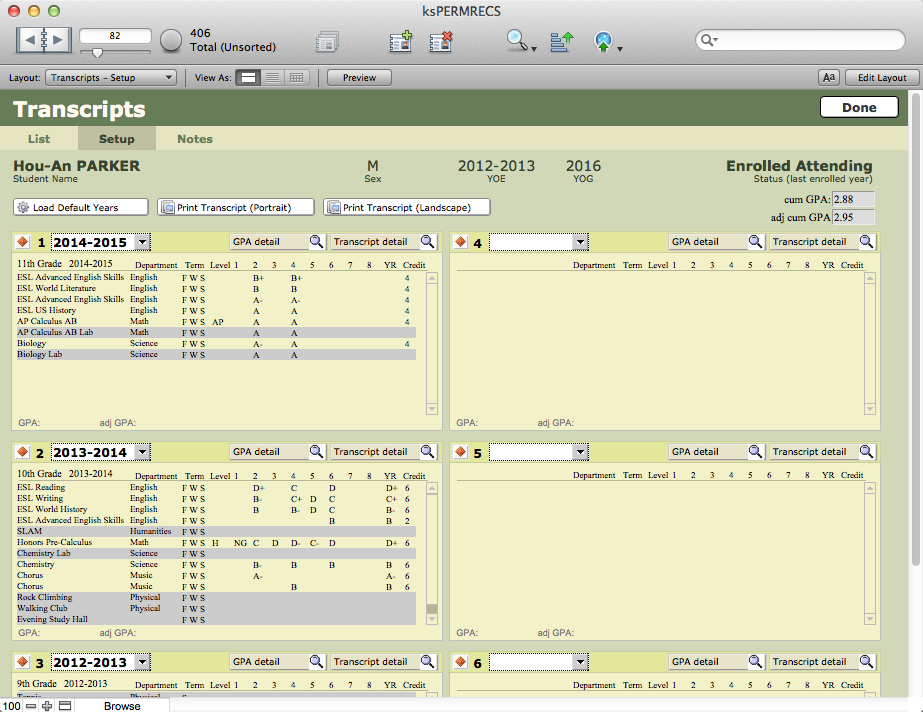
- The Setup screen is where you can decide what years you want to display, and where on the transcript you want a particular academic year to display. The academic years can be placed by using the pull-down menus in each section of the transcript.
- Sections highlighted in gray will not be displayed on the transcript. Click Transcript detail for a given academic year to adjust what will or will not display.
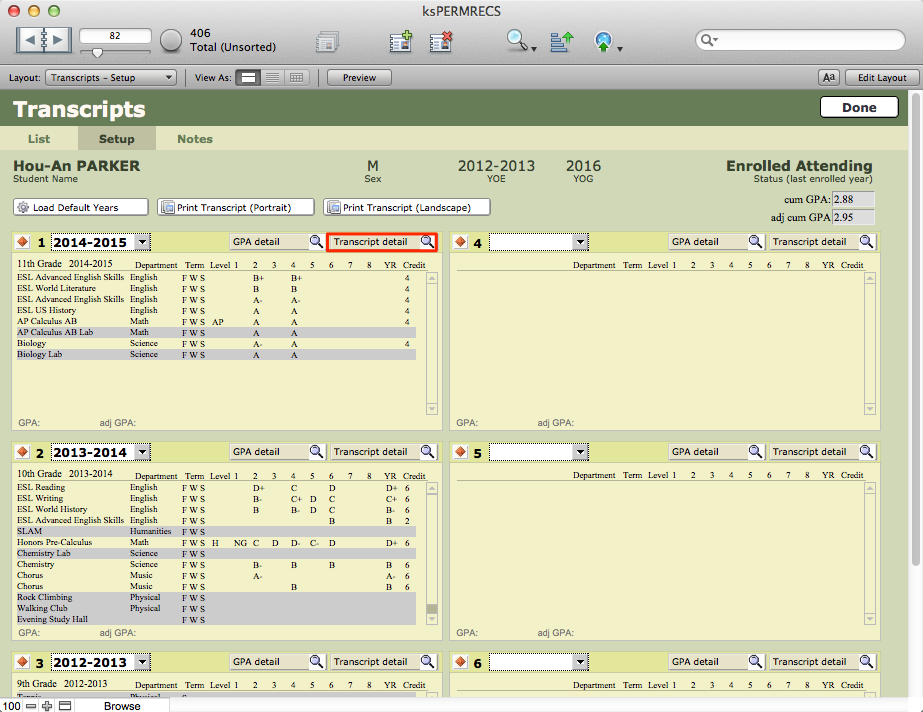
In Transcript detail, you can change the On transcript / Off transcript settings for individual sections, or you can click the orange diamond to navigate to the ksSTUDENTREG record. The record displays whatever is the default setting in the Course, but you can force a change in the individual transcript. On/Off is looked-up data, so it can be edited.

- Adjust your transcript details, then click Done.
- Click the Transcript Notes tab to enter text to appear on the transcript, including information about levels, or to acknowledge coursework taken elsewhere. Click Done.
- Print the transcript; two buttons offer you the choice of Portrait or Landscape orientation.
