
To print Class Rosters one per page for one or more Sections
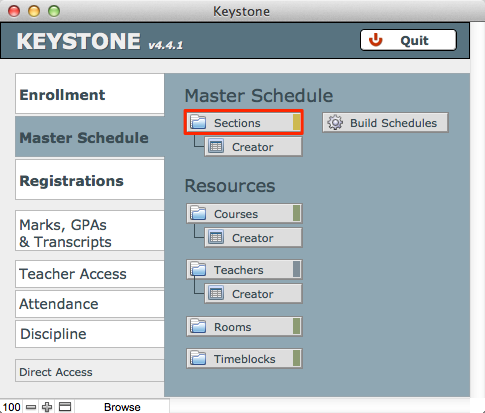
- From Central Nav > Master Schedule, select Sections.
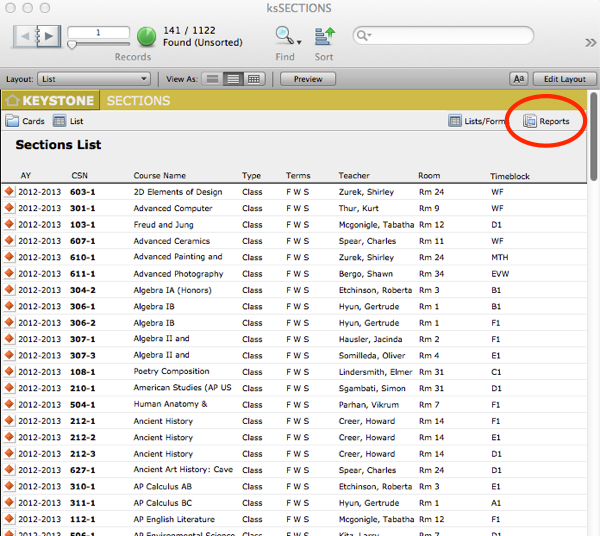
- Find the Section(s) for which you wish to produce a roster.
- Click Reports to navigate to the Reports Org screen.
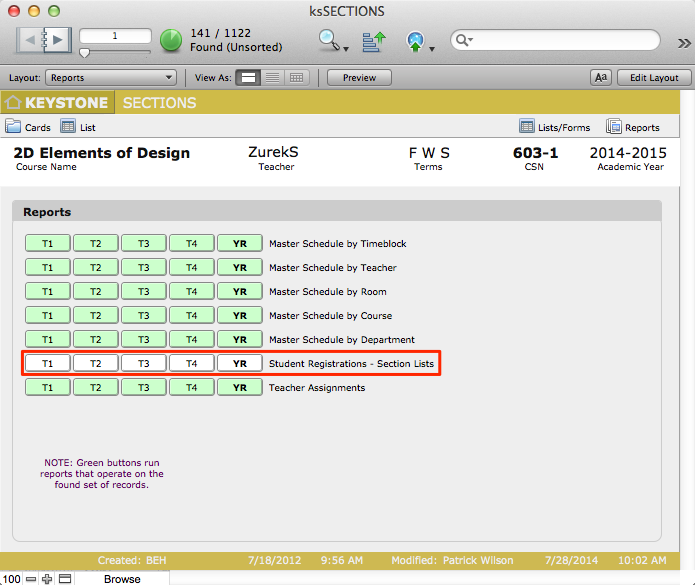
- Click Student Registrations – Section Lists for the appropriate Term.
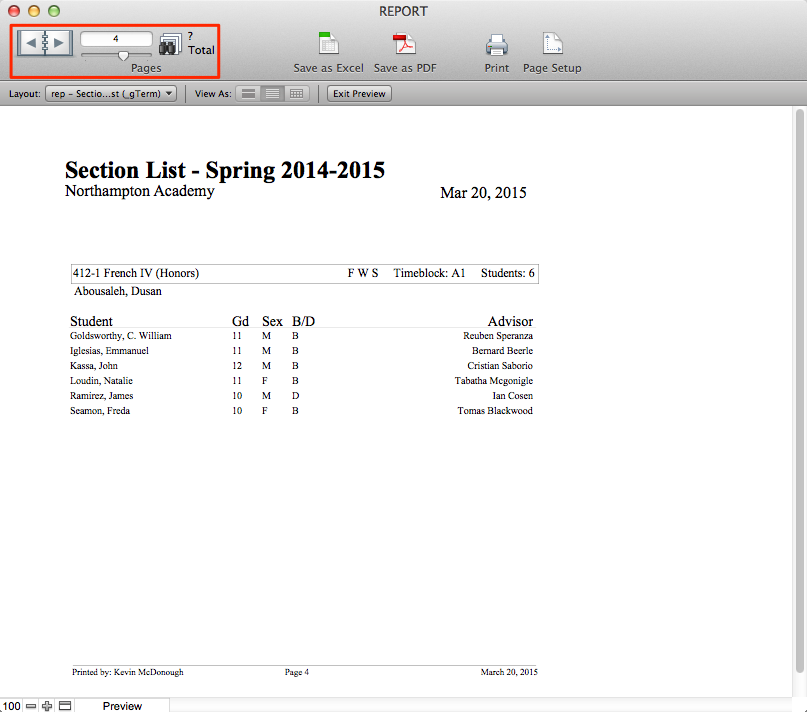
- Scroll throught the Book in the FMP status area to review the report.
Teachers can View and Print their own Rosters in TAM
(from the TAM Faculty Guide)
- Click the Roster button next to the corresponding class, listed under My Classes. The class roster you selected will open in a separate window.
- From the FMP File menu, select Print.
- To return to the Dashboard, click the Continue button to the left of your roster.
