
Before you begin this step, double check that the next academic year has been created in the Preferences Value List. From the navigation window, select Direct Access.
Under System ->ksPREFS. Go to File-> Manage->Value Lists.
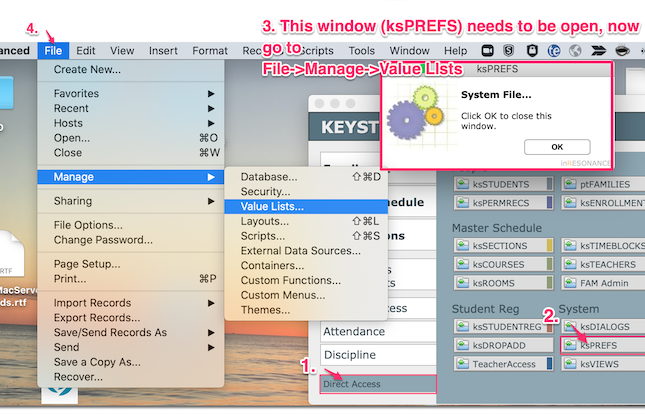
The List you are need to check is “_AcademicYears_working”. Select and edit. Modify these dates in the Use custom values list. Feel free to delete old Academic Years and create additional years, be sure that the next academic year is there and a number of years in the future. These must be created using the xxxx-xxxx format. (2021-2022, 2022-2023, etc.). When complete, hit OK, OK. Close the ksPREFS window. Proceed with the promotion process.
Please note, if the next AY is not in this value list when you promote the Returning students new ksENROLLMENT records get created, but the Academic Year fields are blank.
- From Central Nav > Enrollment, select Promote under the Enrollment Management heading.
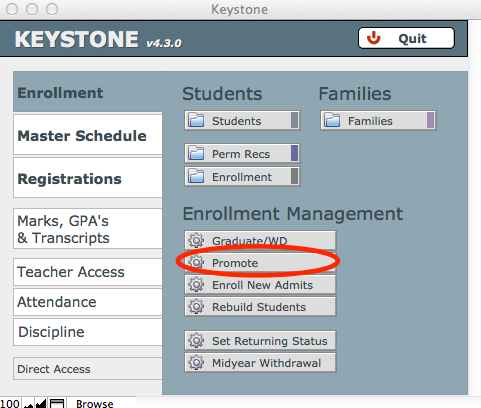
- The Promote screen will open. Before you begin, verify that the selected enrollment year is the current academic year.
- To show only returning students, click the radio button next to Returning.
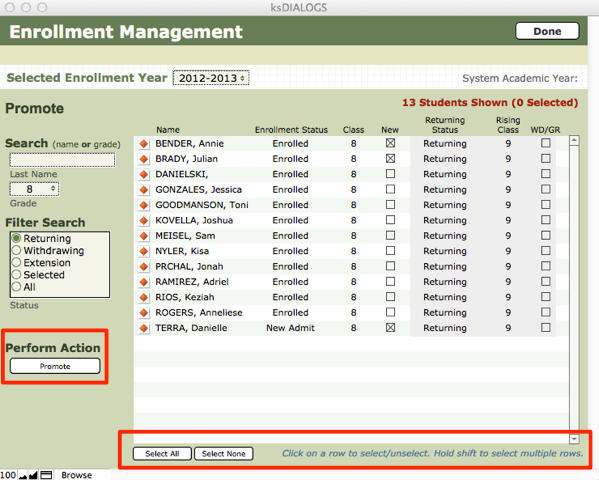
- Click Select All; all students in the list will now be highlighted in green.
- Click Promote.
- Confirm your choice. You will see a status bar indicating the progress of your action.
- When it is completed, click Done to return to Central Nav.
